
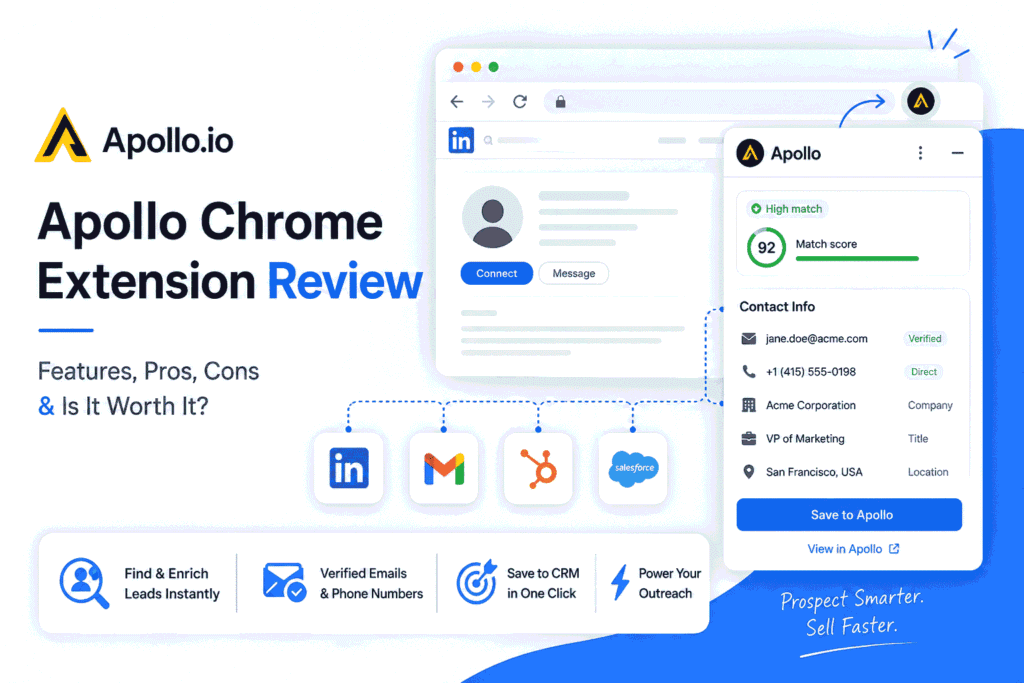
Apollo Chrome Extension Review 2026: Features, Pros, Cons & Is It Worth It?
Table of Contents
Apollo Chrome Extension: Faster Lead Generation Made Simple
If you want to find leads faster, capture contact data instantly, and manage outreach without switching tools, the Apollo.io Chrome extension is a powerful solution to consider.
Instead of juggling multiple tabs and tools, this lightweight extension brings lead generation and prospecting directly into your browser—helping you save time and work more efficiently.
But is it really worth using in 2026?
In this review, you’ll learn everything you need to know—from key features and real benefits to limitations and practical use cases—so you can decide if it fits your workflow.
👉 If you’re just getting started, you can follow this step-by-step guide on how to install and set up the Apollo Chrome extension to get up and running quickly.
What Is the Apollo Chrome Extension?
The Apollo.io Chrome extension is a browser-based tool that connects seamlessly with your Apollo account, allowing you to capture and manage leads in real time while browsing.
With it, you can:
- Access contact data directly from websites and profiles
- Capture and save leads without leaving the page
- Sync prospects instantly to your CRM or outreach lists
In simple terms, it acts as a bridge between browsing and lead generation, turning everyday browsing into a fast, streamlined prospecting workflow.
1. How to Install Apollo Chrome Extension (Step-by-Step)
Getting started with the Apollo Chrome extension is simple and only takes a few minutes. Once installed, you can start capturing leads directly from your browser.
Step-by-Step Setup:
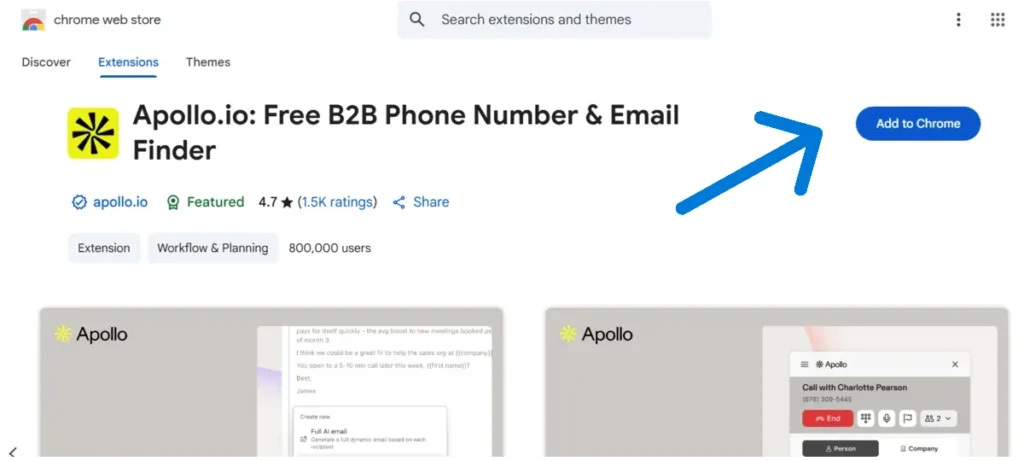
- Go to the Chrome Web Store and search for “Apollo Chrome Extension”
- Click Add to Chrome and confirm installation
- Log in to your Apollo.io account
- Pin the extension for quick access
- Open any website or LinkedIn profile to start using it
Once installed, the extension automatically activates while you browse, allowing you to capture and manage leads instantly.
👉 👉 For a complete walkthrough, check this detailed guide on how to use the Apollo.io Chrome extension for lead generation.
2. How to Use Apollo Chrome Extension on LinkedIn
One of the most effective ways to use the Apollo.io Chrome Extension is while prospecting on LinkedIn. It lets you find and capture leads directly from profiles without switching tools.
To get started, open a LinkedIn profile that matches your target audience and click the Apollo extension icon in your browser. The extension will display available contact details such as email, job role, and company information. From there, you can save the lead to a list or add them directly to your outreach sequence.
- Open a relevant LinkedIn profile
- Click the Apollo extension icon
- Review contact details and company insights
- Save the lead or add them to a campaign
Since everything works within the same page, you can move from finding prospects to taking action in seconds.
For better results, focus on decision-makers like founders, marketing heads, or sales managers, and use LinkedIn filters (industry, company size, location) before opening profiles. This helps you capture more relevant leads and improves your outreach effectiveness.
👉 For a deeper strategy, read this complete guide on Apollo Chrome extension LinkedIn prospecting workflow.
3. Key Features of the Apollo Chrome Extension
Here are the standout features that make this extension powerful:
3.1. Instant Contact Data Extraction
One of the most valuable features of the Apollo.io Chrome extension is its ability to instantly pull contact data while you browse.
Instead of manually searching for emails or switching between tools, the extension automatically scans the page and displays:
- Verified email addresses
- Job titles and roles
- Company details
- Additional contact insights (when available)
All of this happens in real time—right inside your browser.
Why This Matters
Without this feature:
- You spend hours searching for emails
- Copy-paste data between tools
- Risk using outdated or incorrect information
With this feature:
- You get instant access to lead data
- Reduce manual work significantly
- Focus more on outreach and conversions
Real Example
Imagine you’re browsing LinkedIn profiles of marketing managers.
Instead of:
- Opening multiple tabs
- Using separate email finder tools
You can simply:
- Click the extension
- Instantly view verified contact details
- Save the lead in seconds
This feature turns regular browsing into active lead generation, helping you build targeted lists faster and more efficiently.
3.2. One-Click Lead Capture
The Apollo.io Chrome extension allows you to capture and save leads instantly with a single click—no manual copy-pasting required.
As soon as you find a relevant prospect, you can:
- Add them to a lead list
- Push them directly into an email sequence
- Save them for future follow-ups
All without leaving the page you’re on.
Why This Matters
Without this feature:
- You manually copy names, emails, and company details
- Switch between tools or spreadsheets
- Risk losing or misplacing leads
With this feature:
- You capture leads in real time
- Keep your workflow smooth and organized
- Eliminate repetitive tasks
Real Example
You’re browsing LinkedIn and find a potential client.
Instead of:
- Copying their details into a spreadsheet
- Later uploading them into a tool
You can:
- Click “Add to List”
- Instantly save them into your campaign
One-click capture removes friction from your workflow, allowing you to move from finding leads to taking action in seconds.
3.3. Real-Time Data Enrichment
The Apollo.io Chrome extension doesn’t just show basic contact info—it enhances it with real-time data enrichment while you browse.
As you open a profile or company page, the extension automatically provides:
- Company size and industry
- Job role and seniority level
- Company website and key details
- Additional insights to understand the prospect better
This gives you a complete view of the lead instantly, without extra research.
Why This Matters
Without enrichment:
- You rely on limited or incomplete data
- Spend time researching each lead manually
- Risk targeting the wrong prospects
With enrichment:
- You instantly understand who the lead is and if they’re relevant
- Save time on manual qualification
- Focus only on high-potential prospects
Real Example
You open a LinkedIn profile of a “Marketing Manager.”
Instead of guessing:
- You instantly see company size, industry, and role relevance
- Decide whether they match your Ideal Customer Profile (ICP)
Real-time enrichment helps you qualify leads faster and smarter, so you spend more time on the right opportunities and less on unqualified prospects.
3.4. CRM Sync & Integration
The Apollo.io Chrome extension automatically syncs captured leads with your CRM and outreach tools, so you never have to manage data manually.
As soon as you save a prospect, the extension can:
- Add the contact to your Apollo lists or CRM pipeline
- Sync with tools like HubSpot, Salesforce, or Zapier
- Keep all lead data updated and centralized
This ensures your entire workflow stays connected and organized.
Why This Matters
Without integration:
- Leads are scattered across spreadsheets and tools
- You manually transfer data between platforms
- Important prospects can get lost or missed
With integration:
- Everything is automatically synced and structured
- Your pipeline stays clean and up to date
- You can focus on follow-ups and conversions
Real Example
You find a potential client while browsing LinkedIn.
Instead of:
- Saving details in a spreadsheet
- Later uploading them into your CRM
You can:
- Add the lead instantly
- See it appear in your CRM pipeline in real time
CRM sync ensures your leads move seamlessly from discovery to outreach, helping you stay organized and close deals faster.
3.5. Browser-Based Workflow
One of the biggest advantages of the Apollo.io Chrome extension is that it enables a fully browser-based workflow—so you can manage your entire prospecting process without switching between tools.
Instead of jumping between tabs, dashboards, and platforms, everything happens right where you’re already working.
With this setup, you can:
- Find and view contact data while browsing
- Capture and save leads instantly
- Add prospects to lists or sequences
- Take action without opening the main dashboard
All from a single interface inside your browser.
Why This Matters
Without a browser-based workflow:
- You constantly switch between tools
- Lose focus and momentum
- Waste time navigating dashboards
With this approach:
- Your workflow becomes faster and more streamlined
- You stay focused on prospecting
- Reduce friction and distractions
Real Example
You’re researching potential clients online.
Instead of:
- Opening Apollo dashboard
- Switching between LinkedIn, CRM, and email tools
You can:
- Stay on the same page
- Use the extension to handle everything in real time
A browser-based workflow helps you work smarter, not harder, turning everyday browsing into a seamless and efficient lead generation system.
3.6. How It Looks in Action
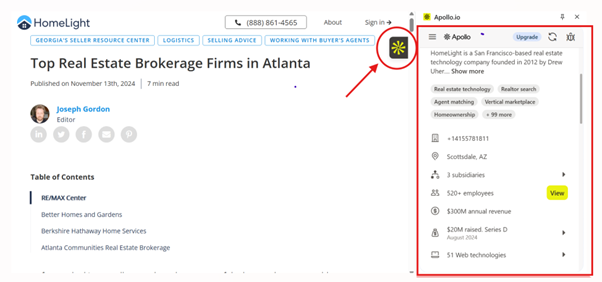
Here’s how the Apollo.io Chrome extension appears while browsing a website:
Instead of switching between tools, the extension opens a side panel with real-time lead data directly inside your browser.
What You’ll See in the Extension Panel:
- Contact details (Email, Job role – if available)
- Company information (Industry, size, Website)
- Lead action buttons (Add to list, Save contact)
- Quick insights to help you evaluate the prospect
Why This Matters
▪️This interface allows you to capture, evaluate, and organize leads instantly—without opening dashboards or switching tabs.
▪️It turns simple browsing into a real-time lead generation workflow.
4. How Accurate Is Apollo Chrome Extension Data?
The Apollo Chrome extension provides access to a large database of contact information, but like most data tools, accuracy can vary.
What to expect:
- Many emails are verified and usable
- Some contacts may be outdated or missing
- Accuracy depends on the source and profile availability
This means you should always verify important contacts before launching outreach campaigns.
Best Practice:
- Use email verification tools before sending cold emails
- Focus on high-confidence contacts for better deliverability
When used correctly, Apollo still saves significant time compared to manual research.
5. Is Apollo Chrome Extension Safe to Use?
Yes, the Apollo Chrome extension is generally safe to use when used responsibly.
Here’s why:
- It operates within your browser environment
- Pulls publicly available professional data
- Does not require risky automation or scraping tools
However, you should always follow platform guidelines, especially when using it on LinkedIn.
Best Practices:
- Avoid excessive data extraction in a short time
- Use verified contact data responsibly
- Combine with ethical outreach practices
When used correctly, it’s a safe and efficient tool for lead generation.
6. Pros of the Apollo Chrome Extension
Here’s why the Apollo.io Chrome extension stands out for modern prospecting:
| Advantage | Why It Matters for You |
|---|---|
| Easy to use | Clean, beginner-friendly interface with no technical setup required |
| Saves time | Eliminates manual data entry and reduces repetitive tasks |
| Real-time data access | Get instant insights to make faster, smarter decisions |
| Seamless workflow | Work directly in your browser without switching between tools |
| Works across websites | Capture and manage leads from multiple platforms, not just one |
The Apollo.io Chrome extension is designed to simplify your workflow, save time, and help you act on opportunities instantly—making it ideal for fast-paced outreach.
7. Cons of the Apollo Chrome Extension
While the Apollo.io Chrome extension is powerful, it does come with a few limitations to consider:
| Limitation | What It Means for You |
|---|---|
| Requires Apollo account | You need an active Apollo.io account—can’t be used as a standalone tool |
| Data accuracy may vary | Some contact details may require verification before outreach |
| Limited free plan | Advanced features and higher usage limits require a paid plan |
| Learning curve (advanced use) | Basic features are easy, but advanced workflows take time to master |
While highly useful, the Apollo.io Chrome extension works best when combined with the full platform—and when you follow proper verification and outreach practices.
8. Apollo Chrome Extension vs Alternatives
When choosing a lead generation tool, it’s helpful to see how the Apollo.io Chrome extension compares with other popular options.
Here’s a quick breakdown:
| Tool | Best For | Key Strength | Limitation |
|---|---|---|---|
| Apollo Chrome Extension | All-in-one prospecting | Lead capture + CRM sync in one workflow | Requires Apollo account |
| Hunter.io | Email finding | Simple domain search & verification | No built-in outreach or CRM |
| Lemlist | Cold email campaigns | Advanced personalization & automation | No native lead database |
How They Differ
- Apollo.io Chrome Extension
Best if you want an all-in-one workflow—find leads, capture data, and sync to CRM without switching tools - Hunter.io
Ideal if you only need a simple email finder and verification tool - Lemlist
Best for running advanced cold email campaigns, not for finding leads
Which One Should You Choose?
- Choose Apollo Chrome Extension → if you want speed + all-in-one prospecting
- Choose Hunter.io → if your focus is only email discovery
- Choose Lemlist → if you need advanced outreach automation
The Apollo.io Chrome extension stands out because it combines lead generation, data enrichment, and workflow automation in one place—something most tools don’t offer together.
9. Common Issues with Apollo Chrome Extension (And Fixes)
Like any browser extension, the Apollo Chrome extension may occasionally run into issues. The good news is that most problems are easy to fix.
- Extension Not Showing Data
Fix: Refresh the page or log out and log back into your Apollo account - No Email Found
Fix: Not all profiles have available data — try another contact or verify manually - Extension Not Working on LinkedIn
Fix: Ensure the extension is enabled and permissions are granted - Sync Issues with CRM
Fix: Reconnect your integration or check API settings
Most issues are temporary and can be resolved quickly without technical knowledge.
10. Who Should Use the Apollo Chrome Extension?
The Apollo.io Chrome Extension is designed for anyone who wants to find leads faster, capture contact data instantly, and streamline outreach directly from their browser.
Instead of juggling multiple tools, it helps you turn everyday browsing into a real-time lead generation workflow.
10.1. Best Fit for Different Users
🔹Freelancers & Solopreneurs
If you’re doing manual cold outreach or client prospecting, this tool can save hours of work every week.
With the extension, you can:
- Find verified emails while browsing
- Build targeted lead lists quickly
- Start outreach without switching tools
Best for: Freelancers offering marketing, sales, recruitment, or B2B services
🔹Small Sales Teams
For small teams, managing leads across multiple tools can slow down productivity.
The Apollo extension helps you:
- Capture leads in real time
- Keep your pipeline organized
- Reduce manual data entry
Result: Faster prospecting + better team efficiency
🔹Startup Founders
If you’re building your first sales pipeline, you don’t need a complex tech stack.
With Apollo, you can:
- Find potential customers on LinkedIn
- Build a lead database quickly
- Start outreach immediately
Best for: Early-stage startups with limited resources
🔹Recruiters & Talent Sourcers
The extension is also useful for finding and managing candidate data.
You can:
- Extract candidate details while browsing
- Save profiles for outreach
- Build talent pipelines faster
Use case: Hiring managers and recruitment agencies
10.2. When the Apollo Chrome Extension Makes the Most Sense
The Apollo extension delivers the most value when your workflow involves active prospecting and outreach.
It’s especially useful if you:
- Spend a lot of time on LinkedIn prospecting
- Search for B2B leads manually
- Want to reduce copy-paste work
- Need a faster way to build email lists
- Prefer working directly from your browser
Real-World Use Case Example
Imagine you’re building a list of marketing managers for a cold email campaign.
Without the extension:
- You search profiles manually
- Copy data into spreadsheets
- Use separate tools to find emails
With the Apollo Chrome extension:
- Open LinkedIn profiles
- Click the extension
- Instantly capture verified contact details
- Save leads into your list in seconds
This turns a 2–3 hour task into a 30-minute workflow
10.3. Who Should NOT Use It
The Apollo Chrome extension may not be the best fit if you:
- Don’t use Apollo.io at all
- Need advanced multichannel outreach (ads, SMS, automation)
- Expect 100% accurate data without verification
- Prefer fully automated lead generation tools
In these cases, you may need additional tools alongside Apollo
Key Takeaway
The Apollo.io Chrome Extension is best for users who want to:
- Speed up lead generation
- Reduce manual work
- Capture and manage leads in real time
If your workflow involves LinkedIn prospecting, cold outreach, or B2B lead generation, this tool can significantly improve your efficiency.
11. Best Use Cases for the Apollo Chrome Extension
The Apollo.io Chrome Extension becomes most powerful when used inside real workflows—not just as a data tool, but as a complete prospecting system.
Instead of switching between multiple tools, you can find, qualify, and capture leads in one place while browsing.
Here are the most effective ways to use it:
11.1. Finding Leads on LinkedIn
Identify and capture decision-makers directly while browsing LinkedIn profiles.
Instantly access contact details, job roles, and company insights without leaving the page.
Focus on:
∘ Decision-makers (Founder, CEO, Head of Marketing, Sales Manager)
∘ High-growth companies (actively hiring or expanding)
Use LinkedIn filters like:
• Location
• Industry
• Company size
This helps you target high-quality prospects instead of random leads
Result: Better response rates and more qualified outreach
11.2. Building Targeted Cold Email Lists
Create highly targeted lead lists in minutes instead of hours.
Extract emails and organize prospects into ready-to-use outreach lists.
Segment your lists based on:
∘ Industry (SaaS, E-commerce, Agencies)
∘ Company size (10–50, 50–200 employees)
∘ Job roles (Marketing, Sales, HR)
The more targeted your list, the higher your open and reply rates
Result: Faster campaign setup + higher conversions
11.3. Recruiting & Talent Sourcing
Find and connect with potential candidates directly while browsing profiles and company pages.
Instead of waiting for applications, you can proactively build a candidate pipeline.
Filter candidates by:
∘ Role (Developers, Designers, Sales reps)
∘ Experience level (Junior, Mid, Senior)
∘ Industry relevance
Focus on candidates who match your exact hiring needs
Result: Faster hiring and better-quality candidates
11.4. Prospecting for Agencies & B2B Services
Discover potential clients based on industry, role, and business signals.
Ideal for agencies, consultants, and service providers targeting specific businesses.
Look for:
∘ Companies actively hiring (growth signal)
∘ Businesses with outdated marketing (opportunity signal)
∘ Founders posting regularly (higher engagement chance)
These signals help you identify high-intent prospects
Result: Better leads + higher closing potential
11.5. Researching Companies & Decision-Makers
Qualify leads before outreach by accessing company and contact insights instantly.
View company size, industry, and key decision-makers while browsing.
Check:
∘ Company growth stage
∘ Decision-maker roles
∘ Relevance to your Ideal Customer Profile (ICP)
This ensures you focus only on high-value prospects
Result: Less wasted outreach, better ROI
11.6. Real-Time Prospecting Workflow (Advanced Use Case)
Turn everyday browsing into a continuous lead generation system.
Simple Workflow:
➛ Browse LinkedIn or company websites
➛ Open the extension to view contact data
➛ Save leads into segmented lists
➛ Push them into outreach campaigns
No switching tools. No manual data entry.
Result: A consistent pipeline of leads without dedicated prospecting time
11.7. How the Apollo Chrome Extension Fits Into Your Workflow
The Apollo.io Chrome Extension is more than just an email finder—it works best when used as part of your daily prospecting workflow.
Instead of treating it as a standalone tool, you can use it to handle multiple steps in one place:
- Find and capture leads directly while browsing
- View contact details and company insights instantly
- Qualify prospects based on role, industry, and relevance
- Save and organize leads into targeted lists
- Push contacts into your outreach campaigns without switching tools
When used this way, the extension helps you move from finding leads → evaluating them → taking action in a single flow.
This is especially useful for LinkedIn prospecting and cold outreach, where speed and consistency make a big difference. Rather than collecting random data, you’re building structured, high-quality lead lists that are ready for campaigns.
Over time, this turns everyday browsing into a repeatable lead generation system—helping you work faster while keeping your pipeline organized.
12. Is the Apollo Chrome Extension Worth It in 2026?
The Apollo Chrome extension is designed to improve how you find leads, capture contact data, and manage outreach—directly from your browser. Instead of switching between multiple tools, it brings prospecting into one streamlined workflow.
If you regularly search for leads on LinkedIn or company websites, the Apollo.io Chrome extension can significantly reduce manual work. You can extract emails, save prospects, and sync them to your CRM in real time, making the entire process faster and more efficient.
It’s especially useful for freelancers, small teams, and founders who want a simple way to build targeted lead lists without relying on multiple platforms. The Apollo extension for Chrome fits naturally into daily browsing, turning it into a consistent lead generation system.
However, it’s not a standalone solution. To get full value, you need an active Apollo.io account, and like most data tools, some contact details may require verification before outreach.
It may not be the right fit if your workflow depends on advanced multichannel outreach (such as ads, SMS, or automation tools), or if you expect fully verified data without any manual checks.
Overall, if your goal is to streamline prospecting, reduce repetitive tasks, and capture leads faster, the Apollo Chrome extension is a practical and effective tool to use in 2026.
13. Final Verdict
The Apollo Chrome extension is a practical tool for anyone who wants to speed up lead generation and reduce manual prospecting work.
By bringing contact data, lead capture, and basic outreach actions directly into your browser, the Apollo.io Chrome extension helps you move from finding prospects to taking action without switching between tools. This makes it especially useful for LinkedIn prospecting, building targeted lead lists, and managing outreach more efficiently.
For freelancers, small teams, and founders, it offers a simple way to streamline daily workflows and save hours otherwise spent on manual data collection.
If you’re already using Apollo.io or planning to integrate it into your workflow, the Apollo extension for Chrome is a valuable addition that can noticeably improve your speed, organization, and overall prospecting efficiency.
FAQs
-
How do I install the Apollo Chrome extension?
You can install the Apollo Chrome extension from the Chrome Web Store. After adding it to your browser, log in to your Apollo.io account and start using it instantly while browsing websites or LinkedIn profiles.
-
How do I use the Apollo Chrome extension on LinkedIn?
To use the Apollo Chrome extension on LinkedIn, open a profile, click the extension icon, and view available contact details like email and job role. You can then save the lead directly to your list or outreach sequence.
-
Is the Apollo Chrome extension free to use?
Yes, the extension is free to install, but it requires an Apollo.io account. The free plan includes limited credits, while advanced features are available in paid plans.
-
Do I need an Apollo.io account to use the extension?
Yes, the Apollo Chrome extension only works when connected to your Apollo.io account. It cannot be used as a standalone tool.
-
How accurate is the Apollo Chrome extension data?
The Apollo Chrome extension provides useful contact data, but accuracy can vary. For best results, it’s recommended to verify important email addresses before starting outreach campaigns.
-
Why is the Apollo Chrome extension not working?
If the Apollo Chrome extension is not working, try refreshing the page, logging out and back in, or checking browser permissions. Most issues are temporary and easy to fix.
-
Can I download the Apollo Chrome extension directly?
Yes, you can download the Apollo Chrome extension from the official Chrome Web Store and install it with a single click.
-
Does the Apollo Chrome extension work only on LinkedIn?
No, the extension works across multiple websites, including company pages. However, it is most commonly used for LinkedIn prospecting.
-
Can I save leads using the Apollo extension?
Yes, the extension allows you to capture and save leads instantly into lists or outreach sequences without leaving the page.
-
Is the Apollo Chrome extension worth it in 2026?
Yes, the Apollo Chrome extension is worth it for freelancers, startups, and small sales teams who want to speed up lead generation and reduce manual work.
-
How do I add the Apollo extension to Chrome?
You can add the Apollo extension by visiting the Chrome Web Store, clicking “Add to Chrome,” and confirming installation. Once added, log in to activate it.
-
Does Apollo Chrome extension show verified emails?
Yes, Apollo provides many verified emails, but not all contacts are guaranteed to be accurate. It’s best to verify emails before outreach.