Table of Contents
Apollo Chrome Extension LinkedIn Prospecting Guide (2026): Advanced Workflow to Find & Capture Leads
LinkedIn remains the #1 platform for finding decision-makers, qualified leads, and high-value business contacts in 2026. But manually extracting data and managing outreach can slow you down.
That’s where the Apollo.io Chrome extension becomes a game-changer.
In this advanced guide, you’ll learn how to use the extension specifically for LinkedIn prospecting—step by step. From extracting verified emails and building targeted lead lists to optimizing your workflow for faster outreach, this guide focuses on real execution, not just features.
👉 If your goal is to turn LinkedIn into a consistent lead generation engine, this is the only guide you need.
1. What Makes Apollo Chrome Extension Powerful for LinkedIn Prospecting?
The Apollo.io Chrome Extension goes beyond being a simple email finder—it acts as a powerful LinkedIn prospecting and sales intelligence layer that enhances how you discover, qualify, and engage leads.
Here’s what makes it especially effective for LinkedIn users:
- Instant access to verified contact data
Extracts verified work emails and direct dial numbers directly from LinkedIn profiles, search results, and company pages. - Rich prospect and company insights
Provides key details such as company size, revenue estimates, industry, and funding information to help you qualify leads faster. - Seamless lead capture while browsing
Allows you to save prospects into organized lists without leaving LinkedIn, keeping your workflow smooth and efficient. - Direct integration with outreach workflows
Add leads to email sequences or sales cadences instantly, eliminating manual data transfer and speeding up follow-ups. - Works across multiple LinkedIn touchpoints
Functions on LinkedIn profiles, search results pages, and company pages—supporting a complete prospecting workflow. - Transforms LinkedIn into a lead generation system
By combining data extraction, enrichment, and outreach tools in one place, it helps turn passive browsing into structured, high-volume prospecting.
In short, it streamlines the entire top-of-funnel process—helping you identify, evaluate, and engage prospects faster without switching tools or workflows.
2. Beginner’s Guide: How to Access Apollo, Sign In to LinkedIn & Use the Apollo Chrome Extension
Prerequisites: What You Need Before Getting Started
To use the Apollo.io Chrome Extension effectively on LinkedIn, make sure you have the following set up:
- A web browser like Chrome
- An active LinkedIn account
- An Apollo account
- The Apollo Chrome Extension installed and enabled
Once everything is properly set up and logged in, the Apollo panel will automatically appear when you visit LinkedIn profiles, search results, and company pages—allowing you to view and capture lead data instantly.
👉 If you want a deeper understanding of features, pricing, and real use cases, check out our complete guide on Apollo.io where we break down everything beginners need to know before getting started.
Step 1 — Log In to Apollo (Connect Your Account to Enable the Extension)
To use the Apollo.io Chrome Extension on LinkedIn, you first need to log in to your Apollo account. This step connects your browser extension with your Apollo workspace so it can retrieve and save lead data.
How to Log In to Apollo
- Open your browser and go to app.apollo.io
- Click on Login
- Enter your email and password, or choose Continue with Google
- After logging in, you’ll be redirected to your Apollo dashboard
Once inside, you’ll see main sections such as:
- Home
- Search
- People
- Companies
- Lists
- Sequences
- Settings
Why This Step Is Important
Logging in is essential because the extension relies on your Apollo session to function properly.
- Without logging in, the extension will not display verified emails or phone numbers
- You won’t be able to save leads directly into your Apollo lists
- Outreach features like adding contacts to sequences will be disabled
Keeping yourself logged in ensures the extension stays active in the background, allowing seamless prospecting while you browse LinkedIn without interruptions.
Step 2 — Log In to LinkedIn (Enable Data Visibility for the Extension)
Next, open a new tab and sign in to your LinkedIn account to allow the Apollo.io Chrome Extension to function properly on LinkedIn pages.
How to Log In to LinkedIn
- Go to linkedin.com
- Enter your email or phone number and password
- Click Sign In
- You’ll be redirected to your LinkedIn Home Feed
Important Note for Beginners
The Apollo extension only works when you are logged into both Apollo and LinkedIn at the same time.
- LinkedIn login allows the extension to read profile and search data
- Apollo login allows it to fetch verified contact details and save leads
If either account is not logged in, the extension may not display data correctly or its features may be limited. Keeping both sessions active ensures a smooth and fully functional prospecting experience.
Step 3 — Activate the Apollo Panel on LinkedIn (Make the Extension Visible)
After logging into both accounts, the next step is to ensure the Apollo.io Chrome Extension is active and visible on LinkedIn pages.
1. Confirm the Extension Is Enabled
- Click the Extensions (puzzle) icon in the top-right corner of Chrome
- Locate Apollo.io Chrome Extension in the list
- If needed, click the pin icon to keep it visible on your toolbar (recommended for easy access)
2. Open a LinkedIn Profile
- Go to LinkedIn and open any profile (for example:
linkedin.com/in/username) - Wait a few seconds for the page to fully load
3. Locate the Apollo Panel
Once the page loads, you should see Apollo appear automatically:
- A side panel on the right side of the LinkedIn profile, or
- An Apollo button/icon that you can click to expand the panel
4. What You’ll See in the Panel
The Apollo panel typically displays:
- Verified email addresses
- Phone numbers (when available)
- Job title and role details
- Company information (size, industry, etc.)
- Action buttons such as:
- Add to List
- Add to Sequence
- Export Lead
- Save Contact
If It Doesn’t Show Up
- Refresh the LinkedIn page once
- Ensure both Apollo and LinkedIn are logged in
- Confirm the extension is enabled in Chrome
Once visible, this panel becomes your control center for capturing and managing leads directly from LinkedIn without switching tabs.
Step 4 — How to Open and Use the Apollo Menu on LinkedIn (Control Center for Lead Actions)
Once the Apollo.io Chrome Extension is active on a LinkedIn profile, you can interact with the Apollo menu in multiple ways. This is where prospecting becomes actionable—viewing data is only the first step, and this menu lets you take immediate action on any lead.
Method 1 — Directly from the LinkedIn Profile (Fastest Workflow)
When you open any LinkedIn profile, Apollo automatically integrates buttons into the page.
You will typically see options such as:
- Reveal Email — Fetch verified contact details instantly
- Add to List — Save the lead into a specific Apollo list for organization
- Add to Sequence — Enroll the contact into an outreach campaign (email cadence)
- View in Apollo — Open the full lead profile inside your Apollo dashboard
Recommended workflow:
- Open a LinkedIn profile
- Review the prospect details (job title, company, etc.)
- Click Reveal Email if you need contact info
- Click Add to List to organize the lead
- Use Add to Sequence if you want to start outreach immediately
- Click View in Apollo when you need deeper insights or enrichment
This method is best for quick, high-volume prospecting while browsing LinkedIn search results or profiles.
Method 2 — Using the Chrome Extension Icon (Full Navigation Access)
You can also open the Apollo extension menu directly from your browser:
- Click the Apollo icon in the Chrome toolbar
- The extension panel will open in a dropdown or side view
- From here, you can navigate and access key areas of Apollo without leaving LinkedIn
Inside this menu, you can quickly access:
- Dashboard — Overview of your activity and workspace
- Tasks — Pending actions or follow-ups
- Lists — Saved leads organized by category or campaign
- Recently Viewed Leads — Quickly revisit prospects you’ve already checked
- Settings — Configure preferences and account options
Why This Step Matters
Using the menu effectively turns LinkedIn into an integrated prospecting workspace:
- You can capture + organize + act on leads in real time
- No need to manually copy-paste data between tools
- Enables a smooth workflow from discovery → enrichment → outreach
- Reduces time spent switching between LinkedIn and Apollo
Pro Tip (Beginner-Friendly Workflow)
A simple high-efficiency flow:
- Search leads on LinkedIn
- Open profiles one by one
- Use Reveal Email → Add to List → Add to Sequence
- Occasionally use View in Apollo for deeper filtering or validation
This approach helps you build structured lead pipelines while prospecting consistently.
Step 5 — Access the Apollo Dashboard While Using LinkedIn (Parallel Workflow Setup)
With the Apollo.io Chrome Extension, you don’t need to leave LinkedIn to manage your leads—but you can (and should) keep both LinkedIn and Apollo open at the same time for a smoother workflow.
✔ Key Point: You Do NOT Need to Close LinkedIn
You can run LinkedIn and Apollo side by side in separate tabs. This setup allows you to prospect on LinkedIn while managing data inside Apollo without interruption.
How to Open the Apollo Dashboard
You have two simple options:
Option 1 — From the Chrome Extension
- Click the Extensions (puzzle) icon in Chrome
- Locate the Apollo extension
- Click it and select Open Apollo Dashboard (or a similar dashboard shortcut)
Option 2 — Direct Access via URL
- Open a new browser tab
- Go to app.apollo.io
- You’ll land directly in your Apollo dashboard
What Happens When Both Are Open
- Apollo remains logged in and connected
- LinkedIn remains logged in and fully functional
- The extension continues working in the background
- Data flows seamlessly between LinkedIn and Apollo
There is no conflict between the two—both operate together as part of the same workflow.
Recommended Professional Setup (Efficient Prospecting)
A common high-productivity layout looks like this:
- Left Tab: LinkedIn (searching and viewing profiles)
- Right Tab: Apollo Dashboard (lists, sequences, and lead management)
- Chrome Toolbar: Apollo extension active for instant actions
Why This Setup Works Best
- Enables real-time lead capture on LinkedIn
- Lets you organize and track leads inside Apollo immediately
- Supports quick switching between discovery and management
- Reduces friction and keeps your workflow continuous
Simple Mental Model
Think of LinkedIn as your lead discovery engine, and Apollo as your lead management and outreach system—the extension acts as the bridge connecting both.
Step 6 — How the Apollo Extension Works on LinkedIn (End-to-End Workflow)
When both LinkedIn and your Apollo account are properly logged in, the Apollo.io Chrome Extension begins working automatically in the background to enhance your prospecting experience.
1. Automatic Profile Scanning
Whenever you open a LinkedIn profile, the extension instantly scans the page and tries to match it with Apollo’s database.
It looks for:
- Verified or available email addresses
- Direct phone numbers (when available)
- Company details such as size, industry, revenue estimates, and more
This happens automatically—no manual input required.
2. Contact Information Display
After scanning, a panel appears on the LinkedIn profile showing:
- Verified or possible email addresses
- Confidence indicators (how reliable the data is)
- Additional contact or company insights
This allows you to quickly decide whether the lead is worth pursuing.
3. Instant Lead Actions (No Workflow Interruptions)
From the same panel, you can take immediate actions without leaving LinkedIn:
- Add to List — Organize leads into targeted groups
- Add to Sequence — Enroll contacts into email outreach campaigns
- Save Contact — Store the prospect in your Apollo database
- Export Data — Use the lead externally if needed
- View in Apollo — Open the full enriched profile in your dashboard
👉 This eliminates manual copy-pasting and keeps your workflow continuous.
4. Automatic Sync with Apollo Dashboard
All actions taken via the extension are synced in real time:
- Saved leads appear in your Apollo lists
- Contacts added to sequences are tracked automatically
- Activity is reflected in your Apollo dashboard
No duplication, no manual updates—everything stays centralized.
👉 For a more detailed step-by-step breakdown, explore our dedicated guide on the Apollo.io Chrome Extension covering setup, features, and advanced workflows.
3. Before You Start — Optimize Apollo Extension Settings
To get the best results and avoid wasting credits, configure your extension settings properly.
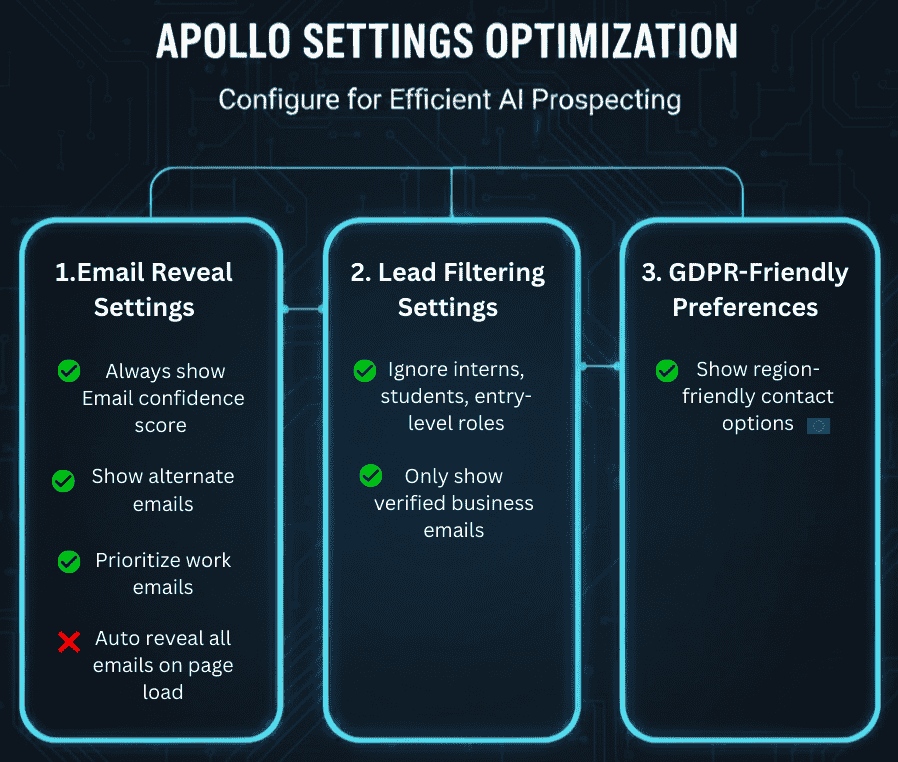
1. Email Reveal Preferences (Data Quality + Credit Control)
Navigate to:
Apollo → Settings → Chrome Extension → Email Preferences
Enable:
- ✔ Always show email confidence score
Helps you understand how reliable each email is - ✔ Show alternate emails
Gives additional contact options when available - ✔ Prioritize work emails
Focuses on professional, business-relevant contacts
Disable:
- ✖ Auto reveal all emails on page load
(Prevents unnecessary credit usage)
2. Lead Filtering Settings (Improve Prospect Quality)
Enable filters to avoid irrelevant or low-value leads:
- ✔ Ignore interns, students, and entry-level roles
- ✔ Show only verified business emails
👉 This ensures you focus on decision-makers and qualified prospects.
3. GDPR-Friendly Preferences
If you are prospecting leads in Europe:
- ✔ Enable region-friendly contact options
- ✔ Follow Apollo’s compliance prompts for data handling
This helps align with privacy regulations while still allowing outreach.
Why This Step Matters
With proper setup:
- You get higher-quality leads
- You avoid wasting credits on irrelevant data
- You maintain a clean and organized pipeline
- You ensure compliance when targeting specific regions
- Your LinkedIn prospecting becomes more accurate and efficient
Final Workflow Summary
- Open LinkedIn profile
- Extension auto-scans and displays data
- Evaluate lead using confidence + company info
- Take action (save, list, sequence)
- Everything syncs automatically to Apollo
This turns LinkedIn into a structured, data-driven prospecting system instead of manual searching.
👉 If you’re comparing tools before choosing the right one, read our detailed comparison of **Reply.io vs Apollo to understand which platform fits your outreach strategy best.
4. How to Use the Apollo.io Chrome Extension on LinkedIn
This section explains how to use the Apollo extension directly on LinkedIn Search Results—the most efficient way to build targeted lead lists at scale without leaving LinkedIn.
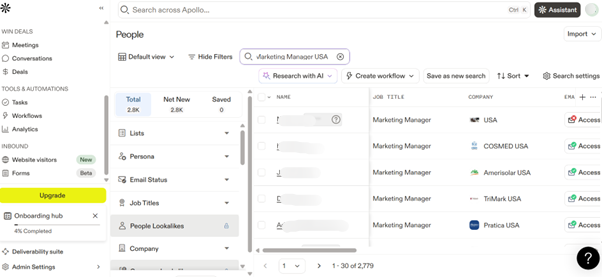
Step 1 — Generate Prospects Using LinkedIn Search (Core Prospecting Method)
Start by using LinkedIn’s search bar to find your ideal audience.
Example search:
- Marketing Manager — United States
- Sales Director — SaaS — Canada
- HR Manager — UK — 50–200 employees
Once you run the search, LinkedIn will display a list of relevant profiles.
What Happens After the Page Loads
When the page is fully loaded:
- The Apollo panel appears on the right side of the screen
- Each profile may show an email icon or reveal option
- The extension begins enriching visible profiles automatically
What You Can Do on the Search Results Page
From this screen, you can efficiently handle multiple leads at once:
- Reveal emails with a single click on individual profiles
- Save prospects directly into Apollo
- Add leads to lists for segmentation and organization
- Bulk save multiple profiles (typically 10–25 at a time)
- Filter and qualify leads before saving using LinkedIn’s search criteria
👉 This makes it possible to quickly build a structured pipeline instead of manually visiting each profile one by one.
Recommended Workflow (High-Efficiency Prospecting)
- Run a targeted LinkedIn search
- Apply filters before interacting with profiles
- Scan results and identify relevant prospects
- Reveal emails for selected profiles
- Save qualified leads into an Apollo list
- Repeat the process in batches
Pro Tip — Use LinkedIn Filters Before Using Apollo
Before revealing emails, refine your search using LinkedIn filters:
- Seniority level: Manager, Director, VP
- Company size: 10–200 employees (ideal for SMB targeting)
- Location: USA, UK, Canada (or your target region)
Why This Matters
- Improves the accuracy of matched contact data
- Helps prioritize decision-makers
- Reduces unnecessary credit usage
- Increases the likelihood of finding verified emails
Key Insight
Treat LinkedIn Search as your targeting engine and Apollo as your enrichment + capture tool. When combined, this workflow allows you to consistently identify, qualify, and store high-quality leads in a structured and scalable way.
Step 2 — Prospect from Individual LinkedIn Profile Pages (Deep Lead Qualification)
When you open a specific LinkedIn profile, the Apollo.io Chrome Extension automatically activates and displays a dedicated widget on the page. This is where you move from basic discovery to detailed lead evaluation and action.
What Happens When You Open a Profile
- The Apollo widget appears alongside the LinkedIn profile
- The system enriches the profile in real time
- You get a consolidated view of contact and company intelligence
This eliminates the need to switch tabs or manually research the prospect.
What You’ll See Inside the Apollo Widget
The widget typically provides a complete snapshot of the lead:
- Work Email & Personal Email (when available)
- Direct Phone Numbers (if accessible)
- Company Domain & Website
- Company Insights such as size, industry, and growth indicators
- Technologies / Tech Stack used by the company
- Lead Score (helps prioritize prospects)
- Persona / Role Insights (helps understand decision-making relevance)
👉 This level of detail helps you quickly determine whether the lead fits your targeting criteria.
What to Do Next
Once the profile is enriched, you can take immediate actions directly from the widget:
1. Organize the Lead
- Add relevant tags such as:
- “Marketing”
- “Sales”
- “USA”
- “SaaS”
- Tags help you segment leads for future campaigns and filtering
2. Add to Outreach Sequences
- Enroll the contact into a predefined email cadence
- Start automated follow-ups without manual effort
- Align messaging based on persona and company data
3. Prioritize High-Value Leads
- Use lead score and insights to identify top prospects
- Mark qualified leads as priority for immediate outreach
- Focus efforts on decision-makers and high-fit accounts
4. Save to CRM / Apollo Lists
- Save the contact into a relevant list or pipeline
- Keep leads organized by campaign, niche, or segment
- Ensure all data syncs automatically within Apollo
Recommended Workflow for Profile Pages
- Open a LinkedIn profile from search results
- Review the Apollo widget insights
- Check email, company details, and lead score
- Add relevant tags for segmentation
- Save the lead to a list
- Add to a sequence if ready for outreach
- Repeat for the next qualified prospect
Why This Step Is Important
- Helps you qualify leads instead of just collecting them
- Provides context-rich data for personalized outreach
- Enables faster decision-making on whether a prospect is worth contacting
- Turns individual profiles into actionable opportunities within seconds
This step is where LinkedIn prospecting becomes strategic—moving from basic lead collection to structured, insight-driven sales execution.
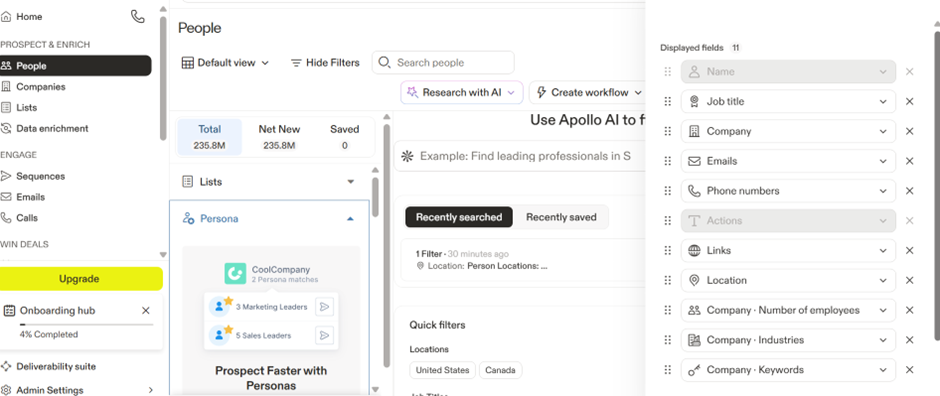
Step 3 — Prospect Entire Companies from LinkedIn Company Pages (Account-Based Prospecting)
Using the Apollo.io Chrome Extension on a LinkedIn company page allows you to move from individual prospecting to account-based lead generation—targeting multiple decision-makers within the same organization.
This approach is especially powerful when targeting:
- Competitor accounts
- Industry-specific companies
- Recently funded startups
- B2B organizations with multiple stakeholders
What Happens When You Open a Company Page
When you visit a LinkedIn company page:
- Apollo automatically detects the organization
- It displays a list of employees associated with that company
- You can view and filter prospects without leaving the page
This turns a single company page into a mini lead database.
How Apollo Organizes Company Employees
Inside the company view, Apollo allows you to segment employees based on:
- Job Title (e.g., Marketing Manager, Sales Director)
- Department (Sales, Marketing, HR, Operations, etc.)
- Seniority Level (Entry, Manager, Director, VP, C-level)
- Location (useful for geo-targeted campaigns)
👉 These filters help you focus only on relevant decision-makers instead of browsing all employees manually.
What You Can Do from the Company Page
1. Bulk Reveal Emails
- Select multiple profiles at once
- Click to reveal verified emails in bulk
- Efficient for processing large company lists quickly
2. Save Multiple Prospects (20–50 at a Time)
- Add several employees to your Apollo workspace in one go
- Avoid visiting each profile individually
- Accelerates list building significantly
3. Build Segmented Lists
- Save prospects into structured Apollo lists such as:
- “SaaS Marketing Leads – US”
- “Competitor Accounts – Sales Team”
- “Startup Decision Makers”
👉 Segmentation ensures your outreach remains organized and personalized.
4. Enrich and Evaluate the Company
Before saving leads, you can assess:
- Company size and structure
- Department distribution
- Potential buying teams (e.g., multiple stakeholders)
This helps you identify whether the company is worth targeting at scale.
Recommended Workflow (Company-Level Prospecting)
- Search for a target company on LinkedIn
- Open the company page
- Use Apollo filters to narrow down relevant employees
- Select multiple profiles (decision-makers first)
- Bulk reveal emails
- Save leads into a segmented list
- Add qualified contacts to outreach sequences
- Repeat for other target companies
Pro Tip — Build Campaigns Around Accounts
Instead of targeting random individuals, group your outreach by company:
- Target 1 company → identify 5–15 relevant stakeholders
- Engage multiple roles within the same organization
- Increase chances of responses through multi-touch outreach
Why This Step Is Powerful
- Enables account-based marketing (ABM) strategies
- Helps you reach multiple decision-makers in one company
- Improves conversion rates through coordinated outreach
- Saves time by processing leads in batches instead of individually
- Builds structured pipelines organized by company rather than isolated contacts
By combining company-level filtering with bulk actions, LinkedIn becomes a scalable system for identifying entire buying teams—making your prospecting efforts more strategic, efficient, and high-impact.
5. Best LinkedIn Prospecting Workflows Using the Apollo.io Chrome Extension (2026 Optimized Methods)
These workflows are designed to help you move from random prospecting to structured, high-conversion lead generation—used by SDRs, agencies, and outbound teams.
Workflow 1 — Ideal Customer Persona (ICP) Prospecting
This workflow focuses on finding and engaging prospects who match your exact buyer profile.
Define Your ICP Inputs First
Before searching, clearly define:
- Job Roles: Marketing Head, Sales Director, AI Consultant, etc.
- Industry: SaaS, E-commerce, Fintech, etc.
- Location: USA, UK, Canada, or your target region
- Company Size: (optional but recommended) SMB vs Enterprise
👉 The more specific your ICP, the higher your conversion potential.
Step-by-Step Execution
1. Search on LinkedIn with Filters
- Enter your job role in LinkedIn search (e.g., “Marketing Head”)
- Apply filters:
- Industry
- Location
- Company size
- Seniority level
This ensures you’re only viewing relevant prospects aligned with your ICP.
2. Identify Qualified Profiles
- Scan search results for relevant titles and companies
- Open profiles that match your targeting criteria
- Avoid low-relevance or junior roles unless intentionally included
3. Use Apollo to Reveal Contact Details
- Click Reveal Email on qualified profiles
- Review:
- Email confidence score
- Contact availability
- Company insights
Only proceed with verified or high-confidence data to maintain quality.
4. Save Leads into an “ICP List”
- Add selected prospects to a dedicated Apollo list such as:
- “ICP – Marketing Heads USA”
- “ICP – SaaS Decision Makers”
👉 Keeping lists segmented makes future campaigns easier to manage and optimize.
5. Add the List to an Outreach Sequence
- Enroll the saved contacts into an Apollo sequence
- Set up multi-step outreach (email cadence)
- Personalize messaging based on role and industry
Outcome of This Workflow
- Highly targeted lead list aligned with your ideal customer profile
- Cleaner data with verified contacts
- Structured segmentation inside Apollo
- Higher response rates due to relevance and personalization
- A repeatable system for ongoing prospecting campaigns
Why This Workflow Works
- Focuses on quality over quantity
- Aligns outreach with specific buyer intent
- Reduces wasted credits and effort
- Builds a predictable pipeline of relevant prospects
- Enables scalable outbound campaigns with consistent results
Simple Summary Workflow
- Define ICP (role, industry, region)
- Apply LinkedIn search filters
- Open and qualify profiles
- Reveal verified emails using Apollo
- Save to a segmented ICP list
- Add the list to an outreach sequence
- Repeat and scale
This workflow forms the foundation of effective LinkedIn prospecting—ensuring every lead you collect fits your target audience and is ready for meaningful outreach.
Workflow 2 — Competitor Prospect Targeting (High-Intent Lead Generation)
This workflow uses the Apollo.io Chrome Extension to identify and engage prospects who are already working with—or exposed to—your competitors. These leads typically convert faster because they already understand the problem space and are actively using a similar solution.
Why This Workflow Works
- Prospects already understand the category (no education needed)
- Easier positioning against an existing alternative
- Higher intent compared to cold audiences
- Faster sales cycles due to prior awareness
Step-by-Step Execution
1. Identify Competitor Company Pages
- Search your competitor on LinkedIn
- Example: “Competitor Company Name”
- Open their official company page
👉 This becomes your primary source of warm, relevant prospects.
2. Access Employee List via Apollo
- Once on the company page, the Apollo extension automatically activates
- It displays a list of employees associated with that company
Use this as your internal talent/prospect database.
3. Apply Target Role Filters
Refine the employee list using Apollo filters such as:
- Job Title: Sales Manager, Marketing Head, SDR, etc.
- Department: Sales, Marketing, Operations, etc.
- Seniority Level: Manager, Director, VP
- Location: Based on your target geography
👉 Focus on decision-makers or users most likely to switch solutions.
4. Select and Save Qualified Leads
- Choose relevant profiles from the filtered list
- Use bulk actions to:
- Save multiple prospects at once
- Reveal verified emails
- Add them to a structured Apollo list
Suggested list naming:
- “Competitor – Sales Team Leads”
- “Competitor Users – Marketing Dept”
5. Enrich and Review Leads
Before outreach:
- Check company context and role relevance
- Review lead scores and available contact data
- Prioritize mid-to-senior level professionals
6. Launch Competitor-Focused Outreach
Add the leads to a sequence and craft messaging that positions your offer against their current solution:
- Highlight differentiators
- Address pain points of existing tools
- Provide a clear value proposition or improvement
- Avoid direct criticism—focus on benefits and outcomes
Outcome of This Workflow
- Leads with pre-existing awareness of the solution category
- Faster engagement due to familiarity with similar tools
- Higher likelihood of response compared to cold outreach
- Structured pipeline of competitor-aligned prospects
- Clear positioning opportunities based on gaps in competitor offerings
Pro Tips for Better Results
- Target users who are actively in sales, marketing, or revenue roles
- Look for companies using your competitor at scale (more employees = more potential users)
- Combine this workflow with LinkedIn activity signals (job changes, hiring trends)
- Segment competitors by tier (direct vs indirect competitors)
Simple Workflow Summary
- Find competitor LinkedIn company page
- Open employee list via Apollo
- Filter by relevant roles and seniority
- Select qualified prospects
- Bulk save and reveal emails
- Add to a competitor-specific list
- Run targeted outreach with strong positioning
- Track responses and iterate
This workflow is especially powerful because you’re not starting from zero—you’re engaging with prospects who already understand the value of your category, making them more likely to convert when presented with a better alternative.
Workflow 3 — LinkedIn Event Attendee Prospecting (High-Intent Warm Leads)
This workflow uses the Apollo.io Chrome Extension to turn LinkedIn Events into a source of highly relevant, intent-driven prospects. Event attendees are already interested in a specific topic, making them significantly easier to engage compared to cold leads.
Why This Workflow Works
- Attendees have self-selected interest in the topic
- Higher engagement rates compared to cold outreach
- Leads are often actively researching solutions
- Ideal for niche targeting (AI tools, SaaS, marketing, etc.)
Step-by-Step Execution
1. Find Relevant LinkedIn Events
- Go to LinkedIn and search for events related to your niche
- Examples: “AI marketing webinar”, “SaaS growth event”, “sales automation workshop”
- Filter or browse events that align with your ICP
👉 Choose events that attract your target audience (not just large generic events).
2. Open the Attendee List
- Navigate to the selected event page
- Click on the Attendees section
- You will see a list of people who have shown interest in the event
👉 These individuals represent warm, topic-aware prospects.
3. Qualify Attendees Using Profiles
- Open attendee profiles individually or in batches
- Evaluate:
- Job title relevance
- Industry fit
- Company size
- Seniority level
Focus on attendees who align with your ideal customer profile.
4. Use Apollo to Enrich and Reveal Contacts
- When viewing attendee profiles, the Apollo extension will activate automatically
- Use it to:
- Reveal verified emails
- View company and role insights
- Check lead scores and contact details
Only prioritize high-confidence or relevant contacts for outreach.
5. Save and Segment Leads into Lists
- Add selected attendees to Apollo lists such as:
- “Event Leads – AI Webinar”
- “Event Attendees – SaaS Growth Event”
- Segment by:
- Event name
- Topic
- Audience type
👉 This helps tailor messaging based on the event context.
6. Build a Context-Based Outreach Sequence
When adding leads to sequences:
- Reference the event topic in your messaging
- Personalize outreach based on:
- The session they attended
- The problem the event addressed
- Their role and industry
Example positioning:
- “Noticed you attended [Event Name] on [Topic]…”
- “Since you’re exploring [topic], here’s how we help…”
👉 Context-based messaging significantly increases reply rates.
Outcome of This Workflow
- Leads with pre-existing interest in your niche
- Higher response rates due to contextual relevance
- Stronger personalization opportunities
- Faster trust-building in outreach
- A steady stream of warm prospects from ongoing events
Pro Tips for Better Results
- Target niche or industry-specific events rather than broad ones
- Prioritize attendees who match decision-maker roles
- Combine event targeting with company size filters
- Engage leads shortly after the event while interest is still fresh
- Avoid generic messaging—always reference the event or topic
Simple Workflow Summary
- Search and select relevant LinkedIn events
- Open the attendee list
- Review attendee profiles for ICP match
- Use Apollo to reveal contact details
- Save qualified attendees into segmented lists
- Add leads to context-based outreach sequences
- Personalize messaging based on event participation
- Track engagement and refine targeting
This workflow is highly effective because it focuses on intent-driven audiences—people who have already demonstrated interest in a topic—making them far more receptive to outreach compared to cold prospecting methods.
👉 To explore more tools that can improve your sales and marketing workflows, visit our guide on AI tools for sales and marketing, where we cover automation strategies and lead generation tools in detail.
6. Common Mistakes to Avoid When Using the Apollo.io Chrome Extension
Avoiding these mistakes will help you save credits, improve data quality, and get better results from your outreach campaigns. Most beginners overlook these and end up wasting time or getting poor response rates.
❌ Mistake 1 — Revealing Emails Without Proper Filtering
What happens:
Users reveal emails on large, unfiltered lists, which leads to irrelevant or low-quality contacts and unnecessary credit usage.
Fix:
Always apply filters before revealing emails:
- Seniority (Manager, Director, VP, etc.)
- Location (target geography only)
- Industry or company size (if relevant)
👉 This ensures you only enrich leads that match your Ideal Customer Profile (ICP), improving both efficiency and accuracy.
❌ Mistake 2 — Over-Relying on Personal Emails
What happens:
Beginners often collect personal emails indiscriminately, which can reduce outreach effectiveness in B2B scenarios.
Fix:
Use personal emails only in specific cases:
- Solo founders
- Freelancers
- Job seekers or candidates
For B2B outreach, always prioritize work emails, as they are more professional, relevant, and aligned with business communication.
❌ Mistake 3 — Not Tagging Prospects Properly
What happens:
Leads are saved without structure, making it difficult to segment or run targeted campaigns later.
Fix:
Use tags consistently when saving leads, such as:
- “Marketing-USA-Q1”
- “SMB-Owners”
- “AI-Interested”
👉 Tags act as a lightweight segmentation system that helps you:
- Organize leads by campaign or persona
- Filter contacts quickly inside Apollo
- Personalize outreach at scale
❌ Mistake 4 — Adding Too Many Leads to Sequences at Once
What happens:
Uploading large volumes of leads into sequences too quickly can lead to deliverability issues and reduced performance.
Fix:
Limit daily additions to:
- 20–40 leads per day (recommended range)
This helps you:
- Maintain healthy email sending patterns
- Avoid spam triggers
- Support proper domain warm-up
- Improve inbox placement and reply rates
Summary of Best Practices
- Filter before revealing → improves data quality and reduces wasted credits
- Use work emails for B2B → ensures professional and relevant outreach
- Tag every lead → enables clean segmentation and campaign management
- Control sequence volume → protects deliverability and sender reputation
By avoiding these common mistakes, you create a more efficient, scalable, and results-driven prospecting system—allowing you to get better outcomes from every lead you collect using Apollo.
7. Advanced Tips to Get the Most Out of the Apollo.io Chrome Extension on LinkedIn
These strategies help you move beyond basic usage and build a more precise, scalable, and efficient prospecting system. They are commonly used by experienced SDRs and outbound teams to improve targeting, data quality, and conversion rates.
🔹Tip 1 — Combine LinkedIn Filters with Apollo Filters
Using both filtering systems together significantly improves targeting accuracy.
How to apply:
- Start with LinkedIn filters:
- Job title
- Location
- Company size
- Industry
- Then use Apollo’s filters for:
- Seniority
- Department
- Lead relevance
👉 This layered filtering ensures you only see highly relevant prospects before revealing any data.
🔹Tip 2 — Build Micro-Segmented Lists
Instead of creating broad lists, break your audience into smaller, highly specific segments.
Examples:
- “SaaS CEOs in Texas”
- “Marketing Managers in E-commerce”
- “HR Leaders in US Tech Companies”
👉 Micro-segmentation allows:
- More personalized messaging
- Higher reply rates
- Clearer campaign tracking
- Better A/B testing opportunities
🔹Tip 3 — Save Prospects in Real Time While Browsing
Don’t wait until the end of your session to save leads.
Best practice:
- As soon as you identify a relevant profile, save it immediately
- Add it to a list and tag it on the spot
👉 This prevents losing high-value prospects and keeps your pipeline continuously updated while browsing LinkedIn.
🔹Tip 4 — Leverage Apollo’s Persona & Scoring Signals
Apollo provides lead scoring and persona insights to help prioritize prospects.
How to use it:
- Focus on leads with higher relevance scores
- Review persona alignment (role, industry fit)
- Prioritize decision-makers and high-intent profiles
👉 This helps you spend time on leads most likely to convert instead of treating all leads equally.
🔹Tip 5 — Use Desktop Chrome for Bulk Prospecting
For best performance, always use the desktop version of Chrome.
Why:
- Faster loading and data rendering
- More stable extension behavior
- Better support for bulk actions (saving, revealing, filtering)
- Smoother navigation across multiple tabs
👉 Mobile browsers or limited environments may restrict extension functionality.
Summary of Advanced Optimization Strategy
- Combine filters across both LinkedIn and Apollo for precision
- Create tightly segmented lists for targeted outreach
- Capture leads instantly while browsing
- Use scoring and persona insights to prioritize prospects
- Operate on desktop Chrome for maximum efficiency
These practices help transform Apollo from a basic data tool into a structured prospecting system—improving both lead quality and outreach performance at scale.
8. Who Should Use the Apollo.io Chrome Extension for LinkedIn Prospecting?
This tool is designed for anyone who relies on LinkedIn to find, qualify, and connect with prospects. Whether you’re building pipelines, generating leads, or sourcing candidates, it helps streamline the entire process from discovery to outreach.
👥 Sales Representatives (SDRs / BDRs / AEs)
Sales teams use the extension to:
- Find targeted prospects directly from LinkedIn
- Reveal verified contact details quickly
- Add leads to sequences and manage outreach at scale
👉 Ideal for outbound prospecting and building consistent sales pipelines.
📣 Marketing Teams
Marketers use it for:
- Building audience lists for campaigns
- Identifying decision-makers and niche segments
- Supporting account-based marketing (ABM) efforts
👉 Helps create highly targeted audiences for email marketing and partnerships.
🚀 SEO & Lead Generation Agencies
Agencies use Apollo to:
- Generate leads for clients across multiple industries
- Build segmented prospect lists for outreach campaigns
- Scale lead acquisition processes efficiently
👉 Useful for agencies handling outbound campaigns or B2B client acquisition.
🧑💼 Recruiters & Talent Sourcers
Recruiters leverage the extension to:
- Find candidates based on job titles and experience
- Access contact details for direct outreach
- Build talent pipelines faster
👉 Especially useful for proactive hiring and talent sourcing.
🧑💻 Freelancers & Solo Professionals
Freelancers use Apollo to:
- Find clients in specific niches
- Reach out to decision-makers directly
- Build consistent inbound/outbound opportunities
👉 Helps independent professionals generate leads without a large team.
🏢 Founders & Startup Teams
Founders benefit from:
- Direct access to potential customers and partners
- Early-stage customer acquisition
- Competitor and market research
👉 Ideal for validating ideas and building initial traction.
🧾 Virtual Assistants (VAs) Handling Outreach
VAs use Apollo to:
- Assist with lead generation tasks
- Build and manage prospect lists
- Support outreach campaigns for clients or teams
👉 Enables efficient delegation of repetitive prospecting work.
Summary
The Apollo Chrome Extension is most valuable for anyone involved in:
- Lead generation
- Sales outreach
- Recruiting
- Marketing targeting
- Business development
It centralizes prospecting, data enrichment, and outreach into one workflow—making it suitable for both individuals and teams aiming to scale their LinkedIn-based lead generation efforts.
👉 You can also explore how AI automation can streamline business operations by checking our article on AI automation for small businesses, which includes practical use cases and implementation ideas.
Final Conclusion
The Apollo.io Chrome Extension turns LinkedIn from a simple networking platform into a structured, high-performance lead generation system. When used correctly—with proper filters, segmentation, and workflows—it allows you to move seamlessly from discovering prospects to enriching data and launching outreach campaigns, all within a single workflow.
By applying the methods covered in this guide—ICP targeting, competitor prospecting, event-based leads, and company-level filtering—you can consistently build high-quality, relevant lead lists instead of relying on random prospecting.
In 2026, successful LinkedIn prospecting is no longer about manual effort—it’s about having a repeatable system. With the right setup, Apollo helps you save time, reduce guesswork, and focus only on leads that matter, enabling faster and more predictable results.
FAQs
-
What is the Apollo.io Chrome Extension used for on LinkedIn?
It is used to find, enrich, and save LinkedIn prospects by revealing verified emails, phone numbers, company data, and enabling direct actions like adding leads to lists or outreach sequences—all without leaving LinkedIn.
-
Is Apollo Chrome Extension free to use?
Apollo offers a free plan with limited credits. You can use the extension on LinkedIn, but features like email reveals and data enrichment consume credits, which may require upgrading for heavy usage.
-
Does the Apollo extension work on all LinkedIn pages?
Yes, it works on:
LinkedIn profiles
LinkedIn search results
LinkedIn company pages
It automatically activates when browsing these pages. -
Do I need both Apollo and LinkedIn accounts logged in?
Yes. The extension only works when:
You are logged into your Apollo account
You are logged into your LinkedIn account
Both must be active at the same time for full functionality. -
What kind of data can Apollo reveal?
Apollo can provide:
Verified work emails
Phone numbers (when available)
Job titles and roles
Company details (size, industry, revenue estimates)
Technology stack insights
Lead scores and persona data -
Can I save leads directly from LinkedIn using Apollo?
Yes. You can:
Add leads to Apollo lists
Tag and segment prospects
Enroll contacts into email sequences
Export or manage them inside the Apollo dashboard -
How accurate are the emails provided by Apollo?
Apollo uses a combination of data sources and verification methods. Emails are typically labeled with confidence scores, helping you assess reliability before outreach.
-
Will using the extension slow down LinkedIn?
Generally, no. However, performance may vary depending on:
Your browser (Chrome recommended)
Number of tabs open
Internet speed
For best results, use a desktop Chrome browser. -
Can I use Apollo for bulk prospecting?
Yes. You can:
Reveal multiple emails in LinkedIn search results
Save 20–50 leads at a time
Build segmented lists quickly
Scale outreach using sequences -
Is Apollo suitable for beginners?
Yes. The interface is beginner-friendly, and the extension simplifies lead generation by combining search, enrichment, and outreach in one workflow.
-
Can I use Apollo for recruiting as well?
Yes. Recruiters commonly use it to:
Find candidates by role and seniority
Access contact details for outreach
Build talent pipelines efficiently -
Does Apollo work outside LinkedIn?
Yes. Apollo also works as a standalone platform where you can search for leads, manage lists, and run outreach campaigns directly from its dashboard.
-
How many leads can I extract per day?
This depends on your Apollo plan and available credits. Free plans have limited usage, while paid plans allow higher-volume prospecting and outreach.
-
Is it safe and compliant to use Apollo for outreach?
Apollo provides tools that support compliance (e.g., filtering, GDPR-friendly settings). However, users should always follow best practices for ethical outreach and data privacy regulations.