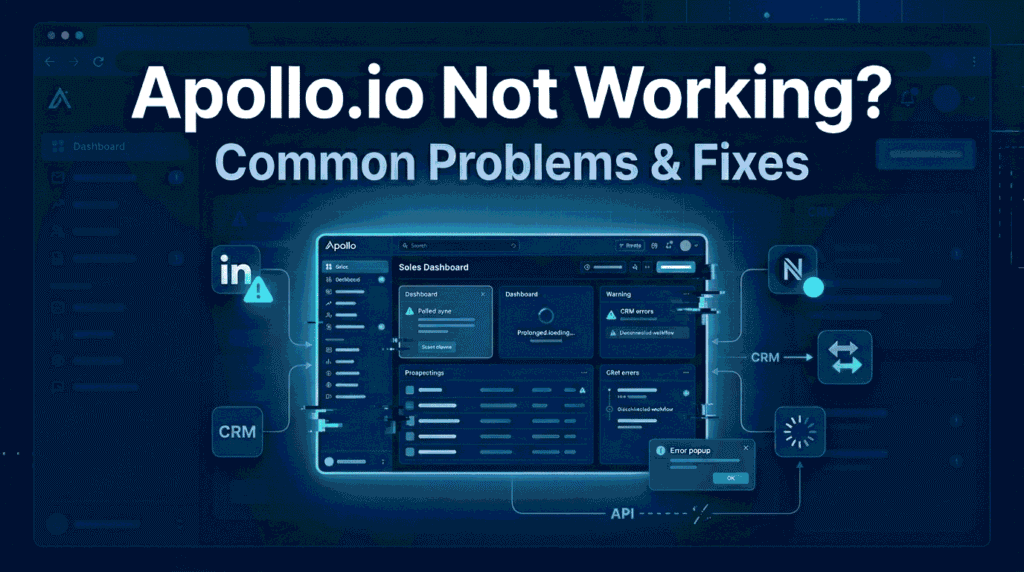
Apollo.io Not Working? Common Problems & LinkedIn Fixes (2026 Guide)
Table of Contents
Understanding Common Apollo.io Problems
Apollo.io is one of the most popular sales intelligence and lead generation platforms for LinkedIn prospecting, email discovery, outreach automation, and CRM workflows. However, many users experience technical problems while using the Apollo Chrome extension, LinkedIn integration, email finder, or account syncing features.
Common issues like Apollo not working on LinkedIn, the Chrome extension not loading, missing contact data, login errors, or CRM syncing failures can interrupt prospecting workflows and reduce productivity.
In most cases, these problems are caused by:
- Browser conflicts
- Outdated Chrome extension versions
- LinkedIn interface updates
- Permission restrictions
- Cache and cookie issues
- CRM integration errors
- Extension setting conflicts
The good news is that most Apollo.io issues can be fixed quickly with the right troubleshooting steps. In this complete Apollo.io troubleshooting guide, you will learn how to fix:
- Apollo Chrome extension problems
- Apollo not working on LinkedIn
- Apollo email finder issues
- Login and account access errors
- CRM syncing problems
- Browser and permission conflicts
- Outreach workflow interruptions
Whether you are a beginner using Apollo for LinkedIn prospecting or an advanced sales team managing outreach campaigns, this guide will help you diagnose and fix the most common Apollo.io problems efficiently.
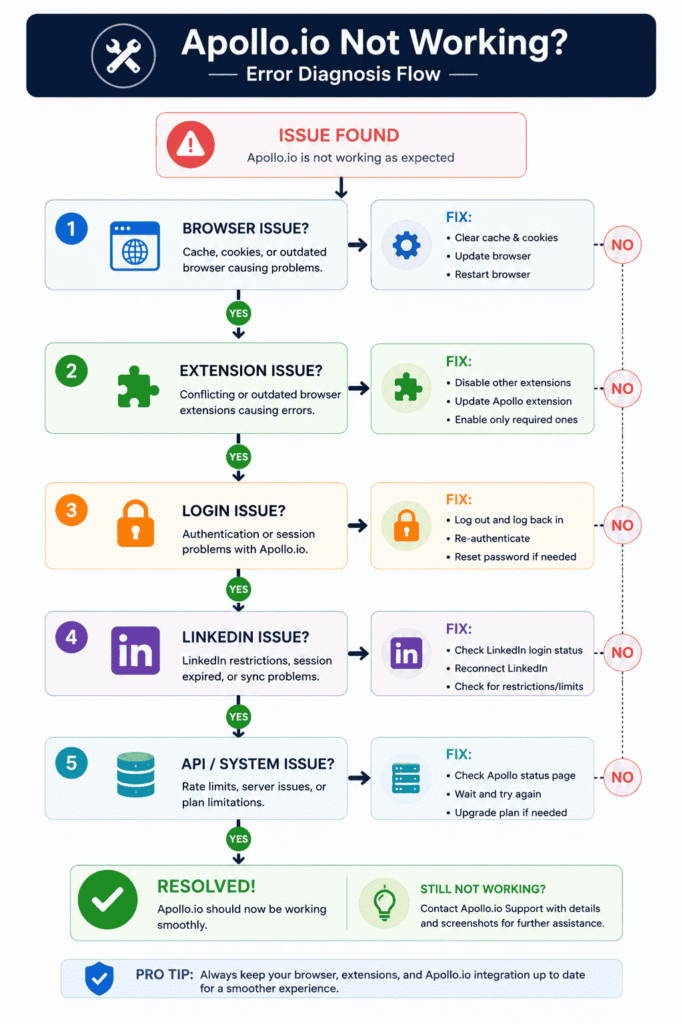
1. Why Apollo.io Stops Working
Apollo.io relies on multiple systems working together simultaneously, including browser permissions, LinkedIn integration, Chrome extension access, CRM syncing, account authentication, and cloud-based data processing.
Because of this, users may occasionally experience problems such as:
- Apollo.io not working on LinkedIn
- Apollo Chrome extension not loading
- Apollo email finder not working
- Apollo contacts not syncing
- Apollo login issues
- Apollo extension not showing on LinkedIn
In many cases, the problem is not caused by Apollo itself. Instead, browser settings, LinkedIn platform changes, extension conflicts, outdated sessions, or CRM integration errors are often responsible for disrupting the workflow.
Understanding the root cause helps users troubleshoot Apollo faster and avoid repeating the same issues in future outreach campaigns.
1.1. Browser-Related Issues
Browser-related problems are one of the biggest reasons why Apollo.io stops working properly, especially for LinkedIn prospecting and Chrome extension workflows.
Since Apollo heavily depends on browser-based functionality, even small browser conflicts can affect:
- Lead extraction
- Profile detection
- Extension loading
- Email discovery
- CRM syncing
1.1.1. Outdated Chrome Browser Version
Using an outdated Chrome version can cause:
- Extension loading failures
- Broken LinkedIn integrations
- Missing Apollo buttons
- Slow extension performance
- Login session errors
Modern SaaS tools like Apollo regularly update their extension features to match the latest browser security and API requirements.
Best Practice
✔ Update Chrome regularly
✔ Restart the browser after updates
✔ Remove unsupported browser versions
✔ Use stable browser releases instead of beta builds
1.1.2. Extension Conflicts
Many users install multiple sales, scraping, automation, and productivity extensions together. Some of these extensions conflict directly with Apollo’s scripts and permissions.
Common conflicting tools include:
- Aggressive ad blockers
- Privacy extensions
- Script blockers
- LinkedIn automation tools
- Browser security plugins
These conflicts can lead to:
- Apollo extension not opening
- LinkedIn detection failures
- Broken profile overlays
- Loading loops
- Missing contact buttons
Recommended Fix
✔ Disable unnecessary extensions temporarily
✔ Test Apollo in Incognito Mode
✔ Keep only essential prospecting tools active
✔ Restart the browser after disabling extensions
1.1.3. Disabled Browser Permissions
Apollo requires browser permissions to:
- Access LinkedIn pages
- Inject extension overlays
- Read profile data
- Sync prospecting actions
If permissions are disabled, Apollo may stop functioning correctly.
Common Symptoms
- Apollo not showing on LinkedIn
- Extension icon greyed out
- Profile enrichment not loading
- Export buttons missing
Recommended Fix
✔ Open Chrome Extension Settings
✔ Enable “Allow On All Sites”
✔ Verify LinkedIn access permissions
✔ Re-enable extension permissions manually
Browser-related issues often impact how data syncs with CRM systems and sales pipelines. Learn how CRM workflow automation works to better understand data flow and integration stability.
1.2. LinkedIn Platform Changes
LinkedIn frequently updates its platform interface, layout structure, and security systems. These updates can temporarily affect Apollo’s LinkedIn integration and Chrome extension functionality.
This is one of the most common reasons users experience:
- Apollo LinkedIn issues
- Extension overlays disappearing
- Contact capture failures
- Profile scraping interruptions
1.2.1. LinkedIn UI Updates
Apollo’s Chrome extension relies on LinkedIn page structures to identify:
- Profiles
- Contact data
- Company pages
- Prospecting opportunities
When LinkedIn changes its interface or HTML structure, Apollo may temporarily fail to detect profile elements correctly.
Common Symptoms
- Apollo extension not loading on profiles
- Missing prospecting sidebar
- Broken enrichment panels
- Blank extension popups
Important Note
These issues are often temporary and usually get fixed through extension updates from Apollo.
1.2.2. LinkedIn Anti-Automation Systems
LinkedIn continuously monitors automated scraping and unusual browsing behavior to reduce spam and protect platform activity.
Aggressive prospecting behavior may trigger:
- Temporary LinkedIn restrictions
- Blocked session access
- Delayed extension loading
- Unusual activity warnings
Best Practice
✔ Avoid excessive profile scraping
✔ Limit automation volume
✔ Use natural browsing patterns
✔ Avoid running multiple automation tools simultaneously
1.3. Session & Cache Problems
Browser session problems are another major reason Apollo.io stops working unexpectedly.
Corrupted cache files, expired login tokens, or broken cookies can interrupt authentication between:
- Apollo
- Browser sessions
- CRM integrations
1.3.1. Expired Login Tokens
Apollo and LinkedIn both use authentication tokens to maintain active sessions.
When tokens expire:
- Apollo may disconnect
- Login loops may appear
- Profile detection may stop
- Syncing can fail
Common Symptoms
- Apollo keeps asking to log in
- LinkedIn integration disconnects
- Extension loads endlessly
- Account sessions reset repeatedly
Recommended Fix
✔ Log out of Apollo and LinkedIn completely
✔ Clear browser sessions
✔ Log back into both platforms
✔ Restart the browser after reauthentication
1.3.2. Corrupted Cookies & Cache
Overloaded browser cache files may interfere with extension scripts and account authentication.
This often causes:
- Slow extension performance
- Broken LinkedIn overlays
- Missing lead data
- Extension freezing
Recommended Fix
✔ Clear browser cache regularly
✔ Remove corrupted cookies
✔ Restart Chrome after cleanup
✔ Avoid excessive cached sessions across multiple accounts
1.4. Workspace & API Sync Issues
Apollo integrates with CRMs, outreach tools, and automation platforms through APIs and syncing systems.
When these integrations fail, users may experience:
- Contacts not syncing
- Duplicate leads
- Export failures
- Delayed workflow automation
- Missing CRM records
1.4.1. CRM Integration Failures
Apollo users commonly connect the platform with:
- HubSpot
- Salesforce
- Outreach automation tools
- Email sequencing platforms
Improper field mapping or expired API permissions may interrupt syncing.
Common Symptoms
- Contacts missing from CRM
- Duplicate entries
- Delayed exports
- Broken automation triggers
Recommended Fix
✔ Reconnect CRM integrations
✔ Refresh API permissions
✔ Verify field mappings
✔ Test sync settings manually
✔ Remove duplicate automation rules
1.4.2. Webhook & API Delays
Cloud-based SaaS platforms depend on APIs and webhooks to transfer data between systems in real time.
Heavy server load or API delays may temporarily slow:
- Lead syncing
- Enrichment workflows
- Contact exports
- Automation triggers
Important Note
Sometimes the issue is temporary and resolves automatically after synchronization refreshes.
Best Practice
✔ Wait a few minutes before retrying
✔ Refresh sync settings
✔ Check Apollo system status
✔ Retry failed exports manually
1.5. Pro Tip: Most Apollo.io Problems Are Fixable
The majority of Apollo.io issues are caused by:
- Browser conflicts
- LinkedIn changes
- Session problems
- Extension permissions
- Integration settings
Most users can restore Apollo functionality quickly by:
✔ Updating Chrome
✔ Reinstalling the Apollo extension
✔ Refreshing LinkedIn sessions
✔ Clearing browser cache
✔ Reconnecting integrations
✔ Updating extension permissions
Understanding these root causes makes troubleshooting faster and helps maintain stable LinkedIn prospecting and outreach workflows.
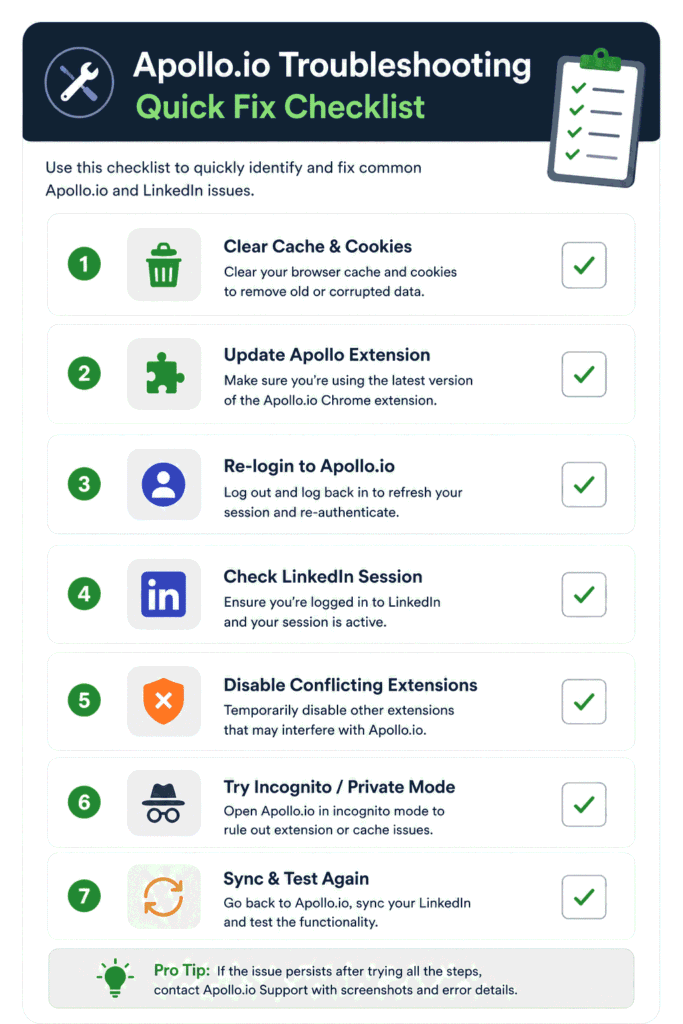
2. Apollo Chrome Extension Not Working
The Apollo.io Chrome extension may sometimes stop working while using LinkedIn or within the browser, affecting prospecting, lead generation, and outreach workflows.
This issue typically occurs due to browser permission restrictions, outdated extensions, conflicting browser add-ons, corrupted sessions, or recent LinkedIn platform updates.
In most cases, the extension can be fixed by updating the Chrome extension, clearing browser cache, re-logging into Apollo, disabling conflicting extensions, or checking LinkedIn session status.
2.1. Common Symptoms of Apollo Chrome Extension Problems
Apollo extension issues can appear in different ways depending on the browser setup, LinkedIn session state, and extension permissions.
Here are the most common symptoms users experience.
2.1.1. Apollo Icon Missing
Some users notice that:
- The Apollo extension icon disappears
- The extension becomes inactive
- LinkedIn pages no longer show Apollo overlays
This usually indicates:
- Disabled permissions
- Browser conflicts
- Extension corruption
- Failed updates
2.1.2. Apollo Extension Not Opening
The extension may fail to open when users click the Chrome toolbar icon.
Common Symptoms
- Extension popup freezes
- Loading spinner never ends
- Empty extension panel appears
- Extension crashes instantly
This is often caused by:
- Corrupted cache
- Memory overload
- Outdated extension versions
- Conflicting browser scripts
2.1.3. Blank Popup Window
In some cases, the Apollo extension opens but shows:
- A blank white screen
- Missing profile information
- Incomplete prospecting data
- Empty contact panels
This problem is commonly linked to:
- Broken LinkedIn sessions
- Browser rendering issues
- Blocked extension permissions
2.1.4. No Contact Data Loading
Users may also experience:
- Missing emails
- Missing phone numbers
- Failed enrichment results
- Lead capture problems
This often happens when:
- LinkedIn profile detection fails
- Apollo cannot access profile data
- Browser permissions are restricted
- CRM sync conflicts interrupt enrichment
2.1.5. Extension Disabled Automatically
Chrome may automatically disable extensions due to:
- Security warnings
- Browser instability
- Excessive memory usage
- Unsupported extension behavior
Common Signs
- Apollo extension disappears after restart
- Chrome shows “extension disabled” warning
- Apollo stops loading after browser updates
2.2. Why Apollo Chrome Extension Stops Working
Understanding the root cause helps users troubleshoot Apollo faster and avoid repeating the same issues during outreach campaigns.
2.2.1. Chrome Permission Issues
Apollo requires browser permissions to:
- Read LinkedIn pages
- Display prospecting overlays
- Capture contact data
- Sync workflows
If permissions are disabled, Apollo functionality becomes limited.
Common Permission Problems
♦️ Blocked Site Access
Chrome may block Apollo from accessing LinkedIn pages.
♦️ Disabled Extension Permissions
Users sometimes accidentally disable:
- Site access
- Background activity
- Browser permissions
♦️ Restricted Security Settings
Aggressive browser security configurations may interfere with extension scripts.
Recommended Fixes
✔ Open Chrome Extension Settings
✔ Select Apollo Extension
✔ Enable “Allow On All Sites”
✔ Verify LinkedIn Site Permissions
✔ Restart Chrome After Permission Changes
2.2.2. Conflicting Browser Extensions
Apollo can conflict with other browser extensions that modify LinkedIn pages or block scripts.
Common Conflicting Tools
🔶 Ad Blockers
Some ad blockers interfere with Apollo’s interface rendering.
🔶 Privacy Extensions
Privacy-focused tools may block:
- Tracking scripts
- Enrichment requests
- Browser communication
🔶 Automation Extensions
Running multiple LinkedIn automation tools simultaneously can cause:
- Profile detection failures
- Broken overlays
- Extension crashes
Recommended Fixes
✔ Disable Unnecessary Extensions
✔ Test Apollo In Incognito Mode
✔ Keep Only Essential Prospecting Tools Active
✔ Restart Browser After Disabling Extensions
2.2.3. Corrupted Browser Cache & Cookies
Corrupted browser data is one of the most common reasons Apollo extension problems occur unexpectedly.
Overloaded cache files may interfere with:
- LinkedIn sessions
- extension rendering
- authentication requests
- contact loading
Common Symptoms
- Apollo Keeps Loading Forever
- Extension Shows Blank Screen
- LinkedIn Profiles Fail To Load
- Apollo Login Session Keeps Expiring
Recommended Fixes
✔ Clear Browser Cache
✔ Remove Apollo & LinkedIn Cookies
✔ Restart Chrome Completely
✔ Re-login To Apollo & LinkedIn
2.2.4. Outdated Apollo Extension Version
Apollo regularly updates its extension to maintain compatibility with:
- LinkedIn updates
- Chrome browser changes
- Security improvements
- API integrations
Using outdated versions may cause:
- Broken prospecting features
- Missing contact buttons
- Extension instability
Recommended Fixes
✔ Open Chrome Extension Manager
✔ Enable Automatic Updates
✔ Update Apollo Extension Manually
✔ Restart Browser After Updating
2.2.5. Browser Memory & Performance Problems
Heavy browser usage can slow Apollo extension performance significantly.
This is especially common when users:
- Open too many tabs
- Run multiple sales tools
- Use memory-heavy browsers
- Keep long LinkedIn sessions active
Common Symptoms
- Slow Extension Loading
- Delayed Contact Enrichment
- Browser Freezing
- LinkedIn Pages Crashing
Recommended Fixes
✔ Close Unused Browser Tabs
✔ Restart Chrome Regularly
✔ Avoid Running Too Many Prospecting Extensions
✔ Use Stable Chrome Versions
✔ Upgrade System Memory If Needed
2.3. Step-by-Step Fixes for Apollo Chrome Extension Problems
Follow these troubleshooting methods in order to restore Apollo functionality quickly.
Fix 1: Refresh LinkedIn Session
LinkedIn session conflicts are one of the biggest causes of Apollo extension problems.
Steps
✔ Log Out Of LinkedIn
✔ Close All LinkedIn Tabs
✔ Restart Chrome Browser
✔ Log Back Into LinkedIn
✔ Refresh The Profile Page
Why This Helps
Refreshing the session resets:
- Expired tokens
- Broken cookies
- LinkedIn authentication conflicts
This often restores:
- Profile detection
- Contact enrichment
- Extension overlays
Fix 2: Re-enable Apollo Extension
Sometimes Chrome disables extensions automatically after updates or security checks.
Steps
✔ Open Chrome Extensions Page
✔ Locate Apollo Extension
✔ Disable The Extension
✔ Wait 10 Seconds
✔ Re-enable The Extension
✔ Refresh LinkedIn
Why This Helps
Re-enabling the extension refreshes:
- Background scripts
- Browser permissions
- Extension communication
Fix 3: Update Chrome Browser
Outdated browsers may break Apollo’s extension compatibility.
Steps
✔ Open Chrome Settings
✔ Go To “About Chrome”
✔ Install Available Updates
✔ Restart Browser Completely
Why This Helps
Modern Chrome updates improve:
- Extension stability
- Security compatibility
- LinkedIn rendering support
Fix 4: Clear Browser Cache
Cache corruption frequently causes:
- Loading issues
- Blank extension screens
- Session failures
Steps
✔ Open Chrome Settings
✔ Navigate To Privacy & Security
✔ Select “Clear Browsing Data”
✔ Remove Cache & Cookies
✔ Restart Chrome
Important Note
Clearing cache may temporarily log users out of:
- Apollo
- CRM platforms
Fix 5: Disable Conflicting Extensions
Conflicting browser extensions can block Apollo scripts from loading correctly.
Recommended Testing Method
✔ Disable All Non-Essential Extensions
✔ Restart Chrome
✔ Test Apollo On LinkedIn
✔ Re-enable Extensions One By One
Common Extensions That Cause Issues
- Aggressive Ad Blockers
- Script Blocking Extensions
- LinkedIn Automation Tools
- Browser Privacy Tools
Fix 6: Reinstall Apollo Chrome Extension
If nothing else works, reinstalling Apollo often resolves persistent extension corruption issues.
Steps
✔ Remove Apollo Extension From Chrome
✔ Restart Browser
✔ Download Apollo Extension Again
✔ Reinstall Fresh Version
✔ Log Back Into Apollo
Why Reinstallation Helps
Reinstallation removes:
- Corrupted files
- Broken permissions
- Outdated scripts
- Failed update remnants
This provides a clean extension environment.
2.4. Pro Tip: Best Browser Setup for Apollo
For stable Apollo performance:
✔ Use Google Chrome
✔ Limit Active Prospecting Extensions
✔ Keep Chrome Updated
✔ Avoid Overloaded Browser Sessions
✔ Clear Cache Regularly
✔ Restart Browser Frequently During Heavy Prospecting Workflows
2.5. Quick Troubleshooting Checklist
✔ Update Chrome Browser
✔ Refresh LinkedIn Session
✔ Re-enable Apollo Extension
✔ Clear Browser Cache
✔ Disable Conflicting Extensions
✔ Restart Browser
✔ Reinstall Apollo Extension
✔ Verify LinkedIn Permissions
✔ Test In Incognito Mode
Following these troubleshooting steps resolves most Apollo Chrome extension issues and helps restore stable LinkedIn prospecting workflows quickly.
Many Apollo.io issues are related to browser or extension conflicts. If you’re setting up or troubleshooting the tool, check our Apollo.io Chrome Extension Guide to ensure proper installation and configuration.
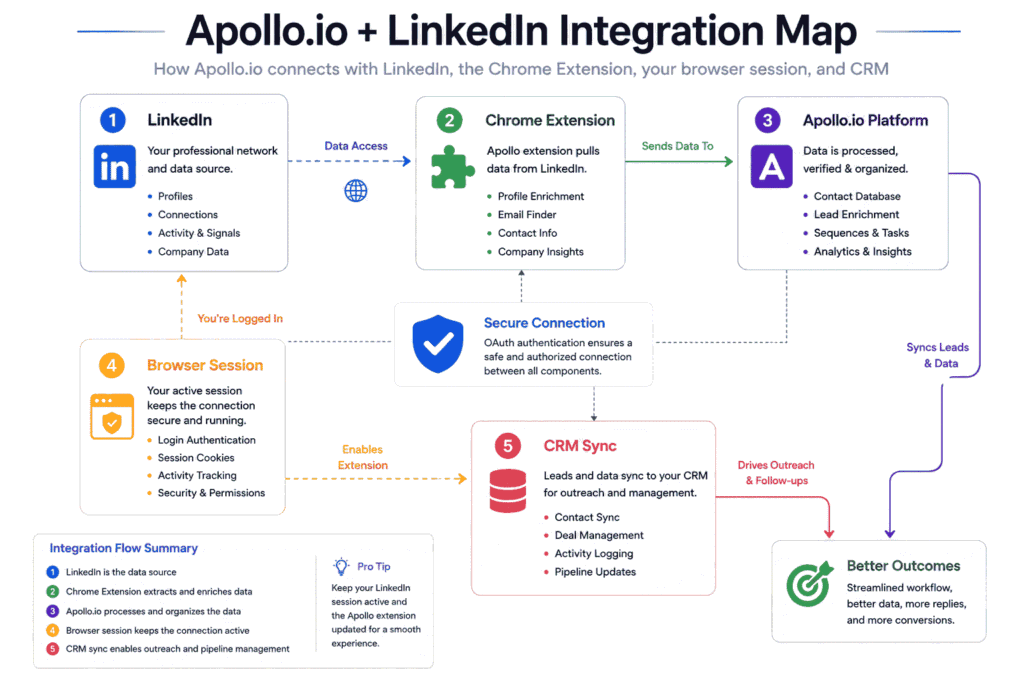
3. Apollo.io Not Working on LinkedIn
Apollo.io may sometimes stop working on LinkedIn profiles or company pages, affecting lead generation, contact enrichment, and outreach workflows.
This issue usually occurs because the Chrome extension depends on LinkedIn’s interface, active browser sessions, profile loading behavior, and proper permission settings.
In most cases, the problem can be resolved by refreshing the LinkedIn session, updating the Apollo extension, clearing browser cache, checking permissions, or reconnecting the integration.
3.1. Common Apollo LinkedIn Problems
Apollo LinkedIn issues can appear differently depending on:
- Browser setup
- LinkedIn session state
- Extension permissions
- LinkedIn UI changes
- Automation conflicts
Below are the most common problems users experience while using Apollo on LinkedIn.
3.1.1. Apollo Not Showing on LinkedIn Profiles
One of the biggest complaints users face is when the Apollo extension disappears completely from LinkedIn profile pages.
Instead of seeing:
- Contact enrichment panels
- Email discovery options
- Lead capture buttons
users see nothing at all.
Common Symptoms
✔ Apollo Sidebar Missing
✔ Contact Buttons Not Appearing
✔ Extension Overlay Disappearing
✔ Apollo Widget Not Loading On Profiles
✔ No Prospecting Options Available
Why This Happens
This usually happens because:
- LinkedIn updated its interface
- Browser permissions were restricted
- Extension scripts failed to inject
- Browser cache became corrupted
Recommended Fixes
✔ Refresh The LinkedIn Page
✔ Restart Chrome Browser
✔ Re-enable Apollo Extension Permissions
✔ Clear Browser Cache & Cookies
✔ Update Apollo Chrome Extension
3.1.2. Apollo Not Detecting Leads
Some users notice that Apollo loads on LinkedIn but fails to detect:
- Profile data
- Company details
- Lead information
- Enrichment fields
This issue interrupts prospecting workflows and lead generation processes.
Common Symptoms
✔ Missing Lead Data
✔ Empty Contact Panels
✔ No Company Information
✔ Failed Enrichment Results
✔ Apollo Cannot Identify Prospects
Why This Happens
Lead detection problems often occur because:
- LinkedIn profile rendering changed
- Session authentication expired
- Browser extensions conflicted
- Apollo scripts loaded incorrectly
Recommended Fixes
✔ Refresh LinkedIn Session
✔ Disable Conflicting Extensions
✔ Log Out & Re-login To LinkedIn
✔ Test Apollo In Incognito Mode
✔ Reconnect Apollo Account
3.1.3. Apollo Loading Forever on LinkedIn
Another common issue occurs when the Apollo extension keeps loading endlessly without displaying prospect data.
This problem is especially frustrating during active prospecting sessions.
Common Symptoms
✔ Infinite Loading Spinner
✔ Delayed Contact Enrichment
✔ Frozen Apollo Sidebar
✔ Blank Loading Screen
✔ LinkedIn Pages Becoming Slow
Why This Happens
Infinite loading issues are usually caused by:
- Expired LinkedIn sessions
- Overloaded browser memory
- Corrupted browser cache
- Extension communication failures
Recommended Fixes
✔ Close Unused Browser Tabs
✔ Restart Browser Completely
✔ Clear Apollo Cookies
✔ Disable Heavy Browser Extensions
✔ Reinstall Apollo Chrome Extension
3.1.4. Apollo Cannot Capture LinkedIn Contacts
Some users experience situations where Apollo can view profiles but cannot:
- Save contacts
- Export leads
- Sync prospects
- Capture contact details
This affects sales workflows and CRM automation processes.
Common Symptoms
✔ Save Lead Button Not Working
✔ Export Failures
✔ Missing Prospect Sync
✔ Contact Capture Errors
✔ CRM Export Delays
Why This Happens
This issue commonly occurs because:
- CRM integrations disconnected
- API permissions expired
- LinkedIn session validation failed
- Browser security settings blocked exports
Recommended Fixes
✔ Reconnect CRM Integrations
✔ Refresh API Permissions
✔ Verify Apollo Workspace Access
✔ Re-login To Apollo Account
✔ Restart Browser Session
3.1.5. Apollo Buttons Missing on LinkedIn
Users may also notice that Apollo buttons suddenly disappear from LinkedIn profiles or search results.
This usually affects:
- Profile enrichment buttons
- Export options
- Lead capture actions
- Automation workflows
Common Symptoms
✔ Missing “Save To Apollo” Button
✔ No Contact Enrichment Buttons
✔ LinkedIn Search Export Missing
✔ Prospecting Tools Not Visible
Why This Happens
Button visibility issues are often caused by:
- LinkedIn UI changes
- Browser rendering conflicts
- Blocked extension permissions
- Script loading failures
Recommended Fixes
✔ Refresh LinkedIn Multiple Times
✔ Update Chrome Browser
✔ Disable Ad Blockers
✔ Enable Apollo Site Permissions
✔ Reinstall Apollo Extension
3.2. Why Apollo.io Stops Working on LinkedIn
Apollo relies heavily on LinkedIn’s browser environment and interface structure. Even small changes in LinkedIn’s frontend architecture can temporarily affect Apollo’s functionality.
Below are the most common root causes behind Apollo LinkedIn issues.
3.2.1. LinkedIn UI Updates
LinkedIn frequently updates:
- Profile layouts
- HTML structures
- Search result rendering
- Page architecture
Since Apollo’s extension interacts directly with these elements, sudden UI updates can temporarily break:
- Profile detection
- Contact enrichment
- Lead capture buttons
- Sidebar overlays
Important Note
This is extremely common with browser-based SaaS prospecting tools and usually gets fixed through extension updates.
3.2.2. LinkedIn Anti-Automation Detection
LinkedIn actively monitors unusual automation behavior to reduce spam and excessive scraping activity.
Aggressive prospecting behavior may trigger:
- Delayed extension loading
- Blocked enrichment requests
- Temporary profile restrictions
- Unusual activity warnings
Best Practices To Avoid Detection Issues
✔ Avoid Excessive Profile Scraping
✔ Limit High-Volume Prospecting Sessions
✔ Use Natural Browsing Patterns
✔ Avoid Running Multiple Automation Tools Together
✔ Restart Sessions Periodically
3.2.3. Browser Session Expiry
Apollo and LinkedIn rely on active authentication sessions to communicate properly.
When sessions expire:
- Profile enrichment may fail
- Lead detection may stop
- Extension overlays may disappear
- Export functions may break
Common Symptoms
✔ Apollo Keeps Disconnecting
✔ LinkedIn Profiles Stop Loading
✔ Login Requests Reappear Frequently
✔ Contact Data Fails Randomly
3.2.4. Extension Injection Failure
Apollo injects scripts directly into LinkedIn pages to display:
- Lead information
- Contact enrichment
- Export tools
- Prospecting overlays
If script injection fails, Apollo may appear broken even though the extension is installed correctly.
Common Causes
✔ Browser Security Restrictions
✔ Script Blocking Extensions
✔ Corrupted Browser Sessions
✔ Outdated Chrome Versions
✔ Broken Extension Updates
3.3. Real Apollo LinkedIn Fix Walkthrough
Follow these troubleshooting steps in order to restore Apollo functionality on LinkedIn.
Step 1: Log Out Of LinkedIn
Expired LinkedIn sessions frequently cause Apollo detection failures.
Steps
✔ Log Out Of LinkedIn Completely
✔ Close All LinkedIn Tabs
✔ Restart Browser
✔ Log Back Into LinkedIn
✔ Refresh Profile Pages
Why This Helps
This refreshes:
- Authentication tokens
- Session cookies
- Extension communication
Step 2: Clear Apollo Cookies
Corrupted cookies can interfere with:
- Login validation
- Enrichment requests
- Profile rendering
Steps
✔ Open Browser Settings
✔ Navigate To Cookies & Site Data
✔ Remove Apollo & LinkedIn Cookies
✔ Restart Browser
Why This Helps
Clearing cookies resets:
- Corrupted sessions
- Outdated authentication data
- Broken browser storage
Step 3: Refresh Chrome Permissions
Apollo requires permission to interact with LinkedIn pages correctly.
Steps
✔ Open Chrome Extension Settings
✔ Select Apollo Extension
✔ Enable “Allow On All Sites”
✔ Verify LinkedIn Access Permissions
✔ Refresh Browser
Why This Helps
Permission refresh restores:
- Extension visibility
- LinkedIn page access
- Overlay rendering
Step 4: Disable Ad Blockers
Aggressive ad blockers and privacy extensions often interfere with Apollo scripts.
Common Problematic Extensions
✔ Ad Blockers
✔ Privacy Tools
✔ Script Blockers
✔ Tracking Prevention Extensions
Recommended Fix
✔ Temporarily Disable These Extensions
✔ Restart Browser
✔ Test Apollo On LinkedIn Again
Step 5: Test Apollo In Incognito Mode
Incognito Mode helps identify whether another extension or browser setting is causing the problem.
Steps
✔ Open Incognito Window
✔ Enable Apollo In Incognito Settings
✔ Log Into LinkedIn
✔ Test Prospecting Features
Why This Helps
If Apollo works in Incognito Mode, the issue is usually caused by:
- Conflicting extensions
- Corrupted cache
- Browser settings conflicts
Step 6: Reconnect Apollo Account
Sometimes Apollo integrations disconnect internally even when the extension appears active.
Steps
✔ Log Out Of Apollo
✔ Disconnect LinkedIn Integration
✔ Reconnect Apollo Account
✔ Reauthorize Permissions
✔ Restart Browser Session
Why This Helps
Reconnecting restores:
- LinkedIn communication
- CRM sync permissions
- Prospecting access
- Account authentication
3.4. Pro Tip: Best Browsers for Apollo.io
Browser quality significantly affects Apollo performance during LinkedIn prospecting.
Using optimized browsers improves:
- Extension stability
- Enrichment speed
- Contact detection
- Browser performance
3.5. Recommended Browsers For Apollo
🟢 Google Chrome
Best overall browser for Apollo compatibility and extension support.
Benefits :
✔ Highest Extension Stability
✔ Better LinkedIn Compatibility
✔ Fast Apollo Rendering
✔ Frequent Security Updates
🟢 Brave Browser
Good alternative for users wanting privacy-focused browsing with Chromium compatibility.
Benefits :
✔ Chromium-Based Compatibility
✔ Strong Performance
✔ Good Memory Optimization
🟢 Microsoft Edge
Edge also supports Chromium extensions and performs well with Apollo workflows.
Benefits :
✔ Stable Extension Support
✔ Efficient Memory Usage
✔ Good Browser Performance
3.6. Browsers & Conditions To Avoid
Avoid overloaded browser environments that slow Apollo performance.
Common Problems To Avoid
Too Many Browser Extensions
Excessive LinkedIn Tabs Open
Heavy Automation Tool Stacking
Outdated Browser Versions
Memory-Heavy Background Apps
Recommended Browser Best Practices
✔ Keep Browser Updated
✔ Restart Browser Regularly
✔ Limit Active Prospecting Extensions
✔ Clear Cache Weekly
✔ Avoid Running Multiple Automation Tools Together
3.7. Quick LinkedIn Troubleshooting Checklist
✔ Refresh LinkedIn Session
✔ Clear Browser Cache & Cookies
✔ Update Apollo Extension
✔ Disable Conflicting Extensions
✔ Verify Chrome Permissions
✔ Test In Incognito Mode
✔ Restart Browser Completely
✔ Reconnect Apollo Account
✔ Update Chrome Browser
Following these troubleshooting methods resolves most Apollo.io LinkedIn issues and helps maintain stable LinkedIn prospecting workflows.
LinkedIn integration issues often affect outreach and prospecting workflows. Explore our Cold Email Workflow for Beginners to understand how outbound campaigns are structured and managed effectively.
4. Apollo Email Finder Not Working
Apollo.io’s email finder may sometimes fail to return accurate or complete business email addresses while building prospect lists or enriching LinkedIn profiles.
This issue can occur due to limited public data availability, incomplete profile information, domain privacy restrictions, outdated records, or verification limitations within the system.
In many cases, email accuracy and results can be improved by refining search filters, targeting complete profiles, using verified domains, and applying proper email verification steps during prospecting.
4.1. Common Apollo Email Finder Problems
Apollo email finder issues can appear in different ways depending on:
- Company privacy settings
- LinkedIn profile quality
- Database freshness
- Domain accessibility
- Enrichment availability
Below are the most common email finder problems users experience.
4.1.1. No Email Found
One of the most common Apollo problems occurs when users search for prospects but no email address appears.
This is especially common for:
- Private companies
- Small businesses
- Newly created domains
- Hidden executive profiles
Common Symptoms
✔ No Email Data Available
✔ Contact Profile Shows “Email Not Found”
✔ Missing Business Email Results
✔ Empty Enrichment Panels
✔ Limited Prospect Information
Why This Happens
This usually happens because:
- The company hides public contact data
- The domain lacks indexed email records
- The LinkedIn profile is incomplete
- Apollo’s database has limited coverage
Recommended Fixes
✔ Verify LinkedIn Profile Completeness
✔ Search Using Company Domain
✔ Use Multiple Prospect Sources
✔ Refresh Enrichment Results
✔ Cross-check With Verification Tools
4.1.2. Incorrect Emails Found
Some users experience situations where Apollo provides email addresses that:
- Bounce
- Fail verification
- Belong to the wrong person
- Use outdated domains
This can negatively affect:
- Email deliverability
- Sender reputation
- Outreach performance
Common Symptoms
✔ High Bounce Rates
✔ Wrong Contact Information
✔ Outdated Company Domains
✔ Invalid Email Formatting
✔ Failed Outreach Campaigns
Why This Happens
Incorrect email results often occur because:
- Company employees changed roles
- Domains migrated recently
- Databases contain outdated records
- Public sources were inaccurate
Recommended Fixes
✔ Verify Emails Before Sending
✔ Cross-check Company Domains
✔ Use Real-Time Verification Tools
✔ Confirm Prospect Employment Status
✔ Avoid Sending Bulk Unverified Campaigns
4.1.3. Verification Failed
Apollo may sometimes find email addresses but fail to verify them properly.
This creates uncertainty about whether:
- The email is deliverable
- The mailbox exists
- Outreach campaigns will succeed
Common Symptoms
✔ Verification Errors
✔ “Unable To Verify” Warnings
✔ Low Confidence Scores
✔ Partial Enrichment Results
✔ Missing Validation Data
Why This Happens
Verification failures commonly occur because:
- Domains block verification requests
- Privacy protections hide mailbox data
- Catch-all domains reduce verification accuracy
- Temporary server restrictions interrupt validation
Recommended Fixes
✔ Retry Verification Later
✔ Use Additional Email Verification Tools
✔ Check Domain Health Manually
✔ Prioritize High-Confidence Results
✔ Avoid Sending To Unverified Contacts
4.1.4. Credits Used But No Results
Many users become frustrated when Apollo credits are consumed even though:
- No email was found
- Enrichment failed
- Contact details remained incomplete
This is a common concern among active prospecting users.
Common Symptoms
✔ Credits Decrease Without Results
✔ Incomplete Contact Enrichment
✔ Missing Email Output
✔ Failed Lead Discovery
✔ Empty Prospect Data
Why This Happens
Credits may still be used because Apollo performed:
- Profile enrichment attempts
- Database matching requests
- Verification checks
- Contact lookup processing
Even when results are limited, backend enrichment resources may still be consumed.
Recommended Fixes
✔ Target High-Quality LinkedIn Profiles
✔ Use Accurate Prospect Filters
✔ Avoid Random Bulk Searches
✔ Verify Domain Availability First
✔ Focus On Business Profiles With Complete Information
4.2. Why Apollo Email Finder Fails
Understanding why Apollo email finder problems occur helps users improve:
- Prospecting accuracy
- Outreach quality
- Lead generation performance
- Email deliverability
Below are the most common root causes behind Apollo email enrichment failures.
4.2.1. Limited Public Data
Apollo depends heavily on publicly available business information to enrich contacts and identify email patterns.
If limited public data exists, email discovery becomes difficult.
Common Scenarios
✔ Small Companies With Limited Web Presence
✔ Stealth Startups
✔ Private Executive Profiles
✔ Minimal Social Footprint
✔ Hidden Contact Information
Important Insight
Even advanced sales intelligence platforms cannot generate email addresses reliably when public business signals are weak.
4.2.2. Company Privacy Protection
Many organizations actively protect employee email visibility using:
- Privacy policies
- Security filtering
- Email masking
- Domain restrictions
This limits enrichment accuracy across sales intelligence platforms.
Common Examples
✔ Hidden Executive Contact Data
✔ Masked Employee Emails
✔ Restricted Domain Access
✔ Internal Security Policies
4.2.3. Old Or Outdated Databases
Contact databases constantly change because:
- Employees switch companies
- Domains migrate
- Businesses shut down
- Email formats change
Outdated records can lead to:
- Incorrect emails
- Bounced outreach
- Failed verification
Important Note
Even premium sales intelligence tools experience occasional data aging issues due to the scale of business contact updates happening daily.
4.2.4. Domain Restrictions & Catch-All Domains
Some domains intentionally block:
- Email verification
- Mailbox validation
- Automated enrichment requests
Catch-all domains also make it difficult to confirm whether individual mailboxes actually exist.
Common Problems
✔ Verification Failures
✔ Low Confidence Scores
✔ Uncertain Deliverability
✔ Incomplete Validation Data
4.3. Best Fixes For Apollo Email Finder Problems
The following optimization methods help improve Apollo email finder performance and prospecting accuracy significantly.
4.3.1. Verify LinkedIn Profile Completeness
Apollo performs better when LinkedIn profiles contain:
- Updated company information
- Clear job titles
- Active employment records
- Complete business details
Why This Helps
Complete profiles provide stronger enrichment signals for:
- Company matching
- Domain identification
- Contact discovery
- Lead validation
Best Practices
✔ Target Fully Optimized LinkedIn Profiles
✔ Prioritize Active Business Accounts
✔ Verify Current Employment Status
✔ Avoid Incomplete Prospect Profiles
4.3.2. Use Company Domain Search
Searching directly through company domains often improves enrichment accuracy. Instead of relying only on individual profiles, use:
- Company websites
- Domain searches
- Organization-level enrichment
Why This Helps
Company domain searches improve:
- Email pattern recognition
- Organizational matching
- Business verification accuracy
Best Practices
✔ Verify Official Company Website
✔ Confirm Correct Domain Structure
✔ Cross-check Domain Variations
✔ Avoid Generic Email Domains
4.3.3. Enable Data Refresh
Apollo databases update regularly, but older records may still appear temporarily. Refreshing enrichment data can sometimes restore missing or outdated contact details.
Recommended Actions
✔ Retry Enrichment After Some Time
✔ Refresh Contact Data Manually
✔ Re-run Prospect Searches
✔ Update Apollo Extension Regularly
4.3.4. Cross-check With Verification Tools
Even when Apollo finds an email, verification is still important before launching cold outreach campaigns.
Why Verification Matters
Verification helps reduce:
- Bounce rates
- Spam complaints
- Deliverability issues
- Sender reputation damage
Best Practices
✔ Verify Emails Before Bulk Outreach
✔ Prioritize High-Confidence Contacts
✔ Remove Invalid Addresses Quickly
✔ Monitor Bounce Rates Regularly
4.3.5. Try Alternative Contact Sources
Sometimes the best approach is combining Apollo with multiple lead generation sources. This improves:
- Enrichment coverage
- Contact discovery
- Outreach accuracy
Alternative Prospecting Sources
✔ Company Websites
✔ LinkedIn Profiles
✔ Contact Pages
✔ Professional Directories
✔ Industry Databases
4.4. Pro Tip: Email Finder Accuracy Is Never 100%
No sales intelligence platform can guarantee perfect email accuracy because business contact data changes constantly. Even top prospecting tools experience:
- Outdated records
- Hidden emails
- Verification limitations
- Domain restrictions
The goal is not perfect data. The goal is building:
✔ Higher-quality lead lists
✔ Verified prospect databases
✔ Cleaner outreach workflows
4.5. Recommended Email Finder Best Practices
Following these practices improves Apollo email finder performance significantly.
Best Practices Checklist
✔ Verify Emails Before Sending
✔ Prioritize High-Confidence Contacts
✔ Use Domain-Based Prospecting
✔ Refresh Data Regularly
✔ Monitor Bounce Rates
✔ Avoid Unverified Bulk Outreach
✔ Combine Multiple Prospecting Sources
✔ Maintain Clean Lead Lists
4.6. Quick Apollo Email Finder Troubleshooting Checklist
✔ Verify LinkedIn Profile Completeness
✔ Use Correct Company Domain
✔ Refresh Contact Enrichment
✔ Verify Emails Before Sending
✔ Avoid Unverified Bulk Outreach
✔ Check Domain Accessibility
✔ Cross-check Contact Sources
✔ Retry Failed Verification Requests
✔ Maintain Clean Prospect Lists
Following these optimization methods helps improve Apollo email finder accuracy, reduce outreach failures, and build more reliable lead generation workflows.
To understand how Apollo.io fits into a complete lead generation system, explore our Inbound Marketing Workflow for Small Businesses, which explains how traffic, leads, and CRM systems work together.
5. Apollo Login Issues & Account Problems
Apollo.io users may sometimes face login and account access issues that interrupt prospecting, CRM syncing, outreach automation, and LinkedIn enrichment workflows.
These issues can occur due to expired browser sessions, corrupted cookies, VPN or network conflicts, workspace permission restrictions, security verification failures, or temporary server-side authentication delays.
In most cases, these problems can be resolved by clearing browser cache and cookies, refreshing the login session, checking workspace permissions, disabling VPN if active, or re-authenticating the account.
5.1. Common Apollo Login & Account Problems
Apollo account access problems can appear differently depending on:
- Browser environment
- Authentication state
- Workspace permissions
- Network configuration
- Account security settings
Below are the most common login and account-related issues users experience.
5.1.1. Apollo Login Failed
One of the most common problems occurs when users cannot log into Apollo successfully even with correct credentials.
This issue may block access to:
- Lead databases
- Chrome extension workflows
- CRM integrations
- Saved prospect lists
Common Symptoms
✔ Invalid Login Error
✔ Endless Login Loop
✔ Authentication Failure Message
✔ Login Button Not Responding
✔ Apollo Redirecting Back To Login Page
Why This Happens
Login failures usually occur because:
- Browser sessions expired
- Cookies became corrupted
- Cached authentication tokens failed
- Network restrictions interrupted login requests
Recommended Fixes
✔ Clear Browser Cache & Cookies
✔ Restart Browser Completely
✔ Re-login To Apollo Account
✔ Disable VPN Temporarily
✔ Test Login In Incognito Mode
5.1.2. Apollo Verification Errors
Apollo may occasionally trigger verification problems during:
- Login attempts
- Account recovery
- Device authentication
- Security checks
These verification failures can temporarily block account access.
Common Symptoms
✔ Verification Code Not Working
✔ Email Verification Delayed
✔ Authentication Request Failed
✔ Security Verification Loop
✔ Device Verification Errors
Why This Happens
Verification problems often happen because:
- Verification emails are delayed
- Spam filters block messages
- VPN locations trigger security checks
- Browser sessions become unstable
Recommended Fixes
✔ Check Spam & Promotions Folder
✔ Wait A Few Minutes Before Retrying
✔ Disable VPN Services Temporarily
✔ Refresh Browser Session
✔ Retry Verification Using Stable Network Connection
5.1.3. Workspace Access Denied
Some Apollo users experience situations where they successfully log in but cannot access:
- Team workspaces
- Saved contacts
- Shared prospect lists
- Admin settings
This issue is especially common in team-based sales environments.
Common Symptoms
✔ “Access Denied” Message
✔ Missing Workspace Dashboard
✔ Restricted Team Permissions
✔ Shared Data Not Visible
✔ Workspace Invitation Errors
Why This Happens
Workspace access issues commonly occur because:
- Permissions were changed
- Workspace invitations expired
- Account roles were modified
- Admin access restrictions were applied
Recommended Fixes
✔ Verify Team Workspace Permissions
✔ Contact Workspace Administrator
✔ Reaccept Workspace Invitation
✔ Log Out & Re-login To Apollo
✔ Refresh Team Access Permissions
5.1.4. Apollo Session Expired Repeatedly
Some users experience situations where Apollo keeps logging them out unexpectedly or repeatedly shows session expiration messages. This interrupts:
- Prospecting workflows
- CRM syncing
- LinkedIn enrichment
- Outreach activities
Common Symptoms
✔ Frequent Session Expiration Alerts
✔ Automatic Logout Problems
✔ Login Required Repeatedly
✔ Chrome Extension Disconnecting
✔ LinkedIn Integration Losing Access
Why This Happens
Repeated session expiration issues are usually caused by:
- Corrupted cookies
- Unstable browser sessions
- Aggressive privacy settings
- VPN session conflicts
- Outdated authentication tokens
Recommended Fixes
✔ Clear Browser Cookies
✔ Disable Privacy Extensions Temporarily
✔ Restart Browser Sessions
✔ Re-login To Apollo & LinkedIn
✔ Use Stable Browser Environment
5.2. Best Fixes For Apollo Login Issues
The following troubleshooting methods resolve most Apollo account and authentication problems effectively.
5.2.1. Reset Browser Cookies
Corrupted browser cookies are one of the most common causes of Apollo login failures and session instability. Cookies store:
- Authentication sessions
- Login tokens
- Account preferences
- Browser permissions
When these become corrupted, Apollo may fail to authenticate users correctly.
Steps To Reset Browser Cookies
✔ Open Browser Settings
✔ Navigate To Privacy & Security
✔ Select Cookies & Site Data
✔ Remove Apollo & LinkedIn Cookies
✔ Restart Browser Completely
Why This Helps
Resetting cookies refreshes:
- Broken authentication sessions
- Expired login tokens
- Corrupted browser storage
- Unstable extension communication
5.2.2. Disable VPN Temporarily
VPN services can sometimes interfere with Apollo authentication systems and trigger additional security checks.
Apollo may detect:
- Unusual login locations
- Rapidly changing IP addresses
- Suspicious authentication activity
This can lead to:
- Login blocks
- Verification loops
- Workspace access issues
Recommended Actions
✔ Disable VPN Temporarily
✔ Retry Login Using Stable Connection
✔ Avoid Frequent Region Switching
✔ Re-enable VPN After Successful Authentication
Important Note
This issue is common across many SaaS platforms that use security-based login monitoring systems.
5.2.3. Check Apollo Server Status
Sometimes the issue is not caused by the user’s browser or account setup.
Temporary:
- Server outages
- Maintenance windows
- Authentication service disruptions
can affect Apollo login functionality globally.
Common Symptoms
✔ Multiple Login Failures Simultaneously
✔ Chrome Extension Disconnecting
✔ CRM Sync Failures
✔ Widespread Authentication Errors
Recommended Actions
✔ Check Apollo Status Updates
✔ Wait For Temporary Outages To Resolve
✔ Retry Login After Some Time
✔ Monitor Official Apollo Announcements
5.2.4. Verify Workspace Access
Team-based Apollo users should verify that workspace permissions are still active. This is especially important for:
- Sales teams
- Agencies
- Shared CRM environments
- Collaborative prospecting workflows
Recommended Actions
✔ Confirm Workspace Invitation Status
✔ Verify Admin Permissions
✔ Check Team Access Roles
✔ Reconnect Shared Workspace Access
✔ Contact Workspace Administrator If Needed
5.2.5. Reset Password Properly
Password reset issues may occur when:
- Reset links expire
- Cached sessions interfere
- Old passwords remain stored in browsers
Improper reset attempts may cause repeated login failures.
Best Practices For Password Reset
✔ Use Official Password Reset Link
✔ Avoid Multiple Simultaneous Reset Requests
✔ Create Strong Updated Passwords
✔ Clear Old Saved Password Entries
✔ Log Out From Other Active Devices
Why This Helps
Proper password resets improve:
- Authentication stability
- Account security
- Login consistency
- Browser session synchronization
5.3. Pro Tip: Stable Browser Sessions Improve Apollo Reliability
Many Apollo account issues originate from unstable browser environments rather than the platform itself. Maintaining a clean browser setup improves:
- Login stability
- LinkedIn integration reliability
- Extension performance
- CRM syncing consistency
Recommended Browser Best Practices
✔ Keep Chrome Updated
✔ Clear Cache Regularly
✔ Limit Conflicting Extensions
✔ Avoid Overloaded Browser Sessions
✔ Restart Browser Frequently During Heavy Prospecting Workflows
5.4. Security Best Practices For Apollo Accounts
Maintaining account security helps prevent recurring login and verification problems.
Recommended Security Practices
✔ Use Strong Unique Passwords
✔ Enable Secure Email Access
✔ Avoid Sharing Workspace Credentials
✔ Monitor Account Activity Regularly
✔ Verify Login Notifications Promptly
5.5. Quick Apollo Login Troubleshooting Checklist
✔ Clear Browser Cache & Cookies
✔ Restart Browser Session
✔ Disable VPN Temporarily
✔ Verify Workspace Permissions
✔ Retry Login In Incognito Mode
✔ Check Apollo Server Status
✔ Reset Password Properly
✔ Re-login To LinkedIn & Apollo
✔ Refresh Authentication Sessions
Following these troubleshooting methods resolves most Apollo login issues and helps maintain stable access to Apollo prospecting and outreach workflows.
System-level issues like API limits and automation failures are common in modern SaaS tools. Learn how AI workflows help automate and stabilize business operations at scale.
6. Apollo CRM & Sync Problems
Apollo.io integrates with CRM platforms and sales automation tools to manage prospecting data, lead tracking, and outreach workflows efficiently.
However, users may sometimes face CRM and sync issues that affect contact synchronization, lead enrichment, data exports, automation sequences, and sales pipeline updates.
These issues can occur due to expired API permissions, incorrect field mapping, duplicate handling conflicts, webhook delays, or CRM integration disconnections.
In most cases, these problems can be resolved by reconnecting the CRM integration, refreshing sync settings, verifying API permissions, and correcting data mapping configurations.
6.1. Common Apollo CRM & Sync Problems
Apollo synchronization issues can appear differently depending on:
- CRM platform setup
- API permissions
- Workflow automation
- Contact mapping rules
- Integration configurations
Below are the most common CRM and sync-related problems users experience.
6.1.1. Contacts Not Syncing
One of the biggest Apollo CRM issues occurs when contacts fail to sync between Apollo and CRM platforms. This can affect:
- Lead management
- Sales pipelines
- Outreach workflows
- Contact enrichment
- Automation sequences
Common Symptoms
- New Leads Not Appearing In CRM
- Apollo Contacts Missing After Export
- Delayed Prospect Synchronization
- Contact Updates Not Reflecting
- CRM Records Staying Outdated
Why This Happens
Contact sync failures commonly occur because:
- API permissions expired
- CRM integrations disconnected
- sync rules were modified
- automation workflows failed
- field mapping errors interrupted exports
Recommended Fixes
✔ Reconnect CRM Integration
✔ Refresh API Permissions
✔ Verify Sync Settings
✔ Test Manual Contact Export
✔ Restart Apollo Synchronization
6.1.2. Duplicate Leads Appearing
Duplicate lead creation is another common Apollo CRM issue, especially in high-volume prospecting workflows. Duplicate records can create:
- Pipeline confusion
- Inaccurate reporting
- Outreach overlap
- CRM clutter
Common Symptoms
- Multiple Versions Of Same Contact
- Duplicate Companies In CRM
- Repeated Lead Imports
- Conflicting Contact Records
- Duplicate Outreach Sequences
Why This Happens
Duplicate leads usually occur because:
- Duplicate prevention rules are disabled
- Workflows overlap
- Contacts import from multiple sources
- CRM matching rules are inconsistent
Recommended Fixes
✔ Enable Duplicate Detection Rules
✔ Review CRM Matching Settings
✔ Remove Redundant Import Workflows
✔ Verify Email-Based Matching Logic
✔ Clean Existing Duplicate Records
6.1.3. CRM Sync Delays
Some users experience situations where Apollo eventually syncs data, but updates happen slowly or inconsistently. This can delay:
- Lead enrichment
- Sales handoffs
- Automation triggers
- Outreach execution
Common Symptoms
- Delayed Contact Updates
- Slow CRM Synchronization
- Missing Real-Time Data
- Delayed Automation Triggers
- Incomplete Workflow Execution
Why This Happens
CRM sync delays are commonly caused by:
- Webhook processing delays
- Heavy API traffic
- Server synchronization queues
- Large-scale data imports
- CRM processing limitations
Recommended Fixes
✔ Wait A Few Minutes Before Retrying
✔ Refresh Sync Settings
✔ Retry Failed Synchronizations
✔ Reduce Bulk Import Volume
✔ Monitor Integration Status Regularly
6.1.4. Apollo Export Failures
Some users experience failed exports while sending contacts from Apollo to CRM platforms or spreadsheets. This interrupts:
- Lead management
- Reporting workflows
- Outreach preparation
- Sales operations
Common Symptoms
- Export Failed Errors
- Incomplete Contact Transfers
- Missing CRM Records
- Broken Export Buttons
- Partial Data Synchronization
Why This Happens
Export failures often occur because:
- API limits were reached
- Field mapping conflicts exist
- CRM permissions changed
- Browser sessions expired
- Integration authentication failed
Recommended Fixes
✔ Retry Export After Refreshing Session
✔ Verify CRM Access Permissions
✔ Reconnect Apollo Integration
✔ Check API Usage Limits
✔ Test Small Batch Exports First
6.2. Supported Apollo CRM Integrations
Apollo supports integrations with multiple CRM and sales workflow platforms. The most commonly used integrations include:
- HubSpot
- Salesforce
These integrations help users:
- Sync contacts automatically
- Enrich lead data
- Manage pipelines
- Automate outreach workflows
- Centralize prospecting activity
6.2.1. Apollo + HubSpot Sync Problems
Users connecting Apollo with HubSpot may occasionally experience:
- Delayed contact syncing
- Duplicate lead creation
- Missing enrichment fields
- Workflow automation interruptions
Recommended Fixes
✔ Refresh HubSpot Integration Permissions
✔ Verify Contact Mapping Settings
✔ Enable Duplicate Prevention Rules
✔ Test Manual Contact Sync First
✔ Monitor Workflow Automation Logs
6.2.2. Apollo + Salesforce Sync Problems
Users integrating Apollo with Salesforce may experience:
- Export restrictions
- Field mismatch errors
- Permission conflicts
- Delayed synchronization
Recommended Fixes
✔ Verify Salesforce API Access
✔ Review Field Mapping Configuration
✔ Confirm User Permission Roles
✔ Retry Failed Synchronization Requests
✔ Refresh Connected Integration Tokens
6.3. Best Fixes For Apollo CRM & Sync Problems
The following troubleshooting methods resolve most Apollo synchronization and integration issues effectively.
6.3.1. Reconnect CRM Integration
Disconnected integrations are one of the most common reasons contacts fail to sync correctly. CRM authentication tokens may expire over time, interrupting synchronization workflows.
Steps To Reconnect CRM
✔ Open Apollo Integration Settings
✔ Disconnect Existing CRM Connection
✔ Reauthorize CRM Access
✔ Reconnect API Permissions
✔ Restart Synchronization Workflow
Why This Helps
Reconnecting integrations refreshes:
- Expired authentication tokens
- API communication
- Synchronization permissions
- Workflow access rights
6.3.2. Refresh API Permissions
Apollo relies on APIs to communicate with CRM systems in real time. Expired or restricted API permissions may block:
- Exports
- Contact updates
- Enrichment workflows
- Automation triggers
Recommended Actions
✔ Refresh CRM API Access
✔ Verify Connected Account Permissions
✔ Reauthorize Integration Access
✔ Confirm Admin-Level Permissions If Needed
Why This Helps
Refreshing API permissions restores:
- Secure synchronization
- Export functionality
- CRM communication stability
6.3.3. Check Field Mapping
Field mapping controls how Apollo data transfers into CRM platforms. Incorrect mapping may cause:
- Missing fields
- Broken exports
- Incomplete records
- Duplicate contact creation
Common Mapping Issues
- Incorrect Email Field Mapping
- Missing Company Data Fields
- Broken Phone Number Formatting
- Custom CRM Fields Not Matching
Recommended Fixes
✔ Review CRM Field Configuration
✔ Match Apollo Fields Correctly
✔ Verify Required Field Formatting
✔ Test Small Batch Synchronization First
6.3.4. Remove Duplicate Rules Conflicts
Improper duplicate handling settings can create:
- Duplicate records
- Repeated imports
- CRM confusion
Recommended Actions
✔ Enable Duplicate Detection Logic
✔ Match Contacts By Email Address
✔ Remove Redundant Import Automations
✔ Clean Existing Duplicate Records
✔ Verify CRM Matching Rules
Why This Helps
Proper duplicate management improves:
- CRM cleanliness
- Reporting accuracy
- Outreach organization
- Sales pipeline visibility
6.3.5. Retry Webhook Connections
Apollo uses webhooks to send data updates between systems automatically. Webhook failures may interrupt:
- Contact syncing
- Workflow automation
- CRM updates
- Trigger execution
Common Causes Of Webhook Failure
- API Timeouts
- Authentication Expiry
- Invalid Endpoint Configuration
- Temporary Server Delays
- CRM Processing Restrictions
Recommended Fixes
✔ Refresh Webhook Connections
✔ Retry Failed Automations
✔ Verify Endpoint URLs
✔ Monitor API Response Logs
✔ Restart Workflow Automation
6.4. Pro Tip: Stable CRM Configuration Improves Apollo Performance
Most Apollo sync problems originate from:
- Unstable CRM configurations
- Outdated API permissions
- Inconsistent automation workflows
Maintaining clean integrations improves:
✔ Contact accuracy
✔ Synchronization speed
✔ Workflow reliability
✔ CRM organization
Recommended CRM Best Practices
Following these best practices helps prevent recurring Apollo CRM sync issues.
Best Practices Checklist
✔ Refresh API Permissions Regularly
✔ Verify CRM Field Mapping
✔ Enable Duplicate Detection Rules
✔ Test Integrations After Updates
✔ Monitor Workflow Automation Logs
✔ Avoid Excessive Bulk Imports
✔ Reconnect Expired Integrations Quickly
✔ Maintain Clean CRM Records
6.5. Quick Apollo CRM Troubleshooting Checklist
✔ Reconnect CRM Integration
✔ Refresh API Permissions
✔ Verify Field Mapping
✔ Enable Duplicate Detection Rules
✔ Retry Failed Exports
✔ Restart Synchronization Workflow
✔ Monitor Webhook Activity
✔ Test Small Batch Imports
✔ Verify CRM User Permissions
Following these troubleshooting methods resolves most Apollo CRM and synchronization issues while helping maintain cleaner sales workflows and more reliable lead management systems.
If Apollo.io is not working properly, it can also affect lead quality and data accuracy. Learn how lead qualification helps filter and manage high-intent prospects effectively.
7. Best Browser Settings for Apollo.io
Apollo.io relies heavily on browser performance, extension permissions, LinkedIn compatibility, and session stability to function properly during prospecting and outreach workflows.
In many cases, issues such as Apollo not working, Chrome extension errors, LinkedIn loading failures, extension freezing, or contact enrichment problems are caused by browser configuration rather than platform failures.
A properly optimized browser setup can improve extension stability, LinkedIn prospecting performance, contact enrichment speed, CRM syncing reliability, and overall browser responsiveness.
This section covers recommended browser settings for Apollo.io, including supported browsers, extension management, performance optimization, and permission configurations for stable workflows.
Why Browser Settings Matter for Apollo.io
Apollo relies on browser-based scripts and LinkedIn page rendering to:
- Detect profiles
- Enrich contacts
- Display prospecting overlays
- Capture lead data
- Synchronize CRM workflows
If the browser environment becomes overloaded or restricted, Apollo performance may degrade quickly.
Poor browser configuration can lead to:
- Apollo extension not loading
- Missing LinkedIn buttons
- Slow enrichment
- Export failures
- Login instability
- Broken prospecting workflows
Optimizing browser settings improves both:
✔ User experience
✔ Apollo workflow stability
7.1. Recommended Browser Setup for Apollo.io
Choosing the right browser is one of the most important factors for stable Apollo performance. Apollo works best in Chromium-based browsers because the extension is optimized for Chrome-style rendering environments.
7.1.1. Best Browser for Apollo.io
✅ Google Chrome (Recommended)
Google Chrome is the best browser for Apollo.io because:
- Apollo extension updates are optimized for Chrome first
- LinkedIn rendering compatibility is strongest
- Extension support is more stable
- Browser APIs integrate reliably
Benefits of Using Chrome
✔ Better Apollo Extension Stability
✔ Faster LinkedIn Profile Detection
✔ Improved Contact Enrichment Speed
✔ Reliable CRM Synchronization
✔ Better Extension Compatibility
Best Practices for Chrome Users
✔ Keep Chrome Updated Regularly
✔ Restart Browser Frequently
✔ Avoid Running Excessive Extensions
✔ Clear Cache Weekly
✔ Use Stable Chrome Releases Instead Of Beta Versions
7.1.2. Alternative Browsers for Apollo.io
Some users prefer alternative Chromium-based browsers for better memory optimization or privacy control.
✅ Brave Browser
Brave is a strong alternative for Apollo users wanting:
- lighter browser performance
- improved memory efficiency
- Chromium compatibility
Benefits of Brave
✔ Good Apollo Compatibility
✔ Efficient Browser Performance
✔ Better Memory Management
✔ Strong Chromium Extension Support
Important Note
Brave’s built-in privacy protections may occasionally block Apollo scripts, so some browser shields may need adjustment.
✅ Microsoft Edge
Microsoft Edge also performs well with Apollo because it uses Chromium architecture.
Benefits of Edge
✔ Stable Extension Compatibility
✔ Efficient Resource Usage
✔ Good LinkedIn Rendering Support
✔ Reliable Prospecting Performance
7.2. Extensions to Avoid with Apollo.io
One of the biggest causes of Apollo Chrome extension problems is extension conflicts. Some browser extensions interfere directly with:
- LinkedIn rendering
- Apollo overlays
- Contact enrichment
- Browser scripts
- CRM exports
7.2.1. Aggressive Ad Blockers
Certain ad blockers aggressively block:
- JavaScript execution
- Third-party scripts
- Browser requests
- Page overlays
This may cause:
- Apollo extension not loading
- Missing LinkedIn buttons
- Broken enrichment panels
- Contact detection failures
Common Symptoms
- Apollo Sidebar Missing
- Contact Buttons Not Appearing
- Infinite Loading Spinner
- Blank Apollo Panels
Recommended Fixes
✔ Whitelist LinkedIn & Apollo
✔ Disable Aggressive Blocking Modes
✔ Test Apollo Without Ad Blockers
✔ Restart Browser After Changes
7.2.2. Script Blocking Extensions
Script blockers and privacy tools may prevent Apollo from injecting prospecting overlays into LinkedIn pages. This can break:
- Lead capture
- Enrichment workflows
- Export buttons
- Extension visibility
Common Problematic Extensions
- Script Blocking Tools
- Privacy Protection Extensions
- Browser Security Plugins
- Tracking Prevention Software
Recommended Fixes
✔ Temporarily Disable Script Blockers
✔ Allow LinkedIn JavaScript Execution
✔ Enable Apollo Browser Permissions
✔ Test Apollo In Incognito Mode
7.2.3. Too Many Prospecting Extensions
Running multiple sales automation tools simultaneously can overload browser memory and create extension conflicts. This is especially common among users combining:
- Lead scraping tools
- Automation extensions
- CRM plugins
- LinkedIn prospecting software
Common Problems
- Browser Slowdowns
- LinkedIn Crashes
- Extension Overlap Conflicts
- Broken Prospecting Workflows
Recommended Best Practice
✔ Keep Only Essential Prospecting Extensions Active
✔ Disable Unused Sales Tools
✔ Avoid Duplicate LinkedIn Automation Tools
✔ Restart Browser During Long Prospecting Sessions
7.3. Memory Optimization for Apollo.io
Heavy browser memory usage is one of the most overlooked reasons Apollo performance becomes unstable.
Large prospecting sessions can consume significant system resources, especially when:
- Multiple LinkedIn tabs stay open
- Enrichment workflows run continuously
- CRM syncing occurs in the background
7.3.1. Limit Open Browser Tabs
Too many open tabs reduce:
- Browser responsiveness
- Extension performance
- LinkedIn loading speed
- Enrichment accuracy
Common Symptoms
- Apollo Loading Slowly
- Delayed Contact Detection
- Browser Freezing
- LinkedIn Pages Crashing
- Extension Becoming Unresponsive
Recommended Best Practices
✔ Close Unused Tabs Frequently
✔ Separate Prospecting Sessions Into Smaller Batches
✔ Avoid Keeping LinkedIn Open All Day
✔ Restart Browser Between Heavy Workflows
7.3.2. Restart Browser Regularly
Long browser sessions can create:
- Memory leaks
- Stale cache
- Session instability
- Extension slowdowns
Restarting Chrome regularly refreshes:
- Browser memory
- Extension scripts
- Authentication sessions
- LinkedIn rendering
Recommended Routine
✔ Restart Browser Every Few Hours During Heavy Prospecting
✔ Refresh LinkedIn Sessions Periodically
✔ Re-login To Apollo If Performance Drops
7.4. Security Permissions for Apollo.io
Apollo requires browser permissions to interact properly with LinkedIn pages and prospecting workflows. Incorrect permission settings are one of the most common reasons users experience:
- Apollo extension not showing
- LinkedIn prospecting failures
- Missing contact buttons
- Broken overlays
Allow LinkedIn Access
Apollo needs permission to:
- Read LinkedIn pages
- Display enrichment overlays
- Capture prospect data
- Run contact enrichment scripts
Without proper site access, Apollo may stop functioning correctly.
Recommended Permission Settings
✔ Allow Apollo On LinkedIn Pages
✔ Enable “Allow On All Sites”
✔ Verify Site Access Permissions
✔ Refresh Browser After Updating Permissions
7.5. Enable Apollo Extension Permissions
Chrome may occasionally disable extension permissions after:
- Browser updates
- Security scans
- Extension conflicts
Common Symptoms
- Apollo Icon Greyed Out
- Extension Not Loading
- Missing Prospecting Features
- LinkedIn Integration Failure
Recommended Fixes
✔ Open Chrome Extension Manager
✔ Enable Apollo Extension Permissions
✔ Allow Background Activity
✔ Re-enable Disabled Browser Access
7.6. Pro Tip: Dedicated Prospecting Browser Setup
Many advanced sales teams use a dedicated browser profile exclusively for prospecting workflows. This reduces:
- Extension conflicts
- Memory overload
- Browser instability
- LinkedIn session corruption
Recommended Dedicated Browser Setup
✔ Separate Chrome Profile For Prospecting
✔ Only Essential Extensions Installed
✔ Limited Background Applications
✔ Stable LinkedIn Sessions
✔ Regular Cache Cleanup
7.7. Best Browser Practices for Stable Apollo Performance
Following these browser optimization practices improves Apollo reliability significantly.
Best Practices Checklist
✔ Use Google Chrome For Apollo
✔ Keep Browser Updated
✔ Limit Active Extensions
✔ Disable Aggressive Ad Blockers
✔ Avoid Script Blocking Tools
✔ Close Unused Browser Tabs
✔ Restart Browser Regularly
✔ Enable Apollo Site Permissions
✔ Allow LinkedIn Access
✔ Clear Cache Frequently
7.8. Quick Browser Optimization Checklist
✔ Use Google Chrome
✔ Update Browser Regularly
✔ Limit Prospecting Extensions
✔ Disable Aggressive Ad Blockers
✔ Allow LinkedIn Access
✔ Enable Apollo Permissions
✔ Restart Browser Frequently
✔ Close Unused Tabs
✔ Clear Cache Weekly
Following these browser optimization methods helps improve Apollo extension stability, LinkedIn prospecting performance, and overall sales workflow reliability.
8. Advanced Apollo Troubleshooting Checklist
Apollo.io issues are often caused by browser conflicts, LinkedIn session errors, outdated extensions, CRM sync failures, or permission-related problems. While individual fixes can resolve specific issues, users often need a structured troubleshooting checklist to quickly identify and fix problems.
This checklist is useful when Apollo.io stops working, the Chrome extension fails on LinkedIn, contact enrichment breaks, CRM syncing fails, login sessions expire, or browser performance becomes unstable.
Instead of trying random fixes, users can follow a step-by-step troubleshooting process to diagnose and resolve issues more efficiently.
Why a Structured Apollo Troubleshooting Checklist Matters
Many Apollo problems are interconnected. For example:
- Outdated Chrome versions can affect extension performance
- Corrupted cookies can break LinkedIn sessions
- Conflicting extensions can stop enrichment workflows
- Expired API permissions can interrupt CRM syncing
Without a structured troubleshooting workflow, users often:
- Waste time testing random fixes
- Create new browser conflicts
- Overlook permission settings
- Repeat the same errors
Following a proper troubleshooting sequence improves:
✔ Faster issue diagnosis
✔ Stable Apollo performance
✔ LinkedIn prospecting reliability
✔ CRM synchronization consistency
8.1. Apollo.io Running Slow? How To Improve Performance
Apollo.io users often experience performance-related issues even when the platform is technically working correctly. Instead of complete failures, users may notice:
- Apollo loading slowly
- LinkedIn prospecting lagging
- Delayed contact enrichment
- Slow CRM synchronization
- Browser freezing during workflows
- Apollo extension taking forever to load
This is one of the most common real-world productivity issues because slow performance directly impacts:
- Prospecting speed
- Outreach workflows
- CRM efficiency
- Sales productivity
- Browser stability
8.1.1. Why Apollo.io Performance Becomes Slow
Apollo performance problems are usually caused by:
- Overloaded browser memory
- Excessive LinkedIn activity
- Extension conflicts
- Large prospecting workflows
- CRM synchronization delays
- Background browser processes
Unlike complete outages, slow performance issues often build gradually during heavy prospecting sessions.
Common Apollo Slow Performance Symptoms
- Apollo Loading Forever
- LinkedIn Profiles Taking Too Long To Enrich
- Browser Freezing During Prospecting
- CRM Sync Delays
- Export Workflows Running Slowly
- Delayed Contact Detection
- Apollo Extension Becoming Unresponsive
- Prospect Lists Loading Slowly
Important Observation
Performance issues usually worsen during:
- Long browser sessions
- Bulk prospecting workflows
- Large CRM synchronization tasks
- Excessive tab usage
- Multiple automation tools running together
8.1.2. Slow LinkedIn Enrichment Problems
Apollo relies heavily on LinkedIn page rendering and browser communication to enrich prospect data. When the browser environment becomes overloaded, LinkedIn enrichment speed may decrease significantly.
Common LinkedIn Lag Symptoms
- Apollo Sidebar Loading Slowly
- Prospect Data Appearing Late
- LinkedIn Pages Freezing
- Contact Buttons Delayed
- Infinite Loading Animation
Why LinkedIn Prospecting Slows Down
This commonly happens because:
- Too many browser tabs are open
- LinkedIn sessions remain active for hours
- Browser memory becomes overloaded
- Multiple prospecting extensions compete for resources
Recommended Fixes
✔ Restart Browser Sessions Frequently
✔ Limit Active LinkedIn Tabs
✔ Close Unused Prospecting Windows
✔ Disable Unnecessary Extensions
✔ Refresh LinkedIn Sessions Periodically
8.1.3. Heavy Browser Memory Usage
Browser memory overload is one of the biggest causes of Apollo lagging issues. Sales professionals often run:
- LinkedIn tabs
- CRM dashboards
- Automation tools
- Outreach platforms
- Prospecting extensions
simultaneously. This can overwhelm browser resources quickly.
Common Memory Overload Symptoms
✔ Chrome Freezing Frequently
✔ Delayed Apollo Response Time
✔ Browser Crashes During Prospecting
✔ Slow Page Rendering
✔ Extension Panels Becoming Blank
Recommended Memory Optimization Fixes
✔ Close Unused Browser Tabs
✔ Restart Chrome Every Few Hours
✔ Use Separate Browser Profiles For Prospecting
✔ Limit Simultaneous Prospecting Tools
✔ Avoid Running Heavy Background Applications
8.1.4. Large Prospect Lists Causing Delays
Apollo workflows become slower when processing:
- Massive lead lists
- Bulk enrichment tasks
- Large CRM exports
- Extensive automation workflows
Large-scale prospecting sessions consume:
- Browser resources
- API requests
- CRM synchronization capacity
Common Symptoms
✔ Prospect Lists Loading Slowly
✔ Delayed Bulk Exports
✔ CRM Sync Queue Delays
✔ Enrichment Taking Several Minutes
✔ Automation Workflows Lagging
Recommended Workflow Improvements
✔ Split Large Prospect Lists Into Smaller Batches
✔ Avoid Massive Bulk Enrichment Simultaneously
✔ Export Leads In Smaller Segments
✔ Run CRM Sync During Lower Activity Periods
✔ Refresh Browser Between Large Tasks
8.1.5. CRM Synchronization Delays
Apollo CRM integrations may become slow when:
- Webhook queues become overloaded
- API requests increase heavily
- CRM platforms throttle requests
- Large enrichment workflows run simultaneously
This affects:
- Contact updates
- Lead synchronization
- Workflow automation
- Export performance
Common CRM Lag Symptoms
✔ Delayed Contact Updates
✔ Slow Salesforce Synchronization
✔ HubSpot Sync Taking Too Long
✔ Workflow Automation Delays
✔ Export Queue Backlogs
Recommended Fixes
✔ Refresh CRM Integrations
✔ Reduce Bulk Synchronization Volume
✔ Retry Failed Workflows Later
✔ Monitor API Usage Limits
✔ Restart Integration Sessions
8.1.6. Browser Extensions Slowing Apollo
Running too many browser extensions can significantly reduce Apollo performance. This is especially common when users combine:
- LinkedIn automation tools
- Ad blockers
- CRM extensions
- Scraping software
- AI browser assistants
Common Extension Conflict Symptoms
✔ Slow Apollo Loading
✔ LinkedIn Rendering Delays
✔ Extension Freezing
✔ Delayed Contact Detection
✔ Browser CPU Usage Spikes
Recommended Fixes
✔ Disable Unused Extensions
✔ Keep Only Essential Prospecting Tools Active
✔ Remove Outdated Browser Plugins
✔ Avoid Multiple LinkedIn Automation Extensions
✔ Restart Browser After Disabling Extensions
8.1.7. Slow Apollo Login & Session Problems
Long browser sessions can create:
- Stale authentication tokens
- Unstable extension communication
- Session synchronization delays
This may cause Apollo to feel extremely slow even without visible errors.
Recommended Fixes
✔ Log Out And Re-login To Apollo
✔ Refresh LinkedIn Authentication
✔ Restart Browser Sessions
✔ Clear Browser Cache Weekly
✔ Test Apollo In Incognito Mode
8.2. Best Browser Settings For Faster Apollo Performance
Optimized browser settings significantly improve Apollo responsiveness.
Recommended Performance Setup
✔ Use Google Chrome
✔ Keep Browser Updated
✔ Limit Active Browser Extensions
✔ Enable Apollo Permissions Properly
✔ Avoid Overloaded Browser Profiles
✔ Clear Cache Regularly
✔ Restart Browser During Long Prospecting Sessions
8.3. Pro Tip: Dedicated Prospecting Browser Profiles Improve Performance
Advanced sales teams often use dedicated Chrome profiles for Apollo workflows. This reduces:
- Extension conflicts
- Browser clutter
- Memory overload
- LinkedIn instability
Recommended Dedicated Setup
✔ Separate Browser Profile For Apollo
✔ Only Essential Extensions Installed
✔ Minimal Background Tabs
✔ Stable LinkedIn Sessions
✔ Regular Cache Cleanup
8.4. Best Practices To Prevent Apollo Lagging Issues
Following these practices helps maintain faster Apollo performance consistently.
Recommended Preventive Checklist
✔ Restart Browser Daily
✔ Limit Bulk Prospecting Sessions
✔ Split Large Lead Lists
✔ Update Chrome Frequently
✔ Refresh Apollo Sessions Regularly
✔ Monitor CRM Sync Activity
✔ Avoid Excessive Automation Tools
✔ Keep Browser Environment Clean
8.5. Quick Apollo Performance Optimization Checklist
✔ Restart Chrome Regularly
✔ Limit Open LinkedIn Tabs
✔ Disable Unnecessary Extensions
✔ Split Large Prospect Lists
✔ Refresh CRM Integrations
✔ Clear Browser Cache
✔ Re-login To Apollo
✔ Use Dedicated Prospecting Browser Profiles
✔ Keep Chrome Updated
Optimizing browser performance and workflow management significantly improves Apollo.io speed, LinkedIn prospecting responsiveness, CRM synchronization reliability, and overall sales productivity.
9. Advanced Apollo Troubleshooting Checklist
Follow these troubleshooting steps in order whenever Apollo.io is not working correctly.
9.1.1. Update Chrome Browser
An outdated browser is one of the most common causes of Apollo extension problems. Apollo relies heavily on modern browser APIs and LinkedIn rendering compatibility. Older Chrome versions may cause:
- Apollo extension not loading
- Missing LinkedIn overlays
- Broken enrichment panels
- CRM export failures
Recommended Actions
✔ Open Chrome Settings
✔ Navigate To “About Chrome”
✔ Install Available Updates
✔ Restart Browser Completely
Why This Helps
Updating Chrome improves:
- Extension stability
- Browser security
- LinkedIn compatibility
- Apollo rendering performance
9.1.2. Update Apollo Chrome Extension
Apollo regularly releases updates to maintain compatibility with:
- LinkedIn UI changes
- Chrome browser updates
- CRM integrations
- Security improvements
Using outdated extension versions can break:
- Profile detection
- Contact enrichment
- Export workflows
- LinkedIn overlays
Recommended Actions
✔ Open Chrome Extension Manager
✔ Locate Apollo Extension
✔ Enable Automatic Updates
✔ Update Extension Manually If Needed
✔ Restart Browser After Updating
Why This Helps
Updating Apollo restores:
- Extension compatibility
- LinkedIn integration stability
- Prospecting functionality
- Enrichment reliability
9.1.3. Re-login To LinkedIn
Expired LinkedIn sessions are one of the biggest causes of Apollo LinkedIn issues. When LinkedIn authentication expires, Apollo may fail to:
- Detect profiles
- Capture contacts
- Display overlays
- Load enrichment data
Recommended Actions
✔ Log Out Of LinkedIn
✔ Close All LinkedIn Tabs
✔ Restart Browser
✔ Log Back Into LinkedIn
✔ Refresh Prospecting Pages
Why This Helps
Refreshing LinkedIn sessions restores:
- Authentication tokens
- Browser communication
- Extension synchronization
- Profile rendering stability
9.1.4. Clear Cookies & Browser Cache
Corrupted browser cache and cookies frequently interfere with:
- Apollo login sessions
- Extension rendering
- LinkedIn integration
- CRM synchronization
This is one of the most effective fixes for Apollo Chrome extension problems.
Recommended Actions
✔ Open Browser Privacy Settings
✔ Clear Cache & Cookies
✔ Remove Apollo & LinkedIn Site Data
✔ Restart Browser Completely
✔ Re-login To Apollo
Why This Helps
Cache cleanup removes:
- Corrupted browser sessions
- Expired authentication data
- Broken extension storage
- Outdated rendering files
9.1.5. Disable Conflicting Extensions
Conflicting browser extensions are a major cause of:
- Apollo extension crashes
- LinkedIn prospecting failures
- Missing enrichment panels
- Broken overlays
This is especially common when users install:
- Ad blockers
- Script blockers
- LinkedIn automation tools
- Privacy extensions
Recommended Actions
✔ Disable Non-Essential Extensions
✔ Restart Browser
✔ Test Apollo On LinkedIn
✔ Re-enable Extensions One By One
✔ Identify Conflict Source
Why This Helps
Disabling conflicts improves:
- Extension rendering
- Browser performance
- LinkedIn communication
- Apollo script injection
9.1.6. Check CRM Permissions
Apollo CRM sync problems often occur because:
- API permissions expired
- Integrations disconnected
- Workspace access changed
- Authentication tokens failed
This may affect:
- Contact synchronization
- Lead exports
- Workflow automation
- CRM enrichment
Recommended Actions
✔ Verify CRM Integration Access
✔ Refresh API Permissions
✔ Reconnect CRM Account
✔ Test Manual Synchronization
✔ Review Workspace Access Settings
Why This Helps
Refreshing CRM permissions restores:
- Synchronization workflows
- Export functionality
- Automation triggers
- Lead management stability
9.1.7. Test Apollo In Incognito Mode
Incognito testing helps determine whether the issue is caused by:
- Browser extensions
- Cache conflicts
- Security settings
- Local browser corruption
This is one of the fastest ways to isolate browser-related Apollo problems.
Recommended Actions
✔ Open Incognito Window
✔ Enable Apollo In Incognito Settings
✔ Log Into LinkedIn
✔ Test Apollo Prospecting Features
✔ Compare Performance With Normal Browser Session
Why This Helps
If Apollo works correctly in Incognito Mode, the problem is usually caused by:
- Extension conflicts
- Corrupted cache
- Browser configuration issues
9.1.8. Reinstall Apollo Chrome Extension
Persistent Apollo extension issues are often caused by:
- Corrupted installation files
- Failed updates
- Broken permissions
- Outdated extension scripts
Reinstalling Apollo provides a clean extension environment.
Recommended Actions
✔ Remove Apollo Extension From Chrome
✔ Restart Browser Completely
✔ Download Fresh Apollo Extension
✔ Reinstall Extension
✔ Re-login To Apollo Account
Why This Helps
Reinstallation refreshes:
- Extension scripts
- Browser permissions
- LinkedIn integration
- Extension communication
9.1.9. Verify Workspace Access
Team-based Apollo users may lose access due to:
- Permission changes
- Workspace restrictions
- Expired invitations
- Admin modifications
This can affect:
- Shared prospect lists
- CRM workflows
- Team synchronization
- Contact management
Recommended Actions
✔ Verify Workspace Permissions
✔ Reaccept Workspace Invitation
✔ Contact Workspace Administrator
✔ Refresh Team Access Settings
✔ Re-login To Apollo Workspace
Why This Helps
Workspace verification restores:
- Team collaboration
- CRM synchronization
- Shared workflow access
- Prospect management permissions
9.1.10. Refresh Browser Session
Long browser sessions can create:
- Memory leaks
- Extension instability
- Stale authentication tokens
- LinkedIn rendering problems
Refreshing the browser session often resolves temporary Apollo issues quickly.
Recommended Actions
✔ Close All Browser Tabs
✔ Restart Browser Completely
✔ Reopen Apollo & LinkedIn
✔ Re-login If Needed
✔ Restart Prospecting Workflow
Why This Helps
Session refresh improves:
- Browser memory stability
- Extension responsiveness
- LinkedIn synchronization
- Workflow performance
9.2. Pro Tip: Follow Troubleshooting Steps In Order
Many users randomly test fixes without identifying the actual root cause.
This often:
- Wastes time
- Creates additional conflicts
- Breaks working settings
- Complicates troubleshooting
Following a structured Apollo troubleshooting sequence improves:
✔ Faster issue resolution
✔ Stable browser performance
✔ Cleaner CRM workflows
✔ Better LinkedIn prospecting reliability
9.3. Best Practices To Prevent Apollo Problems
Preventive browser maintenance significantly reduces recurring Apollo issues.
Recommended Preventive Checklist
✔ Keep Chrome Updated Regularly
✔ Update Apollo Extension Frequently
✔ Clear Cache Weekly
✔ Limit Browser Extensions
✔ Restart Browser During Long Prospecting Sessions
✔ Monitor CRM Integration Health
✔ Refresh API Permissions Periodically
✔ Avoid Running Too Many Automation Tools Together
9.4. Quick Advanced Troubleshooting Summary
✔ Update Chrome Browser
✔ Update Apollo Extension
✔ Refresh LinkedIn Session
✔ Clear Cookies & Cache
✔ Disable Conflicting Extensions
✔ Verify CRM Permissions
✔ Test In Incognito Mode
✔ Reinstall Apollo Extension
✔ Verify Workspace Access
✔ Restart Browser Session
Following this structured Apollo troubleshooting checklist resolves most Apollo.io problems while improving extension stability, LinkedIn prospecting performance, and CRM synchronization reliability.
10. Best Practices To Prevent Future Apollo.io Problems
Apollo.io users often focus only on fixing problems after they occur. However, high-performing sales teams and advanced prospecting workflows prioritize prevention instead of repeated troubleshooting. This is one of the biggest differences between:
- Unstable prospecting environments
and - Scalable sales workflows
Many recurring Apollo problems are preventable with proper:
- Browser management
- Extension maintenance
- CRM hygiene
- Workflow optimization
- LinkedIn session management
10.1. Why Preventive Maintenance Matters
Many Apollo issues happen gradually because:
- Browsers become overloaded
- Extensions conflict
- CRM integrations expire
- Browser cache becomes corrupted
- LinkedIn sessions stay active too long
Without preventive maintenance, users often experience:
✔ Recurring troubleshooting cycles
✔ Unstable enrichment workflows
✔ Slower prospecting performance
✔ CRM synchronization failures
✔ LinkedIn lagging issues
Preventive optimization improves:
✔ Browser stability
✔ Workflow consistency
✔ Outreach productivity
✔ Extension reliability
10.1.1. Keep Chrome Browser Updated
An outdated browser is one of the most common causes of Apollo extension instability. Apollo depends heavily on:
- Chrome APIs
- LinkedIn rendering compatibility
- Browser extension support
- Authentication systems
Older Chrome versions may break:
✔ Apollo overlays
✔ Profile enrichment
✔ CRM exports
✔ Extension communication
Recommended Best Practices
✔ Enable Automatic Chrome Updates
✔ Restart Browser After Updates
✔ Avoid Using Unsupported Browser Versions
✔ Use Stable Chrome Releases Instead Of Beta Builds
Why This Helps
Updated browsers improve:
✔ Extension compatibility
✔ LinkedIn integration stability
✔ Browser security
✔ Prospecting performance
10.1.2. Update Apollo Extension Regularly
Apollo frequently releases extension updates to maintain compatibility with:
- LinkedIn UI changes
- Browser security updates
- CRM workflows
- Enrichment systems
Running outdated extension versions may create:
✔ Missing LinkedIn buttons
✔ Broken enrichment panels
✔ Export failures
✔ Extension loading issues
Recommended Best Practices
✔ Enable Automatic Extension Updates
✔ Restart Browser After Updates
✔ Remove Old Extension Versions
✔ Monitor Apollo Update Notifications
Why This Helps
Updated extensions improve:
✔ Enrichment accuracy
✔ Browser compatibility
✔ LinkedIn detection reliability
✔ CRM synchronization stability
10.1.3. Limit Excessive Browser Extensions
Too many browser extensions create:
- Memory overload
- Extension conflicts
- Script interference
- Browser slowdowns
This is especially common among users running:
- LinkedIn automation tools
- Ad blockers
- CRM extensions
- Scraping software
simultaneously.
Recommended Best Practices
✔ Keep Only Essential Prospecting Extensions Active
✔ Disable Unused Browser Plugins
✔ Avoid Multiple LinkedIn Automation Extensions
✔ Remove Outdated Browser Add-ons
Why This Helps
Reducing extension conflicts improves:
✔ Browser responsiveness
✔ Apollo stability
✔ LinkedIn rendering performance
✔ Enrichment speed
10.1.4. Restart Browser Sessions Regularly
Long browser sessions gradually create:
- Memory leaks
- Stale authentication tokens
- Unstable extension communication
- LinkedIn rendering issues
This often causes Apollo to:
✔ Lag
✔ Freeze
✔ Enrich slowly
✔ Disconnect unexpectedly
Recommended Best Practices
✔ Restart Browser Every Few Hours During Heavy Prospecting
✔ Close Idle LinkedIn Tabs
✔ Refresh LinkedIn Sessions Regularly
✔ Re-login To Apollo Periodically
Why This Helps
Session refresh improves:
✔ Browser memory management
✔ Extension responsiveness
✔ LinkedIn stability
✔ CRM communication
10.1.5. Clear Cache & Cookies Weekly
Browser cache and cookies become corrupted over time and interfere with:
- Apollo authentication
- LinkedIn enrichment
- CRM synchronization
- Extension performance
This is one of the simplest preventive maintenance steps.
Recommended Best Practices
✔ Clear Browser Cache Weekly
✔ Remove Expired Cookies
✔ Refresh Apollo Site Data
✔ Restart Browser After Cleanup
Why This Helps
Regular cleanup prevents:
✔ Login instability
✔ Session expiration problems
✔ Extension rendering issues
✔ Enrichment delays
10.1.6. Avoid Overloading LinkedIn Prospecting Sessions
Heavy LinkedIn prospecting sessions can overload:
- Browser memory
- Enrichment workflows
- Extension communication
- CRM synchronization
This often happens when users:
➜ Keep dozens of LinkedIn tabs open
➜ Run bulk enrichment continuously
➜ Use multiple prospecting tools together
Recommended Best Practices
✔ Limit Simultaneous LinkedIn Tabs
✔ Split Prospecting Into Smaller Sessions
✔ Avoid Continuous Bulk Enrichment
✔ Pause Automation During Heavy Browser Usage
Why This Helps
Smaller prospecting sessions improve:
✔ Browser speed
✔ Enrichment consistency
✔ CRM synchronization reliability
✔ Extension stability
10.1.7. Maintain Clean CRM Integrations
Apollo CRM problems often originate from:
- Expired API permissions
- Broken field mapping
- Duplicate workflows
- Disconnected integrations
Poor CRM hygiene can create:
➜ Duplicate leads
➜ Export failures
➜ Delayed synchronization
➜ Automation conflicts
Recommended Best Practices
✔ Refresh CRM Integrations Regularly
✔ Monitor API Permissions
✔ Verify Field Mapping Consistency
✔ Remove Duplicate Workflow Automations
✔ Test Synchronization Periodically
Why This Helps
Clean CRM management improves:
✔ Synchronization reliability
✔ Workflow accuracy
✔ Lead management quality
✔ Automation stability
10.1.8. Monitor Apollo Credit Usage Carefully
Unmonitored workflows may consume Apollo credits unnecessarily through:
- Duplicate enrichment
- Repeated exports
- Automation loops
- Bulk prospecting actions
Recommended Best Practices
✔ Review Credit Usage Frequently
✔ Avoid Duplicate Prospect Searches
✔ Pause Unused Automation Workflows
✔ Monitor Bulk Enrichment Activity
Why This Helps
Monitoring credits improves:
✔ Outreach efficiency
✔ Workflow control
✔ Subscription management
✔ Enrichment optimization
10.1.9. Use Dedicated Browser Profiles For Prospecting
Advanced sales teams often create dedicated Chrome profiles for Apollo workflows.
This reduces:
✔ Browser clutter
✔ Extension conflicts
✔ LinkedIn session instability
✔ CRM synchronization problems
Recommended Setup
✔ Separate Prospecting Browser Profile
✔ Minimal Installed Extensions
✔ Stable LinkedIn Sessions
✔ Reduced Background Processes
✔ Regular Browser Maintenance
10.2. Best Practices Checklist
Recommended Apollo Maintenance Routine
✔ Update Chrome Regularly
✔ Update Apollo Extension Frequently
✔ Limit Browser Extensions
✔ Restart Browser Sessions Often
✔ Clear Cache Weekly
✔ Monitor CRM Integrations
✔ Verify API Permissions
✔ Reduce LinkedIn Tab Overload
✔ Split Large Prospecting Sessions
✔ Review Credit Usage Frequently
10.3. Pro Tip: Prevention Is Faster Than Troubleshooting
Many recurring Apollo issues are caused by:
- Neglected browser maintenance
- Overloaded prospecting workflows
- Expired CRM permissions
- Unstable extension environments
Preventive maintenance reduces:
✔ Downtime
✔ Troubleshooting time
✔ Workflow interruptions
✔ CRM sync failures
While improving:
✔ Sales productivity
✔ Outreach stability
✔ LinkedIn prospecting reliability
10.4. Quick Preventive Maintenance Checklist
✔ Update Chrome Browser
✔ Update Apollo Extension
✔ Limit Browser Extensions
✔ Restart Browser Frequently
✔ Clear Cache Weekly
✔ Monitor CRM Integrations
✔ Refresh API Permissions
✔ Optimize LinkedIn Sessions
✔ Review Credit Usage
✔ Maintain Clean Prospecting Workflows
Following these preventive best practices helps reduce recurring Apollo.io problems while improving browser stability, LinkedIn prospecting performance, CRM synchronization reliability, and overall outreach productivity.
11. How To Check If Apollo.io Is Down
Apollo.io users may sometimes experience situations where the platform appears to stop working due to browser issues, extension conflicts, or LinkedIn-related errors. However, in some cases, the actual cause is a server-side outage or system downtime.
This is often identified when Apollo fails to load, APIs become unresponsive, CRM syncing stops, or multiple users report similar issues at the same time.
This section explains how to check Apollo server status, identify outage symptoms, confirm API downtime, detect widespread system issues, and determine when local troubleshooting is not required.
11.1. Why Apollo.io Server Status Checks Matter
Many Apollo problems appear similar to browser or extension failures.
For example:
- Apollo not loading
- LinkedIn enrichment failing
- CRM sync stopping
- Extension panels missing
- Login failures
Can all occur during:
✔ Server outages
✔ Maintenance windows
✔ API disruptions
✔ Backend synchronization delays
Without checking server status first, users often waste time:
- Clearing cache
- Reinstalling extensions
- Changing browser settings
- Reconnecting CRM tools
when the issue is actually occurring on Apollo’s servers.
Common Signs Apollo.io May Be Down
Server-side Apollo problems usually affect:
- Multiple users
- Multiple browsers
- CRM integrations
- LinkedIn prospecting workflows
- API systems simultaneously
Common Apollo Outage Symptoms
✔ Apollo Not Loading At All
✔ LinkedIn Enrichment Suddenly Stops
✔ CRM Sync Fails Repeatedly
✔ API Requests Returning Errors
✔ Extension Panels Not Appearing
✔ Login Failures Across Multiple Devices
✔ Contact Data Not Loading
✔ Export Workflows Breaking Suddenly
Important Observation
If Apollo suddenly stops working across:
✔ Chrome
✔ Brave
✔ Edge
✔ Incognito Mode
the issue is more likely server-side rather than browser-related.
11.1.1. How To Check Apollo.io Server Status
Before performing advanced troubleshooting, verify whether Apollo is experiencing:
- Outages
- Maintenance
- API disruptions
- Widespread platform instability
Check Official Apollo Status Updates
The fastest way to verify outages is by checking Apollo’s official system status information.
Official status pages usually report:
✔ Server outages
✔ Scheduled maintenance
✔ API downtime
✔ CRM integration disruptions
✔ Extension performance issues
What To Look For
✔ Ongoing Incident Reports
✔ Maintenance Announcements
✔ Delayed Synchronization Warnings
✔ API Performance Issues
✔ Authentication Service Problems
Why This Helps
Official status updates confirm whether:
- The issue affects all users
- Backend systems are unstable
- Troubleshooting locally is unnecessary
This prevents users from wasting time on unnecessary browser fixes.
11.1.2. Check Community Reports & User Complaints
When Apollo experiences outages, users often report problems quickly across:
- Professional communities
- Reddit discussions
- LinkedIn posts
- Social platforms
- SaaS forums
This helps identify:
✔ Widespread outages
✔ Extension failures
✔ CRM sync problems
✔ Login system disruptions
before official updates appear.
Best Places To Check Community Complaints
➡️ LinkedIn Discussions
Many sales professionals discuss Apollo problems on LinkedIn when:
- Prospecting workflows fail
- Enrichment stops working
- CRM synchronization breaks
Look for:
✔ Sudden spikes in complaints
✔ Multiple users reporting similar problems
✔ Extension outage discussions
➡️ Social Media Reports
Users often report:
- Apollo not loading
- API downtime
- Login issues
- Extension failures
Across:
✔ X (Twitter)
✔ LinkedIn
✔ Reddit
✔ SaaS communities
Why Community Monitoring Matters
Sometimes community reports appear faster than official outage confirmations. This provides early signals of:
- Platform instability
- LinkedIn integration disruptions
- Server-side authentication problems
11.1.3. Check Apollo API Availability
Apollo API downtime can affect:
- CRM synchronization
- Workflow automation
- Lead enrichment
- Webhook processing
- Export functionality
Even if the browser interface appears functional, backend API systems may still be failing.
Common API Downtime Symptoms
✔ CRM Sync Delays
✔ Webhook Automation Failures
✔ Export Errors
✔ Missing Contact Data
✔ Integration Authentication Failures
Why API Problems Matter
Many Apollo workflows depend on APIs behind the scenes. If APIs fail:
- Automation breaks
- CRM syncing stops
- Prospect enrichment becomes unreliable
- Workflow triggers fail
This can impact entire sales operations.
11.1.4. Check Apollo Chrome Extension Behavior
Sometimes the Apollo Chrome extension stops working because backend services become unstable. This can cause:
- Blank extension panels
- Infinite loading
- Missing LinkedIn overlays
- Enrichment delays
Signs Of Extension Outages
➜ Apollo Sidebar Missing
➜ Prospect Data Never Loads
➜ LinkedIn Buttons Disappear Suddenly
➜ Extension Freezes Across Multiple Browsers
Important Observation
If the extension suddenly fails:
✔ Across multiple LinkedIn profiles
✔ After previously working correctly
✔ Across different browsers
The issue may be connected to Apollo backend infrastructure rather than local browser settings.
11.2. Differentiate Local Problems vs Apollo Outages
One of the most valuable troubleshooting skills is identifying whether the issue is:
✔ Local
OR
✔ Server-side
11.2.1. Signs Of Local Browser Problems
Usually caused by:
- Cache corruption
- Browser extensions
- Outdated Chrome versions
- Permission conflicts
Common Local Symptoms
✔ Apollo Works In Incognito Mode
✔ Issue Happens On One Browser Only
✔ Other Users Are Not Reporting Problems
✔ Reinstalling Extension Fixes Issue
11.2.2. Signs Of Server-Side Apollo Outages
Usually caused by:
- Maintenance
- Backend API failures
- Authentication system instability
- Platform-wide disruptions
Common Server-Side Symptoms
✔ Multiple Users Reporting Same Issue
✔ CRM Sync Completely Stops
✔ API Requests Fail Everywhere
✔ Apollo Login Problems Affect Many Users
✔ Browser Fixes Do Not Help
What To Do During Apollo Outages
If Apollo is confirmed to be experiencing server-side issues:
Recommended Actions
✔ Avoid Reinstalling Browser Repeatedly
✔ Pause CRM Automation Workflows
✔ Delay Large Prospecting Campaigns
✔ Monitor Official Updates
✔ Retry After Stability Returns
Important Recommendation
Avoid making major workflow changes during outages because:
- Temporary instability may corrupt sync workflows
- Repeated reconnect attempts may create duplicate records
- Excessive retries can trigger API rate limits
11.3. Pro Tip: Monitor Outage Patterns During Heavy Prospecting
Large-scale sales teams often monitor:
- API health
- Extension stability
- CRM synchronization
- Enrichment performance
Before launching:
✔ Bulk outreach campaigns
✔ Lead enrichment workflows
✔ Automation sequences
This reduces workflow interruptions significantly.
11.4. Best Practices To Reduce Apollo Downtime Impact
Even stable SaaS platforms occasionally experience outages. Preparing workflows properly minimizes disruption.
Recommended Best Practices
✔ Export Important Prospect Data Regularly
✔ Maintain Backup CRM Records
✔ Monitor API Health During Campaigns
✔ Avoid Overloading Browser Sessions
✔ Use Stable Browser Environments
✔ Keep CRM Integrations Updated
11.5. Quick Apollo Outage Checklist
✔ Check Apollo Server Status
✔ Monitor Community Reports
✔ Verify API Functionality
✔ Test Apollo In Multiple Browsers
✔ Compare Incognito Mode Results
✔ Review CRM Synchronization
✔ Avoid Reinstalling During Outages
✔ Wait For Official Stability Updates
Checking Apollo.io server status before troubleshooting saves time, reduces workflow disruption, and helps users quickly determine whether problems are local or platform-wide.
12. When to Contact Apollo Support
Apollo.io problems can often be resolved using browser fixes, LinkedIn troubleshooting methods, CRM reconnections, and extension optimization steps.
However, some issues require direct assistance from Apollo support because they involve:
- Backend account systems
- Billing infrastructure
- API authentication
- Subscription management
- Workspace-level permissions
- Server-side synchronization
Knowing when to contact Apollo support is important because repeated troubleshooting attempts may waste time if the issue originates from Apollo’s backend systems instead of the user’s browser or device.
12.1. Signs You Should Contact Apollo Support
Many temporary Apollo issues can be fixed locally. However, if problems continue even after:
- Clearing cache
- Reinstalling extensions
- Reconnecting CRM integrations
- Refreshing permissions
- Restarting browser sessions
the issue may require backend investigation from Apollo’s support team.
Common Situations That Require Apollo Support
You should consider contacting Apollo support when experiencing:
✔ Repeated synchronization failures
✔ Billing or subscription problems
✔ Account lockouts
✔ Missing credits
✔ API authentication failures
✔ Workspace permission issues
✔ Persistent extension errors after troubleshooting
12.1.1. Repeated CRM Sync Failures
If Apollo continues failing to sync contacts even after:
- Reconnecting CRM integrations
- Refreshing API permissions
- Verifying field mapping
- Retrying exports
The issue may involve:
- Backend API communication
- Webhook processing failures
- Account-level sync restrictions
- CRM authentication conflicts
Common Symptoms
✔ Contacts Never Sync
✔ CRM Export Failures Continue
✔ Delayed Synchronization For Hours
✔ Workflow Automation Stops Repeatedly
✔ Webhook Errors Persist
When To Contact Support
Contact Apollo support if:
✔ Manual sync retries fail repeatedly
✔ CRM integrations disconnect frequently
✔ Workflow automation remains broken
✔ Export errors continue across multiple browsers
Important Information To Share
Before contacting support, prepare:
✔ CRM platform name
✔ Screenshots of sync errors
✔ Workflow details
✔ Browser version
✔ Integration settings
Providing detailed information helps Apollo support diagnose sync problems faster.
12.1.2. Billing & Subscription Issues
Billing-related problems usually require direct support intervention because they involve:
- Payment systems
- Subscription access
- Account licensing
- Credit allocation
- Renewal management
These issues typically cannot be fixed through browser troubleshooting alone.
Common Billing Problems
✔ Incorrect Charges
✔ Failed Subscription Renewal
✔ Plan Upgrade Issues
✔ Credit Allocation Problems
✔ Payment Method Errors
✔ Missing Subscription Access
When To Contact Support
Contact Apollo support immediately if:
✔ Your subscription was charged incorrectly
✔ Paid features stopped working unexpectedly
✔ Credits disappeared suddenly
✔ Plan upgrades failed to activate
Best Practice
Always include:
✔ Invoice details
✔ Billing screenshots
✔ Subscription plan information
✔ Payment timestamps
This helps reduce support resolution time.
12.1.3. Apollo Account Lock Problems
Apollo may temporarily restrict accounts for:
- Suspicious login activity
- Unusual automation behavior
- Repeated authentication failures
- Security verification concerns
In some cases, users may lose access completely until the issue is reviewed manually.
Common Symptoms
✔ Account Locked Message
✔ Unable To Access Workspace
✔ Login Requests Rejected
✔ Verification Loop Problems
✔ Security Restriction Notifications
Why This Happens
Account lock issues commonly occur because:
- VPN IP addresses triggered security systems
- Multiple login attempts failed
- Suspicious activity was detected
- Browser sessions became corrupted
When To Contact Support
Contact Apollo support if:
✔ Account access remains blocked after password reset
✔ Verification loops continue repeatedly
✔ Workspace access disappears unexpectedly
✔ Security restrictions remain active for extended periods
Important Information To Provide
✔ Registered Email Address
✔ Workspace Name
✔ Screenshot Of Error Message
✔ Login Attempt Details
✔ Browser & Device Information
12.1.4. Missing Apollo Credits
Many users contact support regarding:
- Disappearing credits
- Unexpected credit consumption
- Enrichment credits used without results
- Incorrect usage tracking
Some credit-related issues may be caused by:
- Enrichment attempts
- Background synchronization
- Automation workflows
- Duplicate searches
However, repeated unexplained credit loss may require support investigation.
Common Symptoms
✔ Credits Decreasing Unexpectedly
✔ Missing Enrichment Credits
✔ Credits Used Without Contact Results
✔ Usage Dashboard Mismatch
✔ Sudden Credit Consumption Spikes
When To Contact Support
Contact Apollo support if:
✔ Credits disappear repeatedly
✔ Usage tracking looks inaccurate
✔ Enrichment credits consume abnormally fast
✔ Billing data does not match usage reports
Best Practice
Before contacting support:
✔ Review recent prospecting activity
✔ Check automation workflows
✔ Monitor bulk enrichment actions
✔ Capture screenshots of credit usage history
12.1.5. Apollo API Problems
Advanced Apollo users using:
- API integrations
- Workflow automation
- Custom CRM connections
- Webhook systems
may occasionally experience API-related failures. These issues often require technical investigation from Apollo support teams.
Common API Problems
✔ API Authentication Failures
✔ Invalid API Token Errors
✔ Webhook Failures
✔ Rate Limit Errors
✔ Incomplete Data Responses
✔ Automation Workflow Breaks
Why This Happens
API problems may occur because:
- API tokens expired
- Rate limits were exceeded
- Webhook endpoints failed
- Integration permissions changed
- Backend systems experienced delays
When To Contact Support
Contact Apollo support if:
✔ API requests fail consistently
✔ Webhook automations stop permanently
✔ Authentication errors continue after token refresh
✔ Integration workflows break repeatedly
Important Technical Details To Share
✔ API Endpoint Used
✔ Error Codes
✔ Request Timestamps
✔ Workflow Description
✔ Integration Platform Details
Providing technical details significantly improves support troubleshooting efficiency.
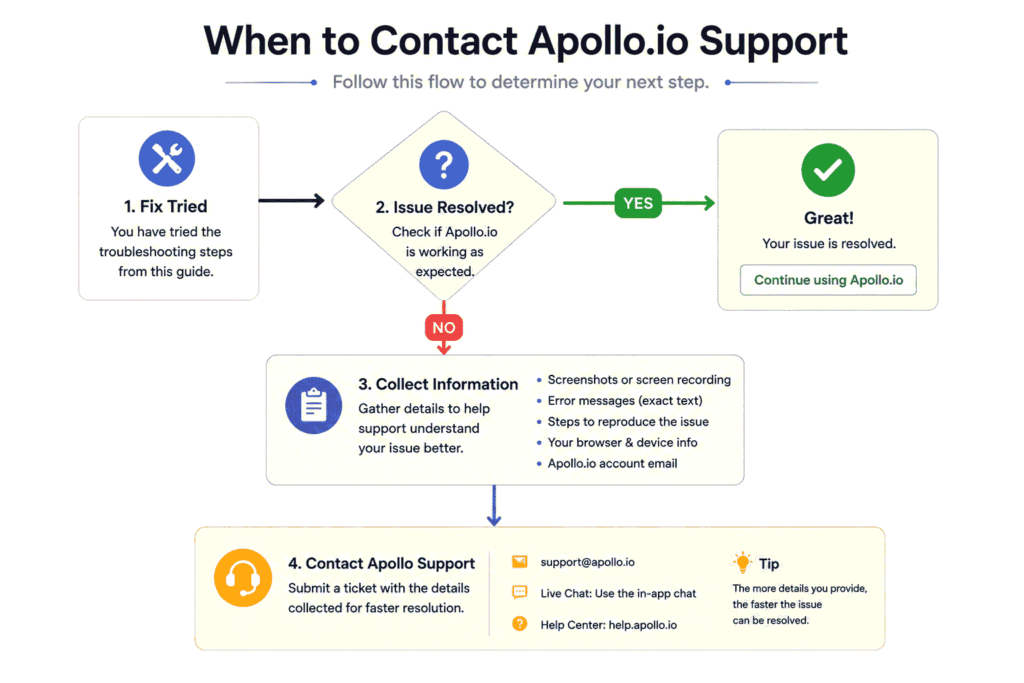
12.2. Best Practices Before Contacting Apollo Support
Before opening a support request, complete basic troubleshooting steps first. This prevents unnecessary delays and helps isolate whether the issue is:
- Browser-related
- Integration-related
- Account-related
- Server-side
Recommended Pre-Support Checklist
✔ Restart Browser Session
✔ Clear Cache & Cookies
✔ Re-login To Apollo
✔ Reconnect CRM Integrations
✔ Test In Incognito Mode
✔ Verify Browser Permissions
✔ Retry Workflow Actions
✔ Capture Screenshots Of Errors
12.3. How To Speed Up Apollo Support Resolution
Providing detailed troubleshooting information helps Apollo support resolve issues much faster.
Recommended Information To Include
✔ Detailed Description Of Issue
✔ Exact Error Messages
✔ Browser Version
✔ Operating System
✔ CRM Platform Details
✔ Screenshots Or Screen Recordings
✔ Steps Already Attempted
12.4. Pro Tip: Separate Browser Issues From Account Issues
Many users contact support for problems that are actually caused by:
- Browser cache conflicts
- Extension permissions
- LinkedIn session problems
- Ad blockers
- Local browser instability
Before escalating issues to support:
✔ Test Apollo in another browser
✔ Use Incognito Mode
✔ Restart browser session
✔ Refresh extension permissions
This helps identify whether the issue is local or server-side.
12.5. Quick Support Escalation Checklist
✔ Troubleshoot Browser First
✔ Refresh Apollo Sessions
✔ Verify CRM Integrations
✔ Retry Failed Workflows
✔ Capture Error Screenshots
✔ Check Billing Information
✔ Monitor Credit Usage
✔ Gather Technical Details
✔ Contact Apollo Support If Issues Persist
Knowing when to contact Apollo support helps users avoid unnecessary troubleshooting while resolving complex Apollo.io problems more efficiently.
If troubleshooting does not resolve the issue, it may impact your overall lead generation process. Explore our Lead Generation Workflow guide to understand how leads move from capture to conversion.
Final Strategic Takeaway
If Apollo.io is not working or you’re facing LinkedIn integration issues, most problems usually come down to browser settings, extension conflicts, login authentication, or API/session limits.
In most cases, these issues can be resolved using the fixes covered in this guide from clearing cache and updating extensions to checking LinkedIn restrictions and Apollo sync settings.
If the issue still continues even after trying all troubleshooting steps, it is recommended to contact Apollo support with detailed error logs and screenshots for faster resolution.
👉 The key is to identify whether the issue is browser-related, account-related, or system-level before taking further action.
FAQs
-
Why is Apollo.io not working on LinkedIn?
Apollo.io may stop working on LinkedIn due to:
browser extension conflicts
expired LinkedIn sessions
blocked permissions
outdated Chrome versions
LinkedIn UI updates
In most cases, refreshing LinkedIn sessions, updating the Apollo extension, and clearing browser cache resolve the issue. -
Why is the Apollo Chrome extension not showing on LinkedIn?
This usually happens because:
extension permissions are disabled
Apollo scripts failed to load
browser cache became corrupted
ad blockers interrupted extension rendering
Try:
✔ Re-enabling Apollo permissions
✔ Refreshing LinkedIn
✔ Restarting Chrome
✔ Disabling conflicting extensions -
How do I fix Apollo.io not detecting LinkedIn profiles?
If Apollo cannot detect LinkedIn profiles:
✔ Log out and re-login to LinkedIn
✔ Clear cookies and cache
✔ Refresh Chrome permissions
✔ Update Apollo extension
✔ Test Apollo in Incognito Mode
This usually restores profile detection and contact enrichment functionality. -
Why is Apollo loading forever on LinkedIn?
Infinite loading problems are commonly caused by:
expired browser sessions
overloaded browser memory
extension conflicts
corrupted cache files
Restarting Chrome and clearing Apollo cookies often fixes this issue. -
Why are Apollo buttons missing on LinkedIn?
Missing Apollo buttons usually occur because:
LinkedIn updated its interface
browser permissions changed
script blockers interrupted Apollo
extension injection failed
Refreshing the browser and re-enabling extension permissions typically resolves the problem. -
Why is Apollo email finder not working?
Apollo email finder may fail because:
public contact data is limited
company privacy protections block enrichment
databases contain outdated records
domains restrict verification requests
Using company domain search and verifying LinkedIn profile completeness can improve results. -
Why does Apollo show incorrect email addresses?
Incorrect emails may happen because:
employees changed companies
domains migrated recently
old databases still contain outdated records
email formats changed
Always verify emails before launching cold outreach campaigns. -
Why are Apollo credits used without results?
Credits may still be consumed because Apollo performs:
enrichment attempts
contact matching
verification requests
database lookups
Even when no email is found, backend processing resources may still be used. -
How do I fix Apollo login issues?
To fix Apollo login problems:
✔ Clear browser cookies
✔ Disable VPN temporarily
✔ Restart browser session
✔ Reset password properly
✔ Test login in Incognito Mode
If problems continue, check Apollo server status or contact support. -
Why does Apollo keep logging me out?
Repeated session expiration usually happens because:
cookies became corrupted
browser privacy settings blocked sessions
VPN IP changes triggered security checks
authentication tokens expired
Refreshing browser sessions and clearing cookies usually resolves this issue. -
Why are Apollo contacts not syncing with my CRM?
CRM sync failures commonly occur because:
API permissions expired
integrations disconnected
field mapping is incorrect
webhook automation failed
Reconnect the CRM integration and refresh API permissions to restore synchronization. -
How do I fix duplicate leads in Apollo CRM sync?
Duplicate leads are often caused by:
disabled duplicate rules
overlapping workflows
multiple import sources
incorrect CRM matching logic
Enable email-based duplicate detection and review field mapping settings. -
What browser works best with Apollo.io?
Google Chrome is the best browser for Apollo because it offers:
✔ better extension compatibility
✔ stable LinkedIn rendering
✔ reliable enrichment performance
✔ improved CRM synchronization
Brave and Microsoft Edge also work well. -
Which browser extensions conflict with Apollo?
Common conflicting extensions include:
aggressive ad blockers
script blockers
privacy protection tools
multiple LinkedIn automation extensions
Disabling unnecessary extensions improves Apollo stability significantly. -
Should I use Apollo in Incognito Mode for testing?
Yes. Incognito Mode helps identify whether:
another extension is conflicting
cache corruption exists
browser settings are causing problems
If Apollo works in Incognito Mode, the issue is usually browser-related. -
How often should I clear browser cache for Apollo?
For stable prospecting workflows:
✔ Clear cache weekly
✔ Restart Chrome regularly
✔ Update Apollo frequently
✔ Limit excessive browser extensions
This helps prevent LinkedIn and extension-related issues. -
Why does Apollo stop working after LinkedIn updates?
LinkedIn frequently changes:
profile layouts
HTML structures
search result rendering
Since Apollo relies on LinkedIn page structures, temporary compatibility issues may occur until Apollo releases extension updates. -
When should I contact Apollo support?
Contact Apollo support if you experience:
✔ repeated CRM sync failures
✔ billing problems
✔ account lockouts
✔ missing credits
✔ persistent API errors
✔ unresolved workspace access issues
These issues may require backend investigation. -
Can browser memory affect Apollo performance?
Yes. Heavy browser memory usage can cause:
extension freezing
slow enrichment
LinkedIn crashes
delayed profile detection
Limiting open tabs and restarting Chrome regularly improves performance. -
How can I improve Apollo email finder accuracy?
To improve email accuracy:
✔ Use company domain search
✔ Verify LinkedIn profile completeness
✔ Cross-check emails with verification tools
✔ Prioritize active business profiles
✔ Refresh enrichment data regularly
This helps reduce bounce rates and improve outreach quality.