
How to Use Apollo Chrome Extension for LinkedIn Prospecting (2026 Advanced Guide)
LinkedIn remains the top platform for finding decision-makers, sales-qualified leads, and business contacts. While your earlier article covered a beginner’s review and basic usage, this guide focuses only on LinkedIn prospecting, real workflows, advanced settings, and how to turn the Apollo Chrome Extension into a high-performance lead-generation engine.
If you want to extract verified emails, build segmented lists, and automate outreach — all directly from LinkedIn — this is your complete, updated 2026 guide.
What Makes Apollo Chrome Extension Powerful for LinkedIn Prospecting?
Apollo Chrome Extension is more than an email finder — it’s a LinkedIn sales automation layer.
Here’s what makes it ideal for LinkedIn users:
- Pulls verified emails directly from LinkedIn search results
- Reveals work email + direct dial numbers
- Shows company insights (size, revenue, funding)
- Allows saving leads into lists while browsing
- Lets you add leads to an outreach sequence instantly
- Works across LinkedIn Profiles, Search Pages & Company Pages
These features turn LinkedIn into a fast, high-volume lead generation engine.
Beginner Guide: How to Log In to Apollo, Log In to LinkedIn & Use the Apollo Extension on LinkedIn
Before You Start (Very Simple Checklist)
To make Apollo work on LinkedIn, you only need three things:
- A Chrome browser
- A LinkedIn account
- An Apollo account + Apollo Chrome Extension installed
Once all three are ready, the Apollo panel will automatically appear on every LinkedIn profile you visit.
Step 1 — Log In to Apollo
Logging into Apollo is the first step because the extension connects directly to your Apollo dashboard.
How to log in to Apollo
- Go to app.apollo.io in your browser.
- Click Login.
- Enter your email + password, or continue with Google.
- Once logged in, you will see your Apollo dashboard (Home, Search, People, Companies, Lists, Sequences, Settings).
Why this matters
If you are not logged in, the Chrome extension cannot show emails, phone numbers, or allow you to add leads to Apollo.
Staying logged in keeps the extension active automatically.
Step 2 — Log In to LinkedIn (Required for Extension to Work)
Now open a new tab and log in to LinkedIn:
- Go to linkedin.com
- Enter your email/phone + password
- You will land on your LinkedIn Home Feed
IMPORTANT for beginners
Apollo extension only works when you are logged into both Apollo AND LinkedIn at the same time.
Step 3 — Make Apollo Extension Appear on LinkedIn
Once both accounts are logged in, follow these simple steps:
✔ Check that the Apollo Extension is turned ON
- Click the Extensions icon (puzzle icon) in Chrome top-right.
- Find Apollo.io Chrome Extension.
- Pin it by clicking the pin icon (optional but helpful).
✔ Now open any LinkedIn profile
Example: open a profile like linkedin.com/in/username
What you will see:
- A small Apollo panel appears on the right side of the LinkedIn profile
OR - An Apollo icon appears where you can click to open the panel
This panel shows:
- Emails
- Phone numbers
- Job details
- Company info
- Buttons like Add to List, Add to Sequence, Export, etc.
If it doesn’t appear yet, refresh the LinkedIn page once.
Step 4 — How to Open Apollo Menu on LinkedIn
When the extension is active, you can open the Apollo menu in two ways:
Method 1 — From the LinkedIn profile directly
You will see buttons such as:
- Reveal Email
- Add to List
- Add to Sequence
- View in Apollo
Click View in Apollo to jump inside your Apollo dashboard with that lead already loaded.
Method 2 — From the Chrome extension icon
- Click the Apollo icon at the top of your Chrome browser
- The extension menu opens
- You can access:
- Dashboard shortcut
- Tasks
- Lists
- Settings
- Recently viewed leads
This connects LinkedIn → Apollo instantly.
Step 5 — How to Enter the Apollo Dashboard While LinkedIn is Open
Many beginners get confused here, so explain it clearly:
✔ You do not need to close LinkedIn
You can keep LinkedIn open in one tab and open Apollo in another.
How to do it:
- Keep LinkedIn open
- Right-click the Apollo Extension icon
- Select Open Apollo Dashboard
OR - Simply go to app.apollo.io in a new tab
What happens now:
- Apollo stays logged in
- LinkedIn stays logged in
- The extension stays active
- Both work together without conflict
This is how professionals prospect fast:
LinkedIn on the left tab → Apollo dashboard on the right tab → Chrome extension linking both.
Step 6 — How the Apollo Extension Works on LinkedIn
When everything is logged in correctly, the extension will automatically:
1. Scan the LinkedIn profile
It checks if Apollo has:
- Phone number
- Company data
2. Show contact information
You will see a small window showing verified or possible emails.
3. Allow you to take actions instantly
You can:
- Add the person to an Apollo List
- Add to an Email Sequence
- Save the contact
- Export the data
- Open the contact inside Apollo
4. Sync everything to your Apollo dashboard
No copy-paste.
No manual typing.
Everything updates automatically.
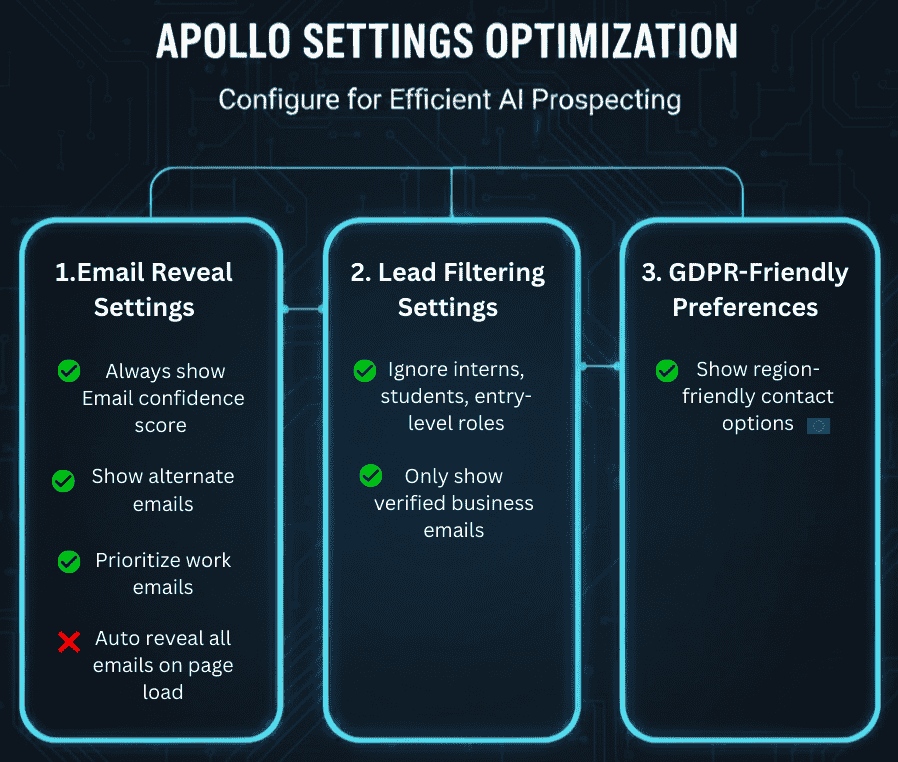
Before You Start — Adjust These Apollo Settings
To make your prospecting efficient, configure these settings first.
1. Email Reveal Settings
Go to:
Apollo > Settings > Chrome Extension > Email Preferences
Enable:
- ✔ “Always show email confidence score”
- ✔ “Show alternate emails”
- ✔ “Prioritize work emails”
Disable (to save credits):
- ✖ Auto reveal all emails on page load
2. Lead Filtering Settings
Enable:
- ✔ “Ignore interns, students, entry-level roles”
- ✔ “Only show verified business emails”
3. GDPR-Friendly Preferences
If targeting Europe:
- ✔ “Show region-friendly contact options”
How to Use Apollo Chrome Extension on LinkedIn
In this section, you’ll learn how the Apollo Chrome Extension works exclusively on LinkedIn, including how it behaves on search results, individual profiles, and company pages. Everything covered here is designed to help you extract verified emails, build targeted lists, and streamline your outreach workflow—without leaving LinkedIn at any point.
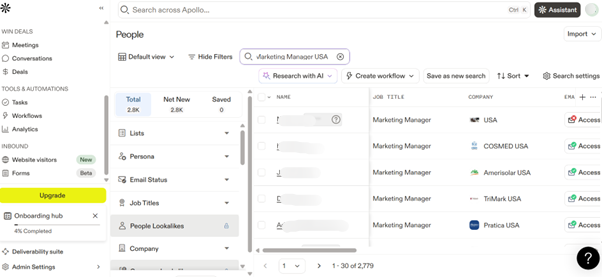
Step 1 — Prospect Directly From LinkedIn Search (Most Used Method)
Open LinkedIn and type a search, for example:
Marketing Manager • United States
You will now see:
- Apollo side panel on the right
- Email icon under each profile
What you can do from Search Page:
- Reveal emails in one click
- Save selected prospects
- Add leads to lists
- Bulk save 10–25 profiles quickly
- Filter by title/seniority before saving
Pro Tip
Use LinkedIn’s built-in search filters before you start revealing emails:
- Seniority: Manager / Director / VP
- Company headcount: 10–200 (for SMBs)
- Locations: USA, UK, Canada
This improves email reveal quality and reduces wasted credits.
Step 2 — Prospect From LinkedIn Profile Pages
When you open an individual profile:
- Apollo widget appears automatically
- You’ll see verified contact details
- Add them to lists/sequences instantly
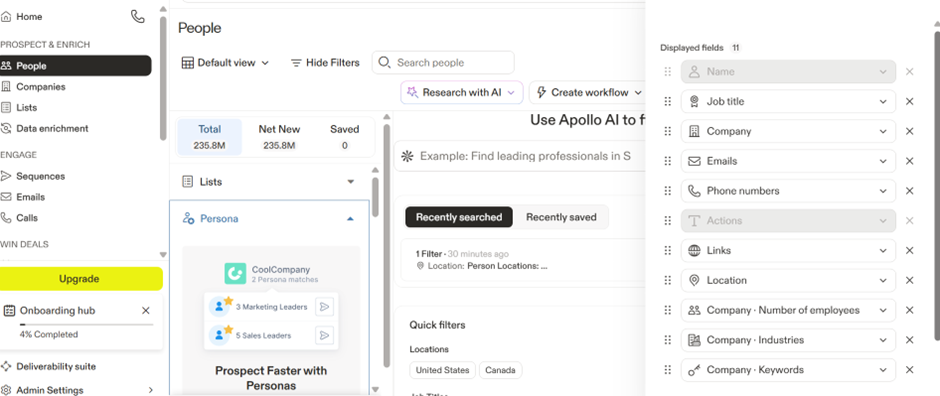
What you get inside the widget:
- Work email + personal email
- Company domain & website
- Tech stack used by the company
- Direct dial numbers (if available)
- Lead score + Persona insights
What to do next:
- Add tags (e.g., “Marketing”, “USA”)
- Add to your outreach sequence
- Mark as priority lead
- Save to CRM
Step 3 — Prospect Entire Companies from Their LinkedIn Page
This is extremely powerful for outreach campaigns targeting:
- Competitor users
- Industry-specific companies
- Recently funded startups
- B2B business owners
On a company LinkedIn page:
Apollo shows a list of employees filtered by:
- Job title
- Department
- Seniority
- Location
Actions you can take:
- Bulk reveal emails
- Save 20–50 prospects quickly
- Add all to a segmented Apollo list
Best LinkedIn Prospecting Workflows Using Apollo (2026 Optimized Methods)
Here are practical workflows that top SDRs and agencies use.
Workflow 1 — Ideal Customer Persona Prospecting
Your inputs:
- Job role (Marketing Head, AI Consultant)
- Industry (SaaS, E-commerce)
- Region (USA)
Steps:
- Search role + filters on LinkedIn
- Reveal only verified emails
- Save leads to an “ICP List”
- Add the list to an Apollo multi-step sequence
Outcome:
A fully targeted lead list with high reply rate.
Workflow 2 — Competitor Prospect Scraping
Steps:
- Open competitor’s LinkedIn company page
- Use Apollo’s employee filter
- Add target role (e.g., “Sales Manager”)
- Save the filtered employees
- Send outreach with a USP against competitor
Outcome:
High-qualified leads who already understand the need.
Workflow 3 — LinkedIn Event Attendee Prospecting
Steps:
- Search for LinkedIn events
- Open attendee list
- Use Apollo to reveal emails
- Build a targeted outreach sequence
Outcome:
Warm leads already interested in the topic.
Common Mistakes to Avoid (Most Users Don’t Know These)
These save money, credits, and improve outreach performance.
Mistake 1: Revealing Emails Before Filtering
Fix: Always filter by seniority + location before revealing.
Mistake 2: Over-relying on Personal Emails
Fix: Use personal emails only for:
- Solo founders
- Freelancers
- Job candidates
For B2B sales → Always use work email.
Mistake 3: Not Tagging Prospects
Fix: Add tags like:
- “Marketing-USA-Q1”
- “SMB-Owners”
- “AI-Interested”
Tags help you segment later.
Mistake 4: Adding Too Many People to a Sequence
Fix: Add only 20–40 leads/day to avoid:
- Spam issues
- Domain warm-up problems
Advanced Tips to Get the Most Out of Apollo on LinkedIn
These give you an edge over regular users.
Tip 1 — Use LinkedIn Filters + Apollo Filters Together
This doubles targeting accuracy.
Tip 2 — Build Micro Segmented Lists
Examples:
- “SaaS CEOs in Texas”
- “Marketing Managers in E-commerce Industry”
Segmented outreach = higher conversions.
Tip 3 — Save Prospects in Real-Time While Browsing
Don’t wait — save them immediately to avoid losing high-value leads.
Tip 4 — Use Apollo’s Persona Feature
This helps Apollo prioritize and score leads.
Tip 5 — Use Desktop for Bulk Prospecting
The extension runs better and reveals faster on Chrome desktop.
Who Should Use Apollo Chrome Extension for LinkedIn Prospecting?
Perfect for:
- Sales representatives
- Marketing teams
- SEO/lead-gen agencies
- Recruiters
- Freelancers
- Founders
- Virtual assistants doing outreach
Final Conclusion
Apollo Chrome Extension transforms LinkedIn into a powerful lead generation system. Once you optimize the settings, follow the workflows, and use segmentation techniques, you can find verified leads, build lists, and start outreach in minutes — all without leaving LinkedIn.
This guide gives you the exact steps and workflows that top sales teams use to scale LinkedIn prospecting in 2026.
FAQs
1. What is the Apollo Chrome Extension used for on LinkedIn?
The Apollo Chrome Extension helps you find verified emails, direct dials, and company details directly from LinkedIn profiles, search results, and company pages. It allows you to save prospects, build lead lists, and add contacts to outreach sequences without leaving LinkedIn.
2. Is the Apollo Chrome Extension free to use for LinkedIn prospecting?
Yes, the extension is free, but revealing verified emails requires Apollo credits. Free plan users get limited monthly credits, while paid plans offer higher volumes for bulk prospecting.
3. Does Apollo work on all parts of LinkedIn?
Apollo works on:
- LinkedIn search results
- Individual profile pages
- Company pages
- LinkedIn event attendee lists
Anywhere LinkedIn shows a profile, Apollo can extract details if available.
4. Is Apollo safe to use for LinkedIn lead generation?
Yes, Apollo is widely used by sales teams and agencies. However, you should avoid revealing too many emails at once or automating excessively to stay within LinkedIn’s activity limits.
5. How accurate are the emails shown by Apollo on LinkedIn?
Apollo provides high-confidence verified emails using multiple data sources. You can enable “show confidence score” in settings to check accuracy before using the email in outreach.
6. Does Apollo show personal emails or only business emails?
Apollo primarily shows business emails. Personal emails may appear in some cases, but for B2B outreach, work emails are recommended for best deliverability and compliance.
7. What’s the best way to use Apollo for LinkedIn search prospecting?
Use LinkedIn’s filters first (seniority, industry, location), then use Apollo’s “Reveal Email” and “Save to List” features. This helps you build highly-targeted, segmented lists without wasting credits.
8. Can I add LinkedIn prospects directly into Apollo sequences?
Yes. Once Apollo reveals a contact, you can instantly add them into your outreach sequence or your CRM with one click from the extension panel.
9. Does Apollo Chrome Extension work on LinkedIn company pages?
Absolutely. When you open a company page, Apollo displays employees filtered by role, department, and seniority so you can quickly build targeted prospect lists.
10. How many leads can I save from LinkedIn using Apollo per day?
There’s no strict limit inside Apollo, but LinkedIn rate limits heavy activity. For safe usage, save or reveal 30–60 profiles per day if you’re using LinkedIn free or Premium.
11. What are the common mistakes people make when using Apollo on LinkedIn?
- Revealing emails before applying filters
- Saving leads without tags
- Using personal emails for B2B outreach
- Adding too many leads to sequences at once
- Not checking email confidence scores
Avoiding these improves accuracy and deliverability.
12. Does Apollo Chrome Extension slow down LinkedIn?
If “auto-reveal emails” is enabled, it may load slower. It’s recommended to keep auto-reveal OFF and reveal emails only when needed.
13. Can Apollo Chrome Extension be used for LinkedIn automation?
Apollo helps automate outreach and list building, but it does not automate LinkedIn actions like sending connection requests or messages. It’s designed for compliant email-based prospecting.
14. Do I need LinkedIn Premium for Apollo Chrome Extension?
No, LinkedIn Premium is not required. However, Premium users get additional filters (company size, seniority, function) which improve targeting before using Apollo.
15. Is Apollo Chrome Extension suitable for beginners?
Yes. It is user-friendly and ideal for beginners who want to start LinkedIn prospecting quickly. With proper filters and segmentation, even new users can build high-quality lead lists.