Apollo.io + Instantly.ai Workflow: Step-by-Step Cold Email Automation for Beginners (2026)
Table of Contents
From Manual Outreach to Scalable Lead Generation
For most small businesses and lean sales teams, relying on a single tool for lead generation and outreach quickly becomes limiting.
That’s why modern outbound teams use a two-tool cold email system:
• Apollo.io → B2B lead generation, contact data, and prospecting
• Instantly.ai → Cold email automation, deliverability, and campaign scaling
This combination creates a complete outbound sales workflow—from finding leads to sending high-converting cold email campaigns.
Why This Workflow Works
Instead of juggling multiple disconnected tools, this setup gives you:
• Targeted lead generation (Apollo.io database)
• Scalable cold email outreach (Instantly.ai automation)
• Better email deliverability and inbox placement
• A repeatable, system-driven outbound process
Result: More replies, better conversions, and efficient campaign scaling
Who This Apollo + Instantly Workflow Is For
This workflow is ideal for:
• Solo founders & consultants → Generate leads without a full sales team
• Small sales teams (1–10 people) → Build a scalable outbound system
• Beginners in cold email marketing → Learn step-by-step automation
• Agencies & freelancers → Manage multiple outreach campaigns efficiently
• B2B businesses → Reach decision-makers with targeted prospecting
Especially useful if you’re struggling with:
• Manual prospecting
• Missed follow-ups
• Low reply rates
• Unstructured outreach
What You’ll Learn in This Workflow
In this step-by-step guide, you’ll learn how to:
• Find verified B2B leads using Apollo.io
• Build targeted prospect lists based on ICP
• Export and prepare leads for outreach
• Set up Instantly.ai for cold email automation
• Launch scalable campaigns with high deliverability
• Optimize outreach for better reply rates
Bottom Line
If you want a simple, repeatable cold email system without technical complexity,
this Apollo.io + Instantly.ai workflow gives you everything needed to:
• Find leads
• Reach prospects
• Scale outreach
• Generate consistent results
This is the exact system many agencies, startups, and outbound teams use in 2026 to run efficient cold email campaigns.
👉 If you’re comparing tools before setting up your workflow, read our detailed breakdown of Apollo.io vs Instantly.ai to understand which platform fits your needs.
Why Combine Apollo.io and Instantly.ai?
Using Apollo.io and Instantly.ai together creates a complete outbound sales workflow—from lead sourcing to scalable cold email outreach.
Instead of forcing one tool to do everything, this setup lets each platform handle what it does best.
Apollo.io: Best for Lead Generation & Prospecting
Apollo.io is built for B2B lead generation and sales prospecting.
It helps you:
• Find verified B2B leads
• Target prospects by job title, role, industry, and company size
• Filter by location and buying criteria
• Enrich contact data with email addresses and company details
👉 Best for building a high-quality lead list before outreach
Instantly.ai: Best for Cold Email Automation
Instantly.ai is designed for cold email automation and deliverability at scale.
It helps you:
• Automate multi-step cold email sequences
• Manage multiple inboxes
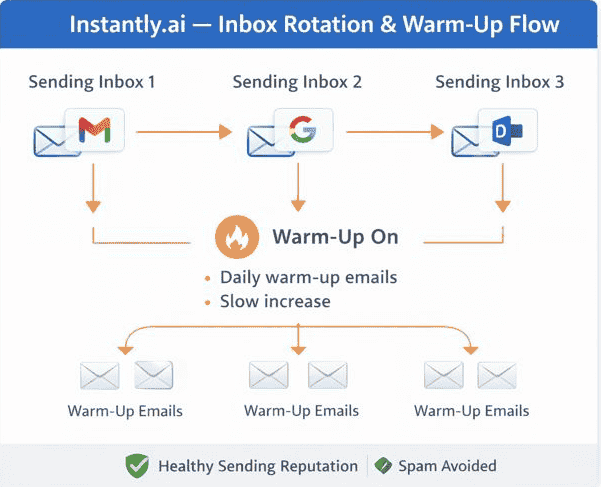
• Use inbox rotation for safer sending
• Improve email deliverability and inbox placement
• Scale outbound campaigns efficiently
👉 Best for sending, scaling, and optimizing cold email campaigns
Why This Combination Works Better
Together, Apollo.io + Instantly.ai replace:
• Manual prospecting workflows
• Spreadsheet-based lead tracking
• Basic one-off email tools
• Manual follow-ups
👉 Result: a streamlined outbound marketing system that improves speed, consistency, and reply rates.
Practical Workflow Advantage
👉 Apollo.io = Find the right people
👉 Instantly.ai = Reach them at scale
This is why many agencies, founders, and small sales teams use this two-tool workflow for modern cold email lead generation in 2026.
Apollo.io + Instantly.ai Workflow (Beginner Setup Guide)
This step-by-step setup shows how to build a cold email system using Apollo.io for lead generation and Instantly.ai for outreach—without technical complexity.
Who This Setup Is For
This workflow is ideal for:
• Solo founders and consultants
• Small sales teams (1–10 people)
• Beginners in cold email outreach
• First-time users of sales automation tools
• Non-technical users (no coding required)
👉 Goal: Build a simple, repeatable lead generation + cold email system
Step 1: Apollo.io Dashboard Setup (Lead Generation)
Your first focus is lead sourcing and list building inside Apollo.io.
👉 Beginner goal:
Find targeted B2B leads and organize them into lists for outreach
👉 If you’re new to Apollo, this beginner-friendly guide explains how to find and export high-quality leads step by step.
Step 1.1: Understand the Apollo.io Dashboard
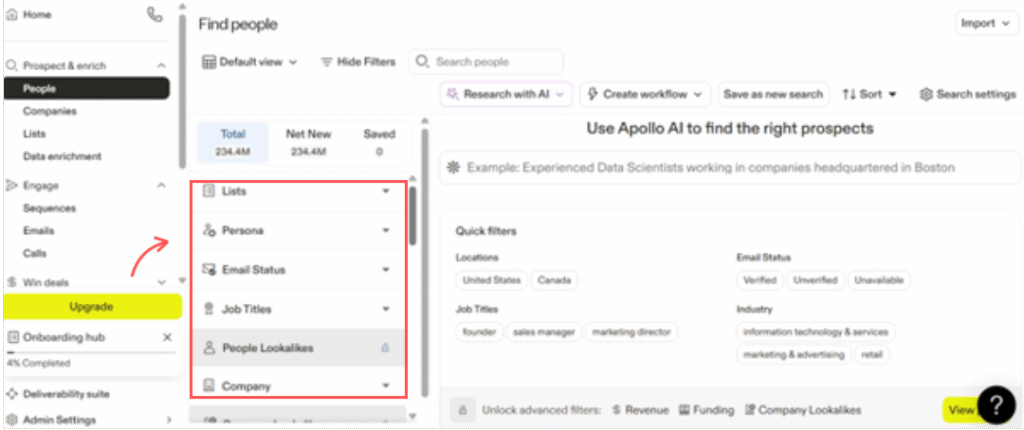
After logging in, you’ll mainly use:
• People Search → Find individual decision-makers
• Company Search → Target specific businesses
• Lists → Save and organize leads
• Email Credits → Track usage for contact data
👉 Focus only on Search + Lists in the beginning to avoid overwhelm
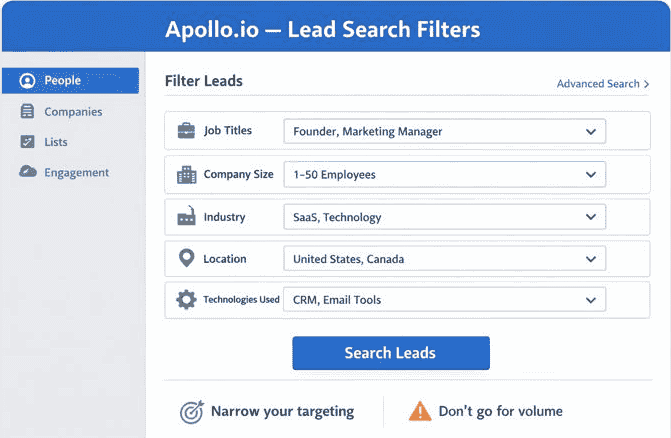
Step 1.2: Set Up Basic Lead Filters (ICP Targeting)
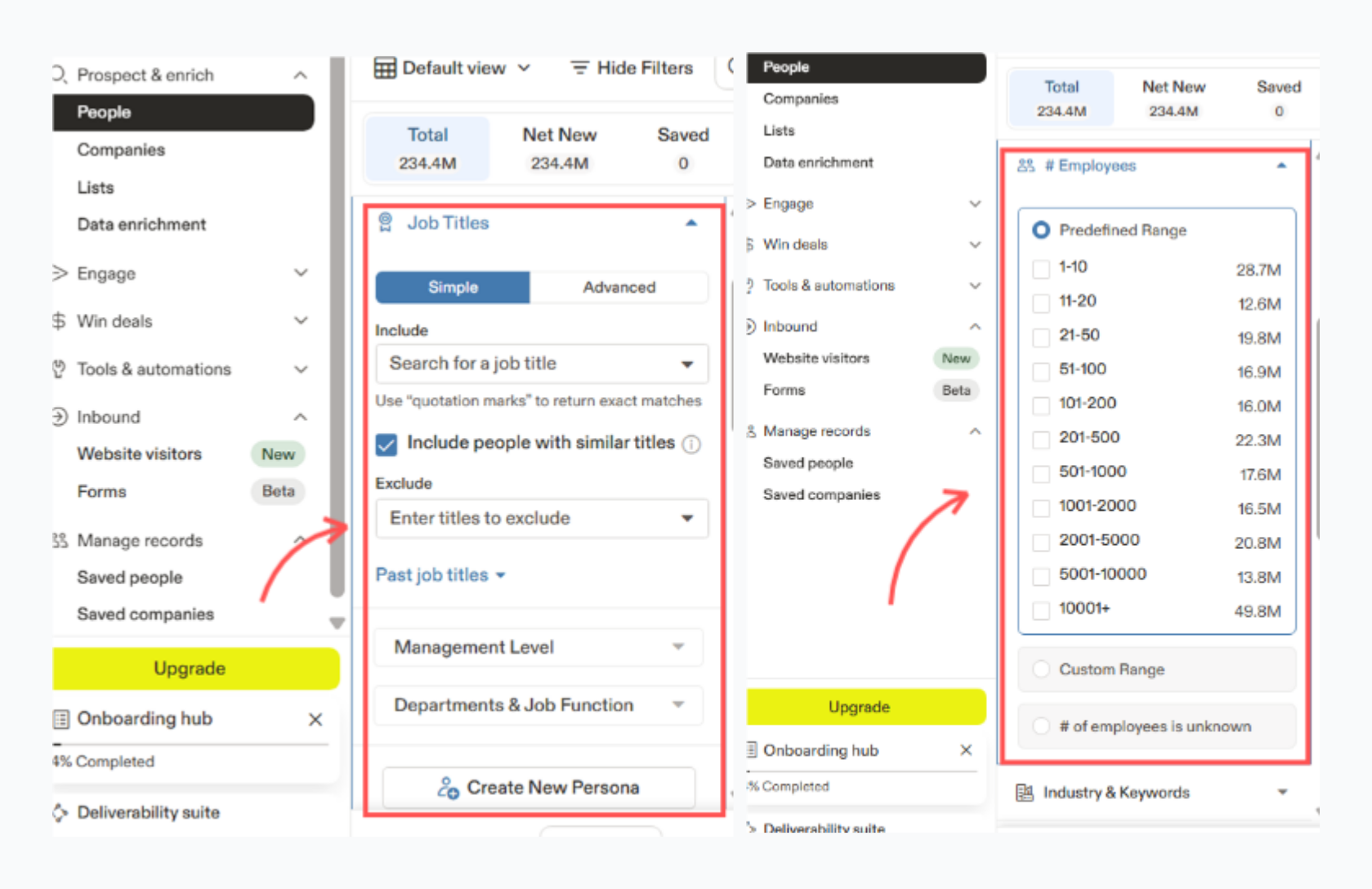
Start with simple, high-impact filters for B2B lead generation:
• Location → Target primary markets (e.g., United States)
• Job Title → Founder, CEO, Marketing Manager
• Company Size → 1–50 or 10–100 employees
• Industry (optional) → SaaS, agencies, eCommerce
👉 This helps you build a targeted prospect list based on your Ideal Customer Profile (ICP)
Beginner Tip:
More filters ≠ better targeting
Start broad → refine based on results
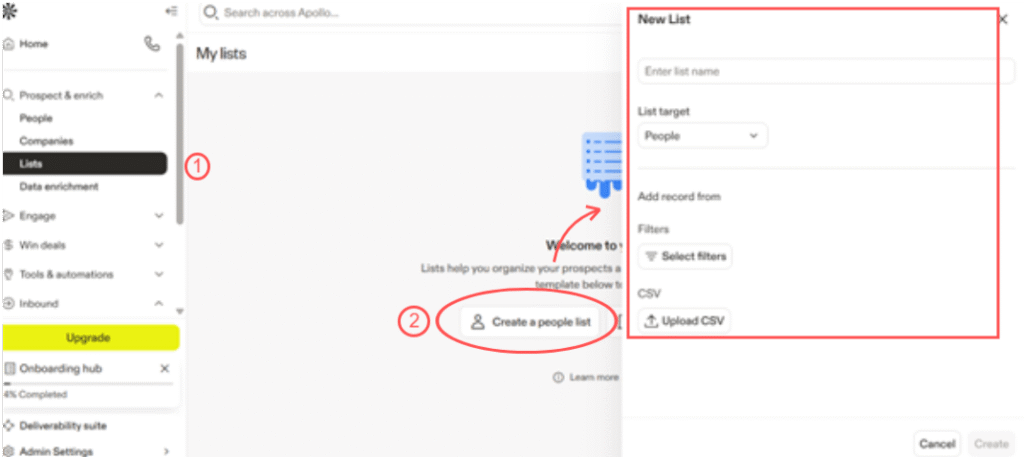
Step 1.3: Save Leads into Targeted Lists
Once results appear:
• Select relevant leads
• Click “Add to List”
• Create a clear list name (e.g., SaaS Founders – US Cold Outreach)
👉 This list becomes your ready-to-use lead database for cold email campaigns
Step 1.4: Quick Quality Check (Important)
Before exporting or using leads:
• Scan job titles for relevance
• Avoid generic roles (e.g., Intern, Assistant)
• Prioritize decision-makers (Founder, Head, Manager)
👉 Better lead quality = higher reply rates and conversions
What You Achieve in Step(1)
By the end of this step, you will have:
• A targeted B2B lead list
• Clearly defined ICP-based filters
• Organized lists ready for outreach
• A strong foundation for cold email automation
👉 Next step: Export leads and move them into Instantly.ai for scalable cold email campaigns
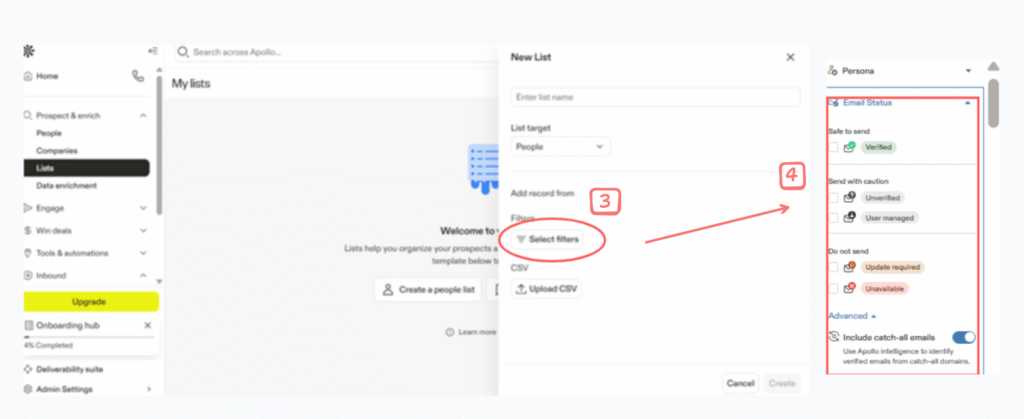
Step 2: Prepare Leads for Cold Email Outreach
Before sending your leads to Instantly.ai, make sure your list is clean and ready for high deliverability and better reply rates.
What to Check Before Exporting
• Use only “Verified” or “Recommended” emails
• Avoid risky or unverified contacts
• Remove duplicate leads
• Focus on relevant decision-makers (Founder, Manager, Head roles)
Beginner Rule:
Quality > Quantity — especially in cold email outreach
👉 Once your lead list is clean and verified, you’re ready to export it and move to Instantly.ai for campaign setup.
Step 3: Instantly.ai Dashboard Setup (Cold Email Automation)
After preparing your lead list, the next step is setting up Instantly.ai for cold email automation and deliverability.
👉 Beginner goal:
Set up email sending safely and prepare your system for scalable cold email campaigns
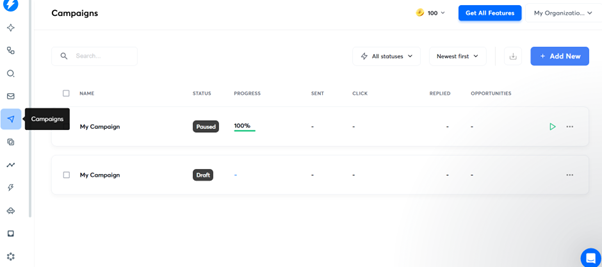
What You See on First Login
The Instantly.ai dashboard is focused on email outreach and campaign management:
• Email Accounts → Connect and manage sending inboxes
• Campaigns → Create and run cold email sequences
• Warm-Up → Improve email deliverability and sender reputation
• Analytics → Track open rates, replies, and performance
👉 These are the only sections you need to start—ignore advanced settings initially
What to Focus on as a Beginner
To avoid confusion, focus on this simple flow:
• Connect your email accounts
• Enable email warm-up
• Create your first campaign
• Monitor basic performance metrics
👉 This builds a safe and scalable cold email system from day one
Why This Step Matters
Without proper setup:
❌ Emails may land in spam
❌ Inbox reputation can get damaged
❌ Campaign performance drops
With correct setup:
✅ Better inbox placement
✅ Higher reply rates
✅ Consistent outreach performance
👉 Next step: Connect your email accounts and start warm-up before launching campaigns.
Step 4: Set Up Email Accounts (Deliverability Foundation)
Before launching any cold email campaign, you need to properly set up your email accounts in Instantly.ai to ensure safe sending and high deliverability.
👉 Beginner goal:
Build a strong sender reputation before scaling cold email outreach
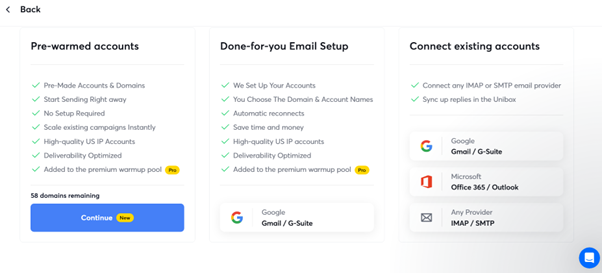
Step 4.1: Connect Email Accounts
Start by adding your sending inboxes:
• Connect Gmail or Outlook accounts
• Add 1–2 inboxes initially (avoid scaling too fast)
• Enable email warm-up immediately after connecting
👉 This ensures your cold email campaigns start safely without triggering spam filters
Beginner Mistake to Avoid:
Never launch campaigns without enabling warm-up—this can damage your domain and inbox reputation
Step 4.2: Configure Warm-Up Settings
Email warm-up is critical for cold email deliverability and inbox placement.
Recommended beginner setup:
• Daily warm-up emails: 20–30 per inbox
• Gradual volume increase over time
• Keep warm-up ON continuously (even during campaigns)
👉 This helps:
• Build sender trust with Gmail & Outlook
• Reduce spam risk
• Improve open and reply rates
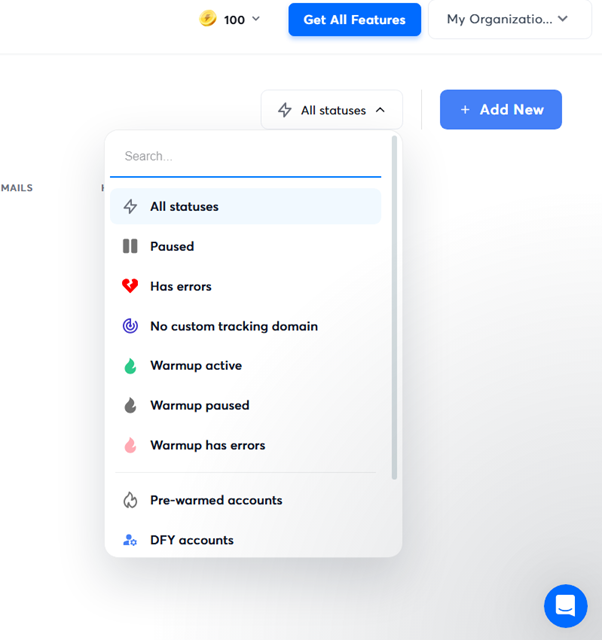
Why This Step Matters
Proper inbox setup directly impacts your results:
❌ No warm-up → Emails go to spam
❌ High sending volume → Account risk
✅ Warmed-up inboxes → Better deliverability
✅ Controlled sending → Safer campaign scaling
👉 Next step: Import your lead list and create your first cold email campaign inside Instantly.ai
Step 5: Create Your First Cold Email Campaign in Instantly.ai
Now that your inboxes are set up and warmed up, it’s time to launch your first cold email campaign using Instantly.ai.
👉 Beginner goal:
Import leads and set up a simple, high-performing email sequence
👉 Want to compare Instantly with other tools? See how it performs against Smartlead.ai for beginners.
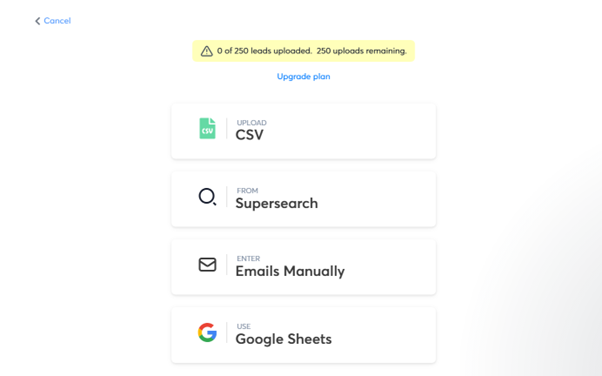
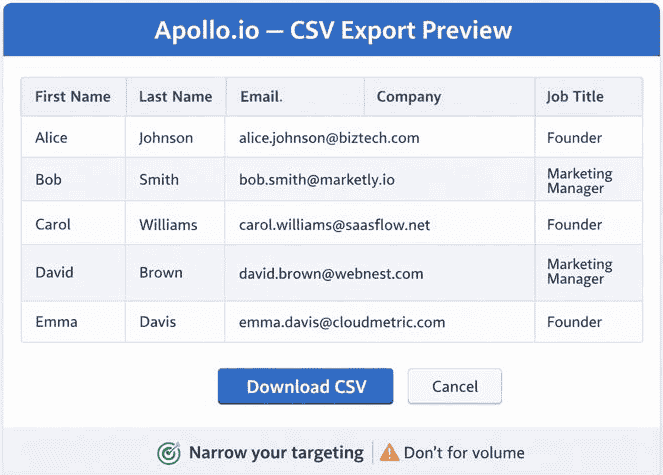
Step 5.1: Import Leads from Apollo.io
Start by uploading your lead list into Instantly.ai:
• Upload CSV file exported from Apollo.io
• Or copy-paste your lead data directly
Make sure to map fields correctly:
• First Name
• Company Name
• Email Address
👉 Proper field mapping ensures accurate personalization and better email performance
Quick Check:
Use only verified email leads to maintain deliverability
Step 5.2: Set Up a Simple Email Sequence
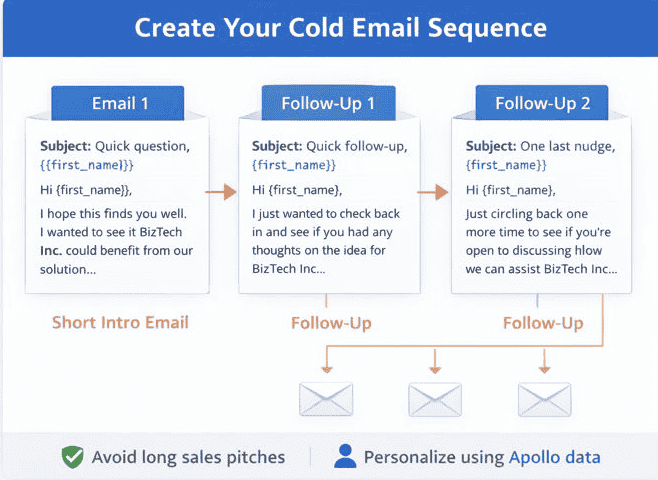
Begin with a basic cold email sequence:
• Email 1: Introduction + value proposition
• Follow-up (Day 2–3): Short reminder or added context
Keep your emails:
• Short (50–120 words)
• Personalized (use {{first_name}}, {{company}})
• Non-salesy and conversational
👉 This improves open rates, reply rates, and engagement
Beginner Best Practices (Important)
• Avoid adding links in the first email (reduces spam risk)
• Focus on one clear message and CTA
• Don’t overcomplicate—simple sequences perform better
Why This Step Matters
Your campaign setup directly impacts results:
❌ Long, generic emails → Low replies
❌ Poor personalization → Ignored messages
✅ Short, targeted emails → Higher engagement
✅ Simple sequences → Consistent outreach
Next step: Launch your campaign and monitor performance using Instantly.ai analytics
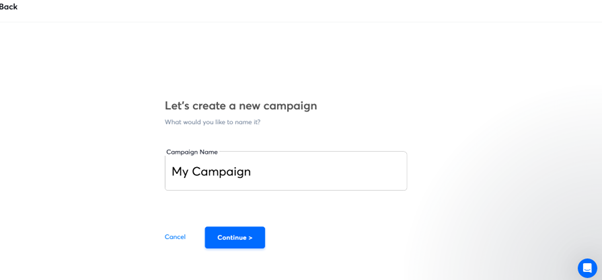
Step 6: Campaign Sending Settings (Safe Cold Email Setup)
Before launching your campaign, configure safe sending settings in Instantly.ai to protect deliverability and ensure consistent performance.
Beginner goal:
Send cold emails safely without triggering spam filters
Recommended Sending Limits (Per Inbox)
Start with conservative limits:
• 20–40 emails per day per inbox
• Gradually increase volume as inbox reputation improves
This helps maintain email deliverability and sender reputation
Best Sending Schedule
Optimize timing for better engagement:
• Send during business hours (9 AM – 5 PM)
• Target weekdays (Monday–Friday)
• Avoid weekends in the beginning
👉 This improves open rates and reply rates
Why Safe Sending Matters
Incorrect sending behavior can harm your campaigns:
❌ High volume too early → Spam risk
❌ Random timing → Low engagement
✅ Controlled sending → Better inbox placement
✅ Consistent schedule → Higher replies
Beginner Best Practices
• Start slow, then scale gradually
• Keep sending patterns consistent
• Combine with warm-up and smart sending
👉 This ensures safe cold email scaling and long-term performance
👉 Next step: Track campaign performance and optimize based on real data
Step 7: Monitor Replies & Optimize Campaign Performance
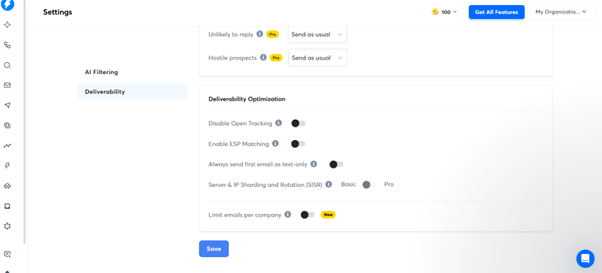
Once your cold email campaign is live, the next step is to track results and make simple improvements.
👉 Beginner goal:
Focus on core metrics that directly impact cold email performance
Key Metrics to Track (Beginner Focus)
Start with only the most important signals:
• Reply Rate → Measures real interest and campaign success
• Bounce Rate → Indicates email list quality and deliverability
• Spam Warnings → Shows potential deliverability risks
👉 These metrics are enough to optimize your cold email campaigns effectively
What to Ignore (For Now)
Avoid over-analyzing advanced data in the beginning:
• Open rate (can be unreliable)
• Complex analytics dashboards
• Detailed tracking metrics
👉 Keep it simple to avoid confusion and focus on results
How to Optimize Based on Data
Use basic insights to improve performance:
• Low replies → Improve email copy and personalization
• High bounces → Clean your lead list (use verified emails)
• Spam issues → Reduce sending volume and check warm-up
👉 Small changes can significantly improve reply rates and deliverability
Why This Step Matters
Tracking helps you:
• Identify what’s working
• Fix weak campaigns quickly
• Improve outreach performance over time
👉 This is how you turn cold email outreach into a repeatable and scalable system
👉 Next step: Refine your workflow and scale campaigns once you see consistent results
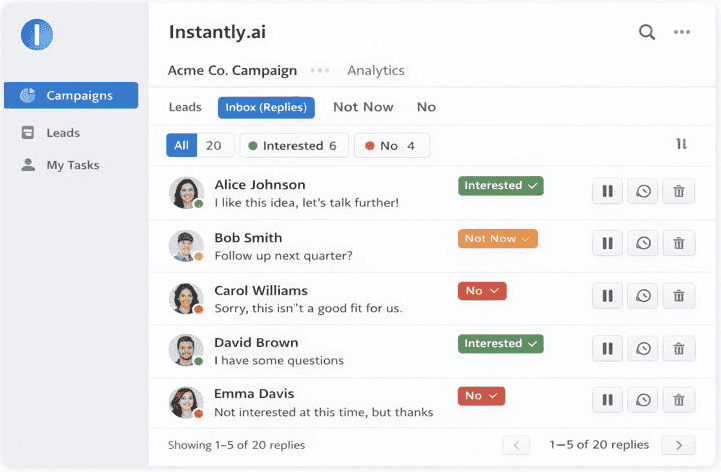
Expected Results from This Workflow
When implemented correctly, this Apollo.io + Instantly.ai cold email workflow can help you:
- Generate consistent, qualified B2B leads
- Achieve higher reply rates (5–15%) with targeted outreach
- Book sales calls, demos, and client meetings
- Build a repeatable and scalable outbound lead generation system
👉 Results depend on lead quality, email personalization, and deliverability setup
👉 Before scaling campaigns, review Instantly.ai pricing to choose the right plan based on your sending volume.
Apollo.io + Instantly.ai Workflow (Quick Overview)
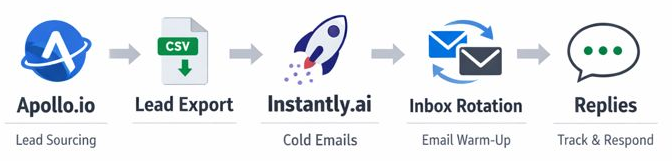
Apollo.io → Lead Search → Save List → Export → Instantly.ai → Warm-Up → Campaign → Replies
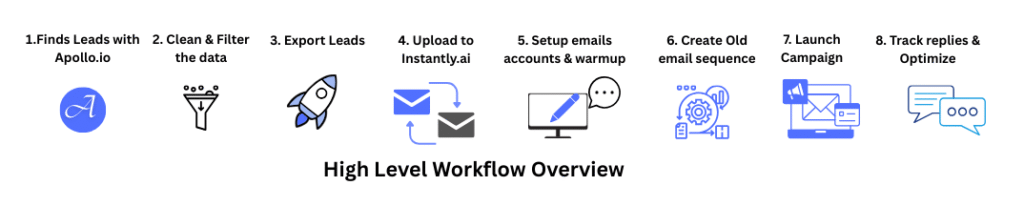
High-Level Workflow Overview
Here’s the full flow before we go into details:
- Find leads in Apollo.io
- Clean & filter the data
- Export leads
- Upload to Instantly.ai
- Set up email accounts & warm-up
- Create cold email sequence
- Launch campaign
- Track replies & optimize
Tool Stack Summary (Simple Setup)
To run a complete cold email lead generation workflow, you don’t need a complex stack—just the right tools with clear roles.
Core Tools (Must-Have)
Apollo.io — Lead Generation & Prospecting
• Find verified B2B leads
• Filter by job title, industry, company size
• Build targeted lead lists for outreach
👉 Explore how Apollo.io helps you find verified B2B leads and build targeted prospect lists before outreach.
Instantly.ai — Cold Email Automation & Deliverability
• Send cold email campaigns at scale
• Manage multiple inboxes
• Improve email deliverability (warm-up, rotation, smart sending)
👉 Together: Apollo = Data | Instantly = Execution
👉 See how Instantly.ai improves cold email deliverability and helps you scale outreach safely.
Optional Tools (When You Scale)
Google Sheets — Lead Tracking (Beginner-Friendly)
• Organize exported leads
• Track campaign status manually
• Simple alternative to CRM
CRM (Any) — Deal & Pipeline Management
• Track conversations and follow-ups
• Manage deals and sales stages
• Improve conversion tracking
👉 While Apollo.io offers a light CRM, tools like HubSpot CRM provide more advanced deal tracking, automation, and reporting features.
Why This Stack Works
• Covers end-to-end outbound workflow (lead → outreach → conversion)
• Beginner-friendly with no technical setup required
• Easily scalable without adding multiple tools
• Focuses on results, not tool complexity
👉 If you’re comparing costs, this breakdown of Smartlead vs Instantly pricing helps you choose the most cost-effective option.
How Long Does It Take to Launch This Workflow?
Setting up a complete Apollo.io + Instantly.ai cold email system is faster than most beginners expect.
Setup Timeline (Realistic Breakdown)
Lead List Building (Apollo.io)
• 1–2 hours to find and filter targeted B2B leads
• Create your first qualified prospect list
Inbox Setup & Email Warm-Up (Instantly.ai)
• 15–30 minutes to connect inboxes
• 1–2 days for email warm-up (runs in background)
Campaign Setup & Launch
• 30–60 minutes to:
- Upload leads
- Create cold email sequence
- Configure sending settings
What This Means
👉 You can go from zero → live cold email campaign in 1–2 days
👉 No coding or complex setup required
Why This Matters
• Reduces beginner overwhelm
• Speeds up time to first results
• Helps you focus on execution, not tools
Common Cold Email Mistakes to Avoid (Beginner to Advanced)
Avoiding these mistakes is critical for cold email outreach, deliverability, and reply rates—especially when using tools like Apollo.io + Instantly.ai.
🔸Sending Too Many Emails Too Fast (Deliverability Risk)
Scaling too quickly is one of the fastest ways to hit spam filters.
Best practice:
- Start with 20–40 emails/day per inbox
- Increase volume gradually
- Combine with email warm-up + smart sending
👉 Protects sender reputation and improves inbox placement
🔸Poor Targeting (Low-Quality Leads)
Even the best cold email strategy fails with the wrong audience.
Fix:
- Use Apollo.io filters (job title, industry, company size)
- Focus on relevant decision-makers
- Build highly targeted lead lists
👉 Better targeting = higher open rates, reply rates, conversions
🔸Over-Automation Without Review
Automation is powerful—but blind automation kills results.
Avoid:
- Fully automated campaigns without monitoring
- Ignoring replies or lead intent
Do instead:
- Review campaigns regularly
- Step in manually for high-intent leads
👉 Balance automation + human touch
🔸Ignoring Email Warm-Up
Skipping warm-up damages email deliverability from day one.
Best practice:
- Always enable AI email warm-up
- Maintain warm-up even during campaigns
- Use multiple warmed-up inboxes
👉 Strong domain reputation = better inbox placement
🔸Long, Salesy Email Copy
Overloaded emails reduce engagement and trigger spam signals.
What works better:
- Keep emails 50–120 words
- Focus on one clear CTA
- Use personalization variables (name, company, role)
👉 Short, relevant emails improve reply rates and engagement
Quick Optimization Tip
👉 If your campaign isn’t performing:
- Low opens → fix subject line
- Low replies → fix targeting + message
- High bounce → fix lead quality
This section keeps your outreach system efficient, scalable, and high-performing—without damaging deliverability.
When This Apollo.io + Instantly.ai Workflow Works Best
This workflow is ideal for B2B lead generation, cold email outreach, and scalable outbound sales systems.
Best-Fit Use Cases
🔹B2B Services & Consultants
Reach decision-makers with targeted prospecting + personalized cold emails to generate consistent leads.
🔹Agencies (Marketing, Sales, Recruitment)
Run multi-client outreach campaigns using automation, inbox rotation, and scalable email systems.
🔹SaaS Startups
Drive demo bookings, free trials, and user acquisition through structured cold email sequences.
🔹Recruiters & Hiring Teams
Contact candidates and hiring managers efficiently with personalized outreach at scale.
🔹Small Sales Teams (1–10 people)
Build a repeatable outbound sales process without hiring large teams or using complex tools.
Why This Workflow Performs Well
• Combines lead generation (Apollo.io) with cold email automation (Instantly.ai)
• Supports high deliverability + scalable sending
• Requires no technical setup or coding skills
• Easy to launch and optimize for beginners
Bottom Line
👉 If your goal is generate leads, book meetings, and scale cold email outreach, this Apollo.io + Instantly.ai workflow is one of the simplest and most effective systems to start with.
Final Thought
YYou don’t need a complex tech stack to run effective outbound sales.
With Apollo.io for lead generation and Instantly.ai for cold email automation, you get a simple, scalable system to find, reach, and convert leads.
👉 Focus less on tools—and more on targeting, messaging, and consistency.
That’s what drives real results.
FAQs
-
What is the difference between Apollo.io and Instantly.ai?
Apollo.io is a B2B lead generation and prospecting tool used to find verified contacts and build lead lists.
Instantly.ai is a cold email automation platform used to send emails, manage inboxes, and improve deliverability.
In short:
Apollo = Find leads
Instantly = Reach & convert leads -
Do I need both Apollo.io and Instantly.ai?
Not always—but using both creates a complete outbound sales system.
👉 Use:
Apollo.io if you need leads
Instantly.ai if you already have leads
Both together for end-to-end cold email outreach -
Is this workflow beginner-friendly?
Yes. This workflow is designed for beginners, freelancers, and small teams.
• No coding required
• Simple setup
• Easy to scale step-by-step -
How many cold emails should I send per day?
Start small to protect deliverability:
• 20–40 emails/day per inbox
• Increase gradually as performance stabilizes -
Do I need email warm-up before sending campaigns?
Yes—email warm-up is essential.
• It builds sender reputation
• Improves inbox placement
• Reduces spam risk
Skipping this step can hurt your campaign performance. -
What matters more: lead quality or volume?
👉 Lead quality always wins
Highly targeted, verified leads:
Increase reply rates
Reduce bounce rates
Improve conversions -
How many emails should be in a cold email sequence?
Keep it simple:
👉 2–4 emails total
1 initial email
1–3 follow-ups
Most replies come from follow-ups, not the first email. -
Can I scale cold email outreach with this workflow?
Yes. This system is built for scalable outreach.
• Add more inboxes
• Increase sending volume gradually
• Optimize based on performance -
Is Instantly.ai a CRM like Apollo.io?
No.
Apollo.io includes light CRM features (deal tracking)
Instantly.ai focuses on email automation and deliverability -
How long does it take to see results?
You can start seeing early signals within:
👉 2–7 days (opens, replies)
But consistent results come from:
Testing
Optimization
Better targeting -
Final Tip
👉 Cold email success is not about sending more emails—
it’s about sending the right message to the right people at the right time.