How to Install the Apollo Chrome Extension for LinkedIn Prospecting (Step-by-Step Guide)
If you’re new to AI sales tools, the Apollo.io Chrome extension is one of the easiest ways to start. It helps you:
- Pull verified emails from LinkedIn
- Quickly evaluate leads
- Add prospects to Apollo lists
- Start sequences (depending on your plan)
This guide is written for complete beginners—especially small business owners, freelancers, and people without a tech background.
SECTION 1: What You Can Do With Apollo.io Chrome Extension (Free Plan)
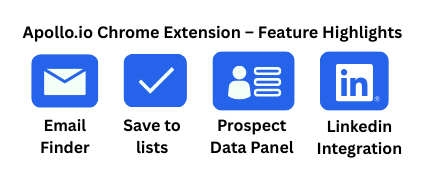
✔️ Extract emails from LinkedIn
✔️ Save contacts directly to Apollo
✔️ View prospect/company data
✔️ Add prospects to lists
🚫 Free plan limitations
- Limited email credits
- Cannot enroll contacts in automated sequences
- Limited access to company enrichment data
SECTION 2: How to Install the Apollo.io Chrome Extension
Step 1: Open the Chrome Web Store
Search for “Apollo.io” in the Chrome Web Store.
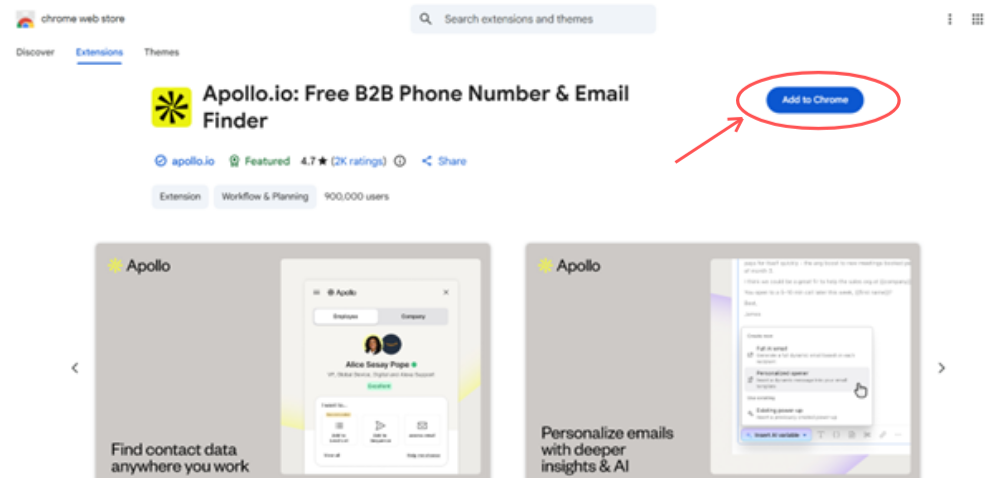
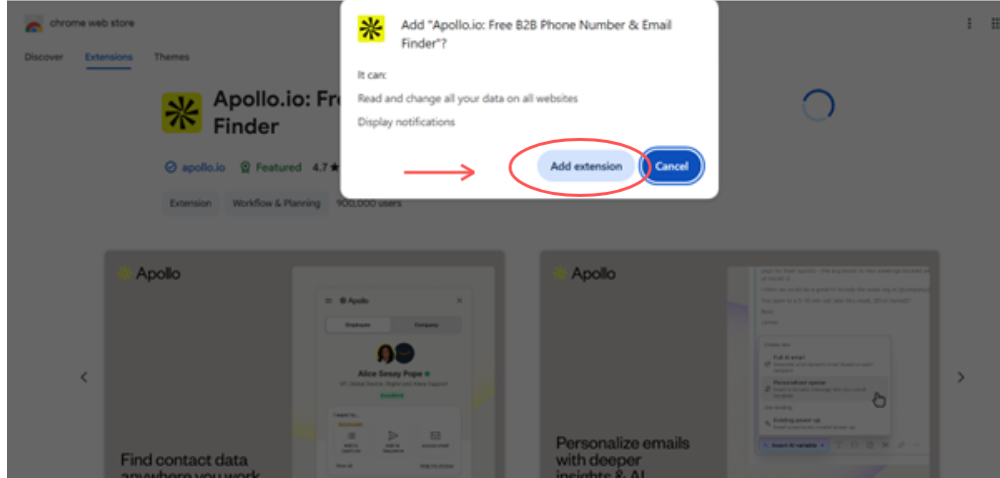
Step 2: Click “Add to Chrome”
- A popup will appear → click Add extension
- Chrome installs the extension automatically
Step 3: Log in to Your Apollo Account
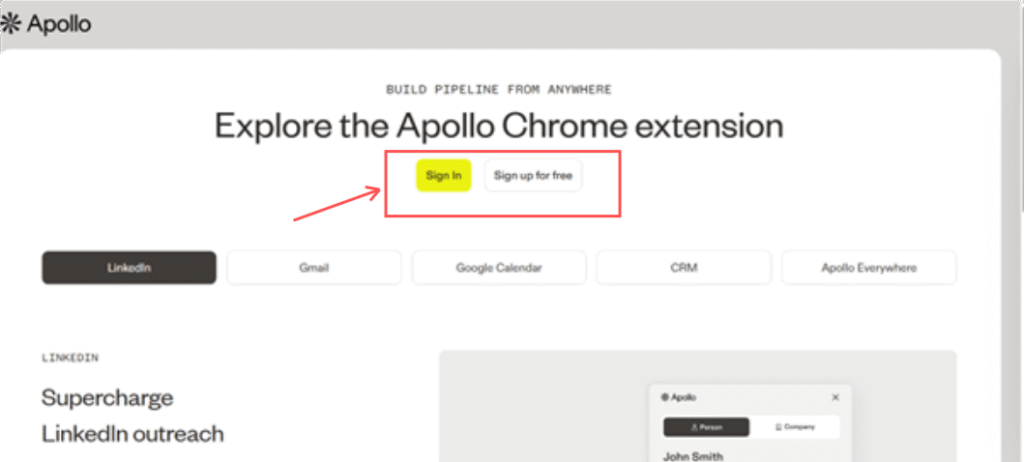
- After installation, click the Apollo icon in Chrome
- Log in using your credentials
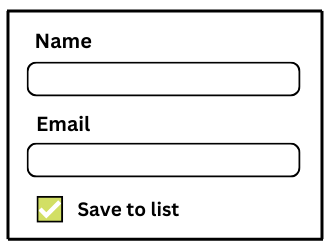
- If you don’t have an account → create free account
(Apollo will ask for email + password only)
SECTION 3: How to Use Apollo.io Chrome Extension on LinkedIn (Free Plan)
This is the MOST important section because it teaches beginners the actual workflow.
Step 1: Open a LinkedIn Profile
Go to any profile → the Apollo panel slides in on the right side.
What you’ll see in the panel:
- Name
- Job title
- Company
- Direct & work email (if available)
- Contact quality score
- Add to lists button
Step 2: Find Verified Email Address
Click “Show Email” → this uses your daily credits.
Apollo will show:
- Work email
- Direct email
- Confidence score
- Verification result
Step 3: Save the Prospect to Apollo
Click “Save Contact” → choose:
- Existing list
- New list
- Default lists (Cold Leads, New Prospects, etc.)
Important for beginners:
Lists make it easier for you to group leads for follow-ups.
Step 4: Add the Prospect to a Sequence (Paid Feature)
- Free plan users cannot enroll prospects into automated sequences.
- They can ONLY save prospects.
- If upgrading → they can use:
- Email sequences
- Call tasks
- LinkedIn tasks
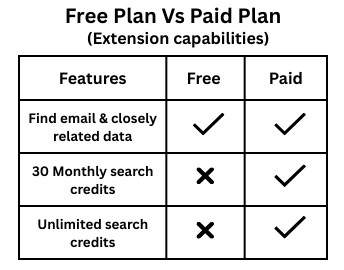
Note: This is a conceptual comparison. Refer to the latest official pricing page for exact features.
SECTION 4: How to Adjust Extension Settings (Beginner-Friendly)
When you click the Apollo extension icon → go to Settings.
Settings beginners should use:
1. Enable Auto-Open Panel on LinkedIn
Helps beginners—you don’t need to click anything.
2. Turn On “Automatically Save Viewed Prospects”
Useful for research workflows.
3. Pin the Extension to Chrome Toolbar
So it’s always visible.
SECTION 5: Best Practices for Beginners (2026 Updated)
✔️ Don’t waste credits on irrelevant leads
Focus on decision-makers.
✔️ Always cross-check emails before sending campaigns
Email deliverability matters.
✔️ Organize lists before collecting leads
Use separate lists for:
- Cold prospects
- Warm leads
- Clients
- Recruiters
- Partnerships
✔️ Use Chrome extension only while logged in to LinkedIn
It ensures the side panel loads properly.
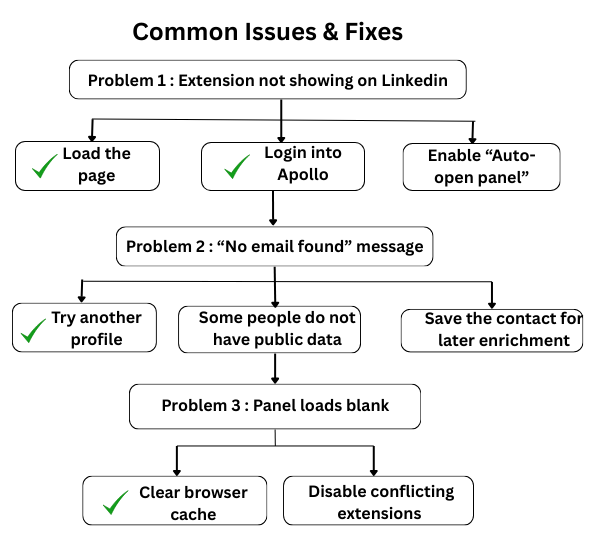
SECTION 6: Common Issues & Fixes
Problem 1: Extension not showing on LinkedIn
✔ Reload the page
✔ Log into Apollo
✔ Enable “Auto-open panel”
Problem 2: “No email found” message
✔ Try another profile
✔ Some people do not have public data
✔ Save the contact for later enrichment
Problem 3: Panel loads blank
✔ Clear browser cache
✔ Disable conflicting extensions (Hunter, Snov, etc.)
SECTION 7: Final Summary
The Apollo.io Chrome extension is one of the easiest email-finding tools for beginners. Even with the free plan, you can:
- Identify emails on LinkedIn
- Save leads
- Build prospect lists
- Start basic outreach flow
For deeper automation (email sequences, advanced filters), upgrade later—but the free plan is more than enough to start.
Quick FAQs
-
Is the Apollo.io Chrome extension free to use?
Yes. The Apollo.io Chrome extension is completely free and works with all free and paid Apollo accounts.
-
Do I need an Apollo.io account to use the extension?
Yes. You must log in to your Apollo account (even the free version is fine) for the extension to work.
-
Can I install the Apollo extension on any browser?
The extension currently works only on Google Chrome or Chromium-based browsers (Brave, Arc, Edge).
-
Will the extension work on LinkedIn without a paid plan?
Yes. You can view lead data and save prospects with a free Apollo plan. Advanced automation requires paid plans.
-
Does Apollo.io automatically send emails through the Chrome extension?
No. The Chrome extension helps you find & save leads. Email sending happens inside your Apollo dashboard.
Advanced FAQs
-
What can I actually do on LinkedIn using the Apollo.io extension?
You can view prospect data, find emails, save leads to lists, check company details, and push prospects to email sequences.
-
How do I save a LinkedIn profile to an Apollo list using the extension?
Open the prospect’s LinkedIn profile → Click “Add to Lists” on the Apollo extension panel → Choose your list → Save.
-
Does the extension show email accuracy or verification score?
Yes. Apollo displays verification indicators like Verified, Likely, or Risky, depending on data confidence.
-
Can I filter leads on LinkedIn using the Apollo extension?
Yes. When viewing LinkedIn search results, Apollo adds an overlay with filters such as:
Email available
Company size
Seniority
Department -
Does the extension work on company LinkedIn pages?
Yes. You can view company-level details (industry, funding, size, tech stack) and discover employees to prospect.
-
Can I push leads to sequences directly from the Chrome extension?
Yes — if your plan supports email sequences. Click “Add to Sequence” inside the extension panel.
-
How many emails can I find with the free Apollo extension?
Apollo offers a limited number of free email credits monthly. After that, you’ll need a paid plan.
-
Does Apollo.io Chrome extension track email opens?
Not directly in the extension, but Apollo’s email tracking works once the lead is inside your sequences.
-
Can I export leads collected through the extension?
Yes — but you can only export from your Apollo dashboard, not directly from the extension.
-
Does Apollo.io store the data I view on LinkedIn?
Apollo saves only the prospects you manually add to lists or sequences, not everything you view.
Troubleshooting & Technical FAQs
-
The Apollo extension is not showing on LinkedIn — how do I fix it?
Try these:
Refresh the page
Ensure you’re logged into Apollo
Disable conflicting extensions
Reinstall the extension
Clear browser cache -
Why is Apollo not detecting emails on LinkedIn profiles?
Reasons may include:
Prospect email unavailable
Domain privacy settings
Low-quality data
You ran out of email credits -
Why does the Apollo extension log me out frequently?
This happens if:
Cookies are blocked
Browser extensions clear sessions
You’re using incognito mode
Enable cookies and restart Chrome. -
Can the Apollo extension get my account restricted on LinkedIn?
The extension is safe, but any rapid profile viewing or automation can trigger LinkedIn warnings. Use naturally.
-
Does Apollo.io collect or misuse my LinkedIn login information?
No. Apollo does not access your LinkedIn credentials. It only reads public profile data when you allow it.